
 Fair Value Gap
 False Breakout Scanner
 Heiken Ashi Trend
 Stock Volatility Box
 Futures Volatility Box
 ORB Setups
 Squeeze Setups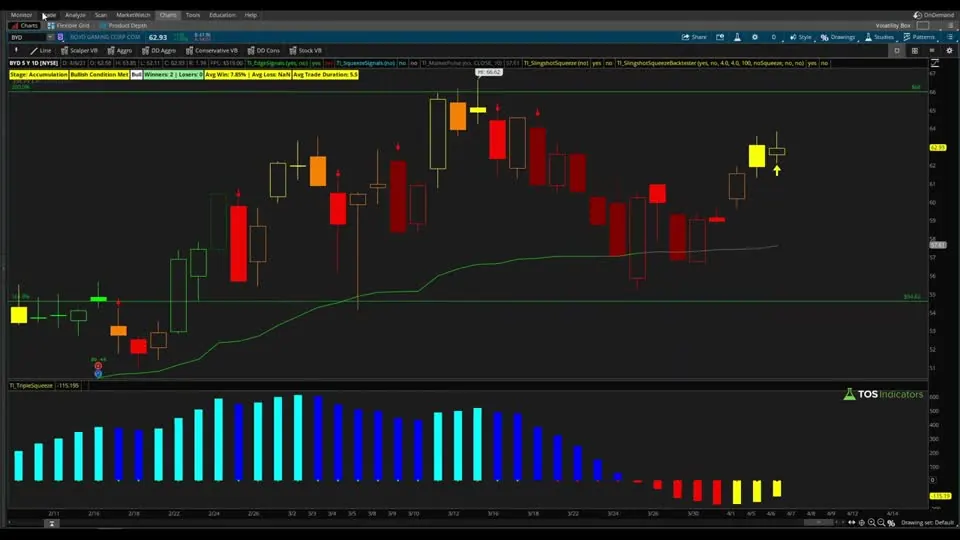
On this page
Overview
Options Calculator
For educational use. Not investment advice.
In this tutorial I build a cash-secured put calculator for the ThinkOrSwim option chain. It's a custom quote column that prints 2 numbers next to every put strike: the premium you collect as a percentage of the stock price, and the breakeven price you'd own the shares at if you're assigned.
This is Part 2 of our options calculator series, after the covered call calculator, and the code is a free download. It's for traders who sell puts to enter a stock at a price they like, or to add to a position they already hold, and who want every strike and expiration priced at a glance.
Key Takeaways
- The cash-secured put calculator is a free custom quote column for the ThinkOrSwim option chain. It prints 2 numbers on each put: the premium as a percentage of the stock price, and the breakeven price.
- The breakeven is the strike minus the put's last price. In the video, a 27 strike put that last traded at $1.02 showed 3.77% | $25.98.
- The premium return uses the same formula as our covered call calculator: the option's last close times 100, divided by the cost of 100 shares at the stock's close.
- In the video's BYD example, the 60 strike put in the 45-day series had a breakeven of $56.80, below the Market Pulse entry price of $57.61.
- Volatility Box members get the wheel calculator, which puts the covered call math on calls and this put math on puts in a single custom quote.
What Is a Cash-Secured Put?
A cash-secured put is a short put backed by enough cash to buy the shares if you're assigned: 100 shares at the strike for each contract. You collect the premium up front. If the stock stays above the strike, the put expires and you keep the premium. If it finishes below, you buy the shares at the strike, and the premium you collected lowers your cost to the breakeven price.
I use cash-secured puts as a way to enter a stock at a price I'd be happy to pay, or to add to a position I already have. The calculator answers the 2 questions I ask about every strike: what does the premium pay, and where would I own the shares?
What the Put Calculator Shows
The cash-secured put calculator shows 2 numbers per put strike, split by a bar. Both numbers are based on the put's last close. The table uses the 27 strike put from the video, which last traded at $1.02:
| Number | What it means | Formula | 27 strike put in the video |
|---|---|---|---|
| Left: premium return | The premium you collect for 1 contract, as a percentage of the cost of 100 shares at the stock's current price | (put price x 100) / (stock price x 100) | 3.77% |
| Right: breakeven price | Your cost per share if you're assigned, after the premium | Strike - put price | $27 - $1.02 = $25.98 |
With the column loaded, you can scan a whole expiration series for the strike whose breakeven matches the price you'd want to pay.
How the Math Compares to the Covered Call Calculator
The cash-secured put calculator reuses the premium math from our covered call calculator, so I won't repeat the full Excel walkthrough here. The left number is the same premium return the covered call column shows, applied to a put.
The right number changes. On a covered call, the second number is your return if the shares are called away. On a put, the outcome if exercised is buying shares, so the second number is the breakeven price you'd own them at.
The Web Calculator at the Top of This Page
The web calculator at the top of this page prices one put at a time. Enter the stock price, strike, premium and number of contracts, and it shows the premium received, the cash required (strike x 100 per contract), the premium yield and the effective entry if assigned, which is the same breakeven as the ThinkOrSwim column. Add the days to expiration for an annualized yield.
The web calculator divides the premium by the cash you'd set aside (strike x 100) instead of the stock price. For an out-of-the-money put, its premium yield reads higher than the ThinkOrSwim column, which divides by the stock's current price.
If you'd rather have the column match the web calculator, here is my suggested edit. It isn't in the video or the download: in the premiumPct line, swap close(getUnderlyingSymbol()) for getStrike().
This step’s code is free with an account. Create one or sign in.
How to Add the Put Calculator to ThinkOrSwim
The put calculator lives in a custom quote column on the option chain, the same place as the covered call calculator. Here are the steps from the video:
- Open the Trade tab and click Layout above the option chain, then choose Customize.
- Open the drop-down in the Customize window and choose Custom Quotes.
- Double-click an unused custom quote to add it, then click its scroll icon to open the thinkScript editor.
- Delete the code inside and paste in the code from the Code tab or the download.
- Set the time frame to D (daily), as I did in the video, and click OK.
ThinkOrSwim limits how many custom quotes you can use, and dashboard scripts share the same slots. If you run out, free one up or use the wheel calculator, which covers calls and puts in one slot. For help with adding custom code, see how to import a study into ThinkOrSwim.
The Code, Line by Line
The put calculator's code is 7 statements of thinkScript, and I wrote it from a blank custom quote in the video.
The Inputs
This step’s code is free with an account. Create one or sign in.
maxPctThreshold carries over from the covered call calculator, where the label turns green at 50%. In this download the label is always white, so the input does nothing. maxShares and maxContracts are optional; I list them so they're easy to change if you want dollar amounts later.
In this script the premium line multiplies by maxShares instead of 100. To see dollars for 2 contracts, set maxShares to 200 and leave maxContracts at 1: the percentage stays the same. Raising both would double the premium return.
The Premium and the Premium Return
This step’s code is free with an account. Create one or sign in.
close is the put's last price, because the custom quote runs on each strike's row. Times 100 shares, that's the premium for 1 contract. close(getUnderlyingSymbol()) reads the stock's close, so the bottom of the fraction is the cost of 100 shares at today's price.
The Breakeven Price
This step’s code is free with an account. Create one or sign in.
The breakeven is per share, so it subtracts close, the put's price per share, from the strike. premium would be the wrong number here, because it's already multiplied by 100 shares.
The Label
This step’s code is free with an account. Create one or sign in.
AddLabel prints the premium return with AsPercent, a divider, and the breakeven with AsPrice, so each put reads like 3.77% | 25.98.
Checking the Numbers by Hand
A hand check is the fastest way to trust a new custom quote, and the video does one on the 27 strike put. First, the column matched the wheel calculator on the same strike: 3.77% on both, and a breakeven of $25.98.
Then I commented out the label and printed the put's close instead, which showed $1.02. The breakeven by hand is 27 minus 1.02, or 25.98, the same number the column showed. Once it matched, I deleted the debugging line and turned the label back on.
The BYD Example From the Video
BYD (Boyd Gaming) is the stock I used to show the put calculator at work. It came from that day's Slingshot Squeeze scan results, and the Slingshot Squeeze stats on its chart showed the setup had mostly been successful.
The Market Pulse line gave an entry price of $57.61, a level where I'd be a happy buyer on a pullback. Without the calculator, you'd work out by hand which put gets you in below that price. With it, you read the breakeven column:
| Expiration series | Put strike | Breakeven | Versus the $57.61 Market Pulse entry |
|---|---|---|---|
| 10 days | 55 | $54.88 | Below |
| 45 days | 60 | $56.80 | Below |
In the 10-day series, staying below $57.61 meant going down to the 55 put, with a breakeven of $54.88. In the 45-day series, the 60 strike put had a breakeven of $56.80, still below the Market Pulse line. That's a put I'd be much more willing to sell. I read these numbers off the wheel calculator in the video, which runs the same put math.
In the video I put the premium on that 60 put at about $275 to $310 for 1 contract. The breakeven column uses the put's last trade, which works out to $3.20 here (60 minus 56.80), so check the live bid and ask before you sell.
How I Choose a Put to Sell
The put calculator is most useful next to a price on the chart where I'd want to own the stock. I pick that level first, from a tool like Market Pulse, then look across expiration series for a strike whose breakeven sits at or below it, and compare what each one pays.
The risk is owning the stock on the way down. If it falls through the strike, you're assigned 100 shares and hold them through the rest of the drop, with the premium cushioning the loss only down to the breakeven. Decide where you'd sell the shares if the drop continues, and size the trade so that loss is a small, fixed part of your account.
Calls and Puts in One Column
A custom quote prints on both sides of the option chain, so loading the covered call and put calculators together puts both formulas on calls and on puts. Half of those numbers aren't useful: the covered call math on a put, and the put math on a call.
The wheel option calculator is Part 3 of the series for Volatility Box members, and it combines both scripts into one. It shows covered call returns on the call side and this put math on the put side. Members also get the advanced covered call calculator, which adds a custom cost basis for shares you already own.
Common Problems
Most put calculator problems come from how custom quotes behave in ThinkOrSwim:
- The label never turns green. The download colors the label white on every strike. My suggested edit, which isn't in the video, is below: it turns the label green when the premium return reaches
maxPctThreshold. Set the input as a decimal, such as 0.03 for 3%, because the default 0.5 means 50%. - The call side shows numbers too. The custom quote prints on both sides of the chain. Ignore the call side, or use the wheel calculator.
- A strike looks off. The column uses each put's last close, not the current bid or ask, so check the quote before you sell.
- NaN or "loading" in the column. ThinkOrSwim needs a moment to fill in each row after you click OK.
Here is the suggested green-label edit. Replace the AddLabel line in the download with this one:
This step’s code is free with an account. Create one or sign in.
The label text stays the same. Only the color now depends on the premium return.
Full thinkScript code
Create a free account or sign in to copy all 18 lines and download the file.
Download
Download the Cash-Secured Put Calculator for ThinkOrSwim. The download is a .zip with one text file, Cash Secured Put Calculator - Custom Quote Code.txt, which holds the thinkScript from the video. It goes in a custom quote on the option chain: in the Trade tab, click Layout, then Customize, choose Custom Quotes, and paste the code into an unused custom quote. If you haven't added custom code before, here's how to import into your ThinkOrSwim platform.
Questions
What does the cash-secured put calculator show?
It shows 2 numbers next to every put in the ThinkOrSwim option chain. The left number is the premium for 1 contract as a percentage of the cost of 100 shares at the stock's current price. The right number is the breakeven price: the strike minus the put's last price, which is your cost per share if you're assigned.
How do I add a put calculator to the ThinkOrSwim option chain?
In the Trade tab, click Layout above the option chain, choose Customize, then pick Custom Quotes from the drop-down. Double-click an unused custom quote, click its scroll icon to open the editor, and replace the code with the put calculator code. Set the time frame to daily and click OK.
How is the breakeven price on a cash-secured put calculated?
The breakeven is the strike minus the premium per share. In the video, the 27 strike put last traded at $1.02, so the breakeven was 27 minus 1.02, or $25.98. If you're assigned, that's your cost per share once you count the premium you collected.
How does the put calculator calculate the return?
It multiplies the put's last price by 100 to get the premium for 1 contract, then divides by the cost of 100 shares at the stock's closing price. That's the same premium return our covered call calculator uses. In the video, the 27 strike put at $1.02 showed 3.77%.
Why doesn't the ThinkOrSwim column match the calculator at the top of this page?
The two divide by different numbers. The ThinkOrSwim column divides the premium by the stock's current price times 100, while the web calculator divides by the cash set aside, the strike times 100. For an out-of-the-money put, the web calculator's yield reads higher. The breakeven price is the same in both.
Why does the put calculator show numbers on the call side?
A custom quote prints on both sides of the option chain, so the put formula runs on the calls too. Those numbers aren't useful. If you load the covered call calculator as well, each side shows both formulas. The wheel calculator for members fixes this by running the call math on calls and the put math on puts.
Why doesn't the put calculator turn green?
The download colors every label white. The maxPctThreshold input is carried over from the covered call calculator but isn't used in the label. My suggested edit, not from the video, replaces color.white in the AddLabel line with a condition that turns green when premiumPct reaches maxPctThreshold. Set the input as a decimal, such as 0.03 for 3%.
How do I pick which put to sell with the calculator?
Start with a price on the chart where you'd want to own the stock, then look for a strike whose breakeven sits at or below it. In the video, BYD's Market Pulse entry was $57.61, and the 60 strike put in the 45-day series had a breakeven of $56.80.
Related tools
 Covered Call Calculator
 Option Chain Relative Value
 Keltner Channel Wedges
 Reversion to 50-Day Moving Average
 Seasonal Analysis
 Wilder's Momentum Concept
Get each new indicator by email
One email on Sundays with the week's new tool and its code. A free account also unlocks every .txt download.
No credit card. Unsubscribe anytime.