
 Fair Value Gap
 False Breakout Scanner
 Heiken Ashi Trend
 Stock Volatility Box
 Futures Volatility Box
 ORB Setups
 Squeeze Setups
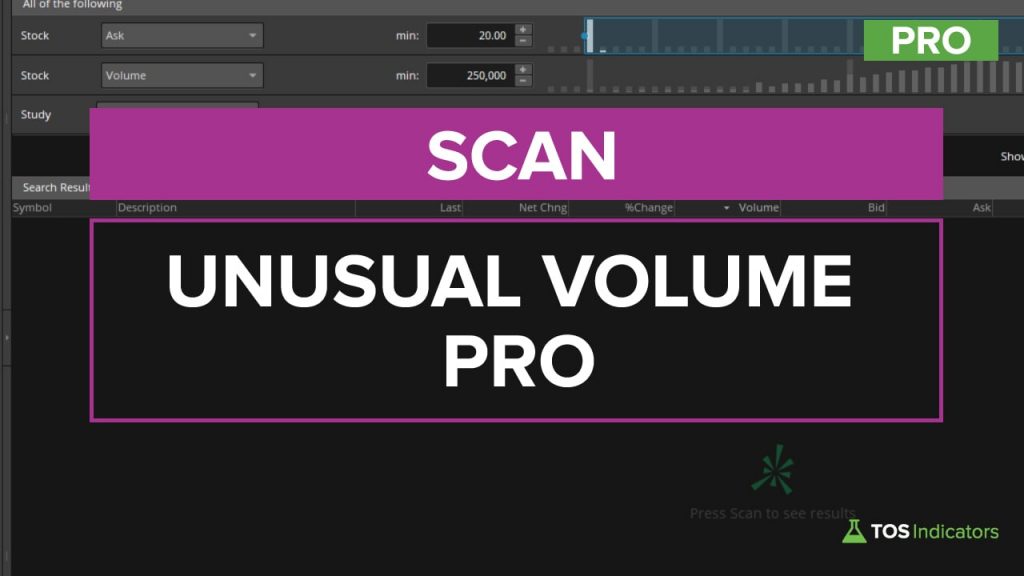
Unusual Volume Pro Scans for ThinkorSwim: Squeeze, VWAP and Hidden Gems
4 members-only unusual volume scans for ThinkorSwim: squeeze setups, pullbacks within 0.5% of VWAP, hidden gems and Edge Signal pullbacks.
On this page
What it does
The Unusual Volume Pro Scans are 4 unusual volume scans for ThinkorSwim that I build for Volatility Box members in Part 2 of this tutorial. They reuse the unusual volume code from Part 1 and combine it with members-only indicators and new code: the Triple Squeeze scan, an anchored VWAP pullback, a hidden gem pattern and Edge Signals.
The point is a narrow list. In the video, adding unusual volume to a squeeze scan cut 10 results to 3, and tightening the conditions took an intraday VWAP scan from 136 stocks to 1. Part 2 is free for Volatility Box members on the stock or futures membership, and the download has all 8 scans as shared links.
Included with Volatility Box and the Bundle
The full walkthrough, the thinkScript code, the download and the build video for Unusual Volume Pro Scans for ThinkorSwim: Squeeze, VWAP and Hidden Gems are for Volatility Box and Bundle members, along with every other members-only tool and the Squeeze Course.
Questions
What are the Unusual Volume Pro Scans?
They are 4 members-only ThinkorSwim scans from Part 2 of the unusual volume tutorial. They combine the Part 1 unusual volume code with the Triple Squeeze scan, a pullback to an anchored VWAP or the 200 SMA, a hidden gem pattern, and Edge Signals on trend pullbacks. The download has shared links for all 8 scans.
Who can use the Unusual Volume Pro Scans?
Volatility Box members. Part 2 of the unusual volume tutorial, where I build the pro scans, is free for all Volatility Box members and is included with both the stock and the futures memberships. Part 1, with the 4 free scans and their code, is open to everyone on the free unusual volume scanner page.
What is a hidden gem unusual volume scan?
A hidden gem scan finds stocks with 3 bars in a row of rising volume above 2 standard deviations within the last 30 bars, then 20 bars in a row below 2, with price between the 8 EMA and the 50 SMA. Volume came in, but price stayed quiet. In the video it returned 2 stocks.
How do I scan for unusual volume near VWAP in ThinkorSwim?
Paste the Anchored VWAP indicator code into a custom scan filter, change its inputs and plot to def, and anchor it to today at 930. Then require AbsValue(close - anchoredVWAP) / close at or below 0.005, a 0.5% zone, and 4+ standard deviation volume on 2 of the last 5 bars. On a 3-minute chart, that left 3 stocks.
How do I combine unusual volume with a squeeze scan?
Load the Triple Squeeze scan, set its Edge Signal lookback to 1 bar, choose daily bars, and add a custom filter with the Part 1 volume code. In the video, 3 and 2 standard deviations returned nothing, and 1 cut 10 squeeze results to 3. For alerts, I would leave it at 2 or 3.
Why does my combined unusual volume scan return no results?
Stacked conditions are rare, so 0 results is common. Several versions in the video returned nothing. Widen one condition at a time: lower the standard deviation threshold, ask for 1 bar out of 5 instead of 3, or let the hidden gem quiet stretch be 20 of the last 25 bars. Then leave alerts on for the stricter version.
How do I fix the Exactly one plot expected error in a scan?
A scan filter can have only one plot. When you paste indicator code such as Anchored VWAP into a scan, change its plot line to def, delete any formatting lines tied to that plot, and keep a single plot signal line at the bottom that combines your conditions with and.
What is in the Unusual Volume Pro Scans download?
A .txt file with 10 ThinkorSwim shared links. Scans 1 to 4 are the free scans from Part 1. Scans 5, 6 and 8 have one link each, and scan 7, the hidden gem scan, has 3: volume only, with Squeeze Signals, and with the Simple Breakout Tool. Open each link in ThinkorSwim through Setup and Open shared item.
Related
 How to Build an Anchored VWAP Indicator in ThinkOrSwimIndicators · Beginner
 Market Pulse Indicator for ThinkOrSwim: Find the 4 Market StagesIndicators · Beginner-Friendly
 Best Volume Indicators for ThinkOrSwim: Relative Volume, VWAP, and OBVResearch
 Simple Breakout Tool Indicator for ThinkOrSwimIndicators · Beginner
 How to Build an Unusual Volume Scanner in ThinkOrSwimScans · Beginner
 Fair Value Gap Part 2: Retest Scan + FVG ColumnScans · Intermediate