
 Fair Value Gap
 False Breakout Scanner
 Heiken Ashi Trend
 Stock Volatility Box
 Futures Volatility Box
 ORB Setups
 Squeeze Setups
On this page
Overview
In this tutorial I build a seasonal analysis indicator for ThinkOrSwim from scratch. It adds 12 labels to a daily chart, one per month, and each label shows how often that month closed above its opening price and the average move from the month's first open to its last close.
Seasonality websites usually track a handful of markets and don't show how they calculate. With this indicator you pick the symbol, whether that's a stock, an ETF or a futures contract, and you set the lookback with the chart's time range. It's for traders who want to know a market's seasonal tendency before they look for a trade.
Key Takeaways
- The Seasonal Analysis indicator is a free ThinkOrSwim study that prints 12 labels, January to December. Each label shows the share of that month's instances that closed above the month's open, and the average open-to-close move.
- A label turns green when more than 50% of the months closed up and the average move is above 0. Every other label is yellow.
- The lookback is the chart's time range: in the video, a 5-year daily chart gives 5-year figures and a 20-year chart gives 20-year figures.
- In the video, Procter & Gamble's July read 100% | 6.05% on a 5-year chart, against 100% | 3.15% for XLP. These are historical readings for the 5 years before the recording.
- The study runs only on daily and higher charts. An Assert line shows an error message instead of the labels on intraday charts.
What Seasonal Analysis Measures
Seasonal analysis is the study of how a market has behaved during the same part of the calendar in past years. Our Seasonal Analysis indicator works month by month: for every January on the chart, it measures the move from January's first open to January's last close, and it does the same for the other 11 months.
Third-party seasonality websites give similar numbers. The one I show at the start of the video covers the past 20 years, with each month's percentage return and how often it happened. For the S&P 500, it shows September and October as usually slightly bearish.
The shortcoming is that you're limited to the markets the site tracks, and you can't see how it calculates. Building the indicator yourself fixes both: you choose the market and the lookback, and you can read the code.
How to Read the Seasonal Analysis Labels
Each Seasonal Analysis label shows a month code and 2 numbers, for example Jan: 60% | 2.83%. The table breaks down each part.
| Part of the label | What it means | Where it comes from in the code |
|---|---|---|
| Jan: | The month | Text in the AddLabel line |
| 60% | Share of Januaries on the chart that closed above their opening price | janUp / janTotalCount |
| 2.83% | Average open-to-close move across all of those Januaries, up and down | janAvgDiff |
| Green label | More than 50% up months and an average move above 0 | The color condition in AddLabel |
| Yellow label | Anything else | The else branch |
The color rule needs both numbers. In the video, Procter & Gamble's January closed up 60% of the time over 5 years, but its average move was negative, so the label stayed yellow: no edge that month. A month at exactly 50% is yellow too, because the test is greater than 0.5.
The labels count every bar loaded on the chart, so the chart's time range is your lookback. In the video, a daily chart set to 5 years shows the past 5 years, and switching it to 20 years turns every label into a 20-year figure.
Examples From the Video
The seasonal analysis examples in the video are historical readings for the symbol and lookback shown. I recorded the video on the first day of August and didn't say the year. Both code files and the download date from 2021, so the 5-year figures most likely cover roughly August 2016 to July 2021, and the 20-year figures roughly August 2001 to July 2021.
| Symbol | Lookback | Month | Closed up | Average move | Label |
|---|---|---|---|---|---|
| S&P 500 (SPY) | 5 years | January | 60% | +2.83% | Green |
| S&P 500 (SPY) | 5 years | February | 60% | Below 0 | Yellow |
| S&P 500 | 5 years | September, October | Not read out | Not read out | Yellow |
| S&P 500 | 20 years | October | 65% | A little under 1% | Green |
| Procter & Gamble (PG) | 5 years | January | 60% | Negative | Yellow |
| Procter & Gamble (PG) | 5 years | February | 40% | -3.07% | Yellow |
| Procter & Gamble (PG) | 5 years | March | Not read out | +2.32% | Green |
| Procter & Gamble (PG) | 5 years | July | 100% | +6.05% | Green |
| Procter & Gamble (PG) | 5 years | August | 100% | +2.83% | Green |
| XLP | 5 years | July | 100% | +3.15% | Green |
I don't call out the label colors for Procter & Gamble's February or XLP's July in the video. Those two come from the code's color rule: 40% is below the 50% line, so February is yellow, and 100% with a positive average makes July green.
S&P 500
On the S&P 500 over 5 years, September and October were yellow, in line with the third-party site, while January was green at 60% up and +2.83%. Switching the chart to 20 years turned October green, at 65% up, though its average gain was a little under 1%, which I called nothing too noteworthy.
Procter & Gamble and XLP
Procter & Gamble shows why a single-stock reading is useful, since the third-party site would only give you the consumer staples sector. Over 5 years, January and February were yellow, March turned green at +2.32%, April and May averaged negative moves, and June through September were all green.
To find the strongest summer month, I first looked for months that closed higher 100% of the time, which left July and August. The average move separated them: July averaged +6.05% and August +2.83%. The consumer staples ETF XLP also closed higher in July 100% of the time, with a smaller average of +3.15%, so PG outperformed XLP in July over those 5 years.
I also switched the chart to S&P 500 futures to show that futures symbols work too, without reading out figures.
Sample size is the main caveat. A 5-year chart has about 5 Julys on it, so 100% means every one of those Julys closed higher, and one down July would cut the share by about 20 points. A green label tells you what past months did, and the next one can still go the other way.
How to Add the Seasonal Analysis Indicator to ThinkOrSwim
The Seasonal Analysis indicator is a free download, and you need a free account on our site to get it. To add it to ThinkOrSwim:
- Download the .zip and unzip it.
- In ThinkOrSwim, click the Studies icon on the chart toolbar and select the Studies tab.
- Click Import in the lower left corner, choose
TI_SeasonalAnalysisSTUDY.tsand click Open. - Add the study to a daily chart of the symbol you want to study.
- Set the chart's time range to the lookback you want, such as 5 years or 20 years. The 12 labels show along the top of the chart.
To build it yourself, click the Studies icon, then Create, name the study (I used TI_SeasonalAnalysis) and follow the steps below. Our guide on how to import a study into ThinkOrSwim covers the import in a video.
How the Seasonal Analysis Code Works
The Seasonal Analysis code is written once for January and then copied for the other 11 months. I planned it that way in the video: every January variable starts with jan, so a find-and-replace turns the block into February, March and so on.
Step 1: Define the Month
This step’s code is free with an account. Create one or sign in.
getMonth() is a ThinkOrSwim function that returns the month number of each bar, and 1 is January, so jan is true on every January bar. To check it, I add a test chart bubble that prints on every January day:
This step’s code is free with an account. Create one or sign in.
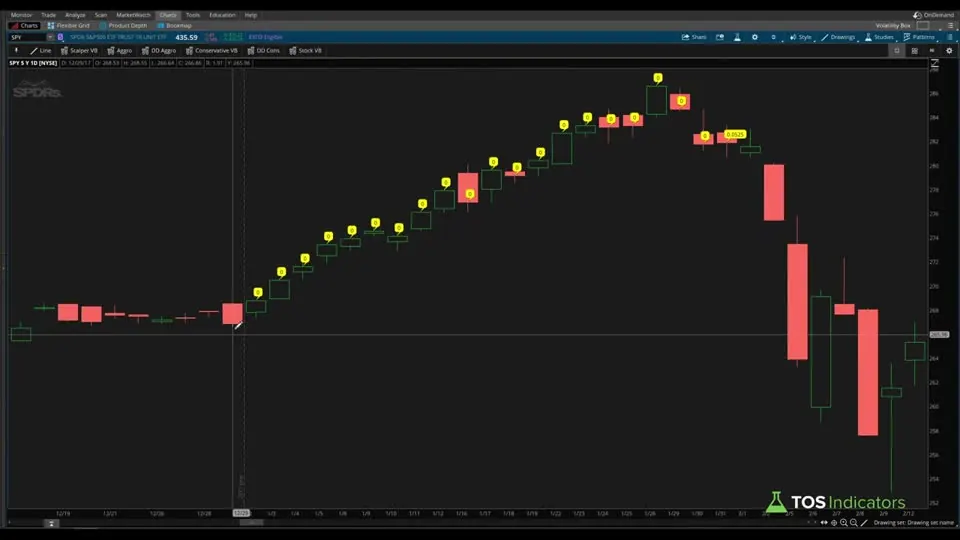
The bubbles print a 1 on every day of January and stop on January 29, with February 1 as the next candle. That bubble line is a test from the video and isn't in the download.
Step 2: Record the Month's Open and Close
This step’s code is free with an account. Create one or sign in.
janOpen takes the open on the first January bar, where today is January and yesterday wasn't, and carries that value forward. janClose takes the close on the last January bar, where today is January and the next bar isn't. The [-1] looks one bar ahead.
In the video, test bubbles show the carried open matching the first candle of each January on the SPY chart: 375.31 for one January and 323.54 for another. One January's close came in at 321.73, on its final day.
Step 3: Calculate the Monthly Move
This step’s code is free with an account. Create one or sign in.
On the last bar of January, janDiff is the close minus the open, divided by the open: the month's move as a decimal. Every other bar gets 0. In the video, one January tested at 0.0525, a 5.25% move. AsPercent turns the decimal into a percentage when the label prints it.
The janOpen > 0 check is only in the current download. The video version divides without it.
Step 4: Count Up, Down and Total Months
TotalSum adds a value across every bar on the chart, and only the last bar of each January can add a 1.
This step’s code is free with an account. Create one or sign in.
janUp counts the Januaries that closed above their open, janDown counts those that closed at or below it, and janTotalCount counts all of them.
Step 5: Average the Monthly Moves
This step’s code is free with an account. Create one or sign in.
janDiff is 0 on every bar except each January's last, so TotalSum(janDiff) adds up the January moves. Dividing by the number of Januaries gives the average move.
Step 6: Build the Label
The label prints the month, the up-month share and the average move, with a | divider between them.
This step’s code is free with an account. Create one or sign in.
The label turns green only when the up share is greater than 0.5 and the average move is above 0. Our AddLabel tutorial covers the function in more detail.
Step 7: Block Intraday Charts
Assert stops the study and shows a message when its condition is false. The condition here is a daily or higher aggregation.
This step’s code is free with an account. Create one or sign in.
In the video, the labels disappear on a 1-minute chart, and clicking the icon in the top left of the chart shows the message. I added it because the indicator needs months of data, and you'll often stretch the chart past 5 years.
Copying January to the Other 11 Months
Copying the January block is the fastest way to finish the Seasonal Analysis indicator, because every January variable shares the jan prefix. In the video I do it in the Sublime Text editor:
- Copy the January block into a text editor.
- Press Ctrl+H and replace
janwithfebusing Replace All. - Change
getMonth() == 1togetMonth() == 2. - Fix the month code in the label text so it reads
Feb:. - Paste the block under January in the study and click Apply.
Repeat the steps for March (3) through December (12). It's busy work, and planning the variable names up front keeps it to a few edits per month.
Video Build vs. Download
The Seasonal Analysis download holds 2 versions of the code. TI_SeasonalAnalysisSTUDY.ts is the current file and the one on the Code tab. The Archive folder holds TI_SeasonalAnalysis_v1.0STUDY.ts, which matches the build in the video.
| Item | Video build (v1.0) | Current download |
|---|---|---|
| Monthly move | (janClose-janOpen)/janOpen on the month's last bar | Same, only when janOpen is above 0 |
| Up, down and total counts | Same | Same |
| Labels and color rule | Same | Same |
| Assert for daily charts | First line of the file (I write it last in the video) | First line of the file |
| Test chart bubbles | Used while building, not in the file | Not included |
The extra check avoids a division by 0 when a month has no recorded open. In that case the month adds 0 to the average and still counts in the total, as a down month.
What the Seasonal Numbers Leave Out
The Seasonal Analysis indicator measures one thing per month, and a few details follow from the code:
- Open to close only. The move runs from the month's first open to its last close, so a gap between the previous month's close and the new month's open isn't counted.
- Flat months count as down.
janDownuses less than or equal to 0, so a month that closes exactly at its open is a down month. - Every month weighs the same. The average is a plain mean, so one large month can pull it up or down.
How I Use Seasonal Analysis
Seasonal analysis gives me a bias to check against a trade signal. In the video, recorded on the first day of August, I suggest pulling up August on your favorite markets to see what the month has looked like on average, then layering your bullish or bearish signals on top, short side included.
What I'm looking for is a signal that gives a bias one way or the other, with a seasonal tendency that supports it. For Volatility Box members, Edge Signals or any of the indicators in our Squeeze Course make good starting points. Without a membership, you can use the upper V-Score indicator with its signals, or our Simple Breakout Tool.
A green July label describes past Julys. Decide where your stop goes before you enter, and size the position so a stop-out costs a small, fixed share of your account.
More Seasonal Tools
Our other calendar-based tools include the Santa Claus Rally backtester, the Super Bowl indicator and the election backtester. For further reading, our research articles on stock market seasonality patterns and July's seasonal analysis in the S&P 500 are good next stops.
Seasonal analysis on real data
Drawn from real daily bars with the code on this page, through Oct 20, 2026. Each label is one calendar month: the share of those months that closed above their first open, and the average move from the first open to the last close. A label is green when more than half closed up and the average is above 0. The lookback is the chart's time range; I used SPY and 13 other ETFs from January 2016 to September 2026, the full months in our data. October 2026 was still running on October 20, so it is left out.
SPY's twelve labels
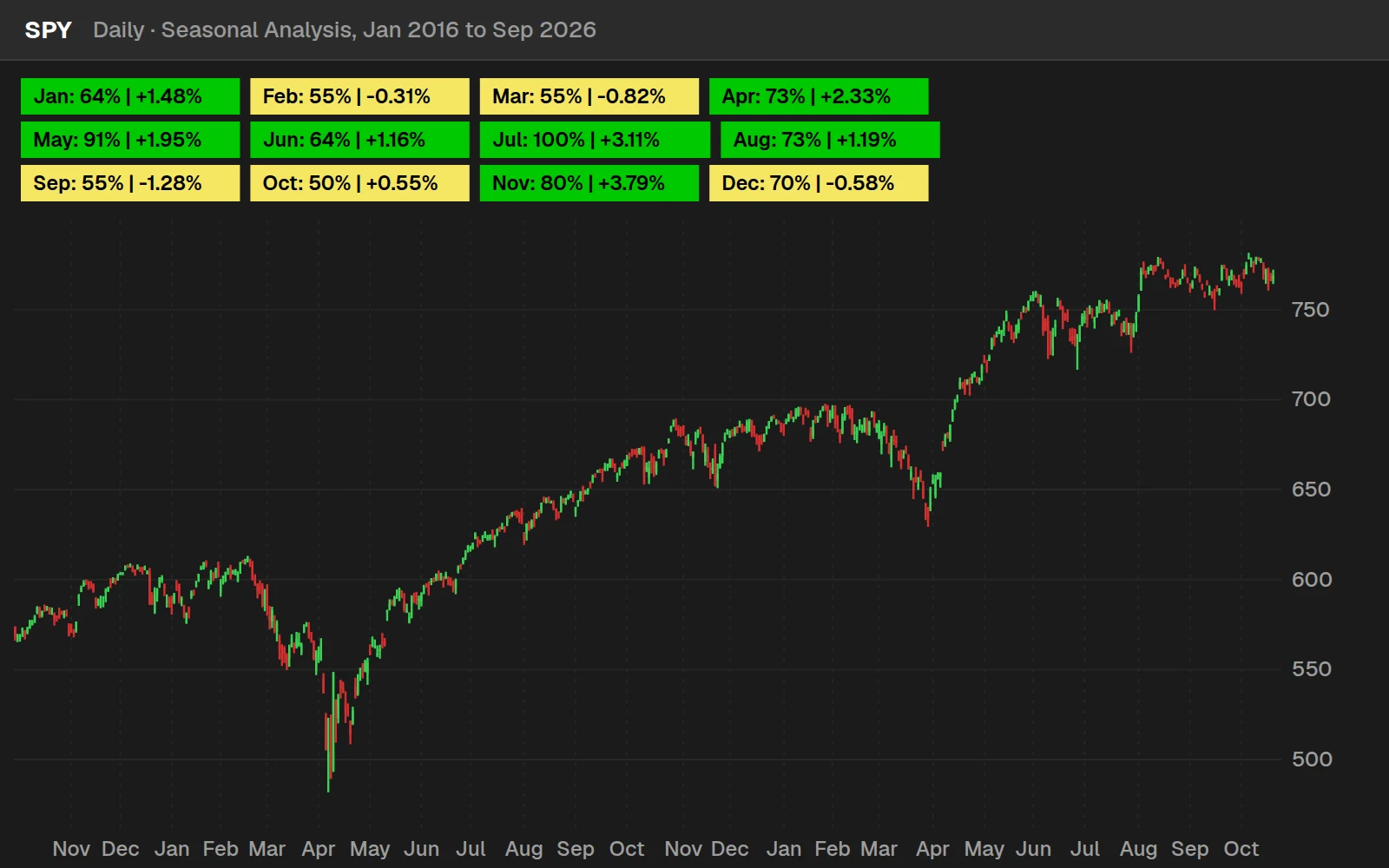
| Month | Years | Closed up | Average move | Label |
|---|---|---|---|---|
| Jan | 11 | 64% | +1.48% | Green |
| Feb | 11 | 55% | -0.31% | Yellow |
| Mar | 11 | 55% | -0.82% | Yellow |
| Apr | 11 | 73% | +2.33% | Green |
| May | 11 | 91% | +1.95% | Green |
| Jun | 11 | 64% | +1.16% | Green |
| Jul | 11 | 100% | +3.11% | Green |
| Aug | 11 | 73% | +1.19% | Green |
| Sep | 11 | 55% | -1.28% | Yellow |
| Oct | 10 | 50% | +0.55% | Yellow |
| Nov | 10 | 80% | +3.79% | Green |
| Dec | 10 | 70% | -0.58% | Yellow |
October 2026 so far: SPY opened the month at $764.36 and closed Oct 20, 2026 at $769.05, +0.6%.
Did the labels hold up?
A seasonal label describes the past. To see how much it says about the next year, I built every label from 2016 to 2021 only, then checked the months from January 2022 to September 2026 on all 14 ETFs.
SPY, QQQ, IWM, DIA and 10 sector ETFs, 798 months from January 2022 to September 2026. Across the full ten years, the strongest single label was XLRE in Jul (100% up, +3.14% average) and the weakest XLRE in Sep (27% up, -3.83%). Ten or eleven years per month is a small sample; use the labels as context for a setup, not as the setup.
Full thinkScript code
Create a free account or sign in to copy all 164 lines and download the file.
Download
Download the Seasonal Analysis indicator for ThinkOrSwim. The download is a .zip with TI_SeasonalAnalysisSTUDY.ts, the current version and the same code as the Code tab, and an Archive folder with TI_SeasonalAnalysis_v1.0STUDY.ts, the version built in the video. Import the current .ts file as a study and use it on a daily chart. If you haven't added a custom study before, here's how to import an indicator into your ThinkOrSwim platform.
Questions
What is seasonal analysis in trading?
Seasonal analysis looks at how a market has behaved during the same part of the calendar in past years, such as every July. Our indicator measures each month's move from its first open to its last close, then shows how often that move was positive and its average size across the years loaded on your chart.
How do I add the Seasonal Analysis indicator to ThinkOrSwim?
Download the free .zip and unzip it. In ThinkOrSwim, click the Studies icon, select the Studies tab, click Import, choose TI_SeasonalAnalysisSTUDY.ts and click Open. Add the study to a daily chart and set the chart's time range to the lookback you want, such as 5 or 20 years.
What do the two numbers on each label mean?
The first number is the share of that month's instances on the chart that closed above the month's opening price. The second is the average move from the month's first open to its last close. In the video, the S&P 500 read 60% and 2.83% for January on a 5-year chart.
Why is a seasonal analysis label green or yellow?
A label is green when more than 50% of that month's instances closed up and the average move is above 0. Anything else is yellow, including a month at exactly 50%. In the video, Procter & Gamble's January closed up 60% of the time over 5 years, but its average move was negative, so it stayed yellow.
How do I change how many years the indicator covers?
Change the chart's time range. The labels count every bar loaded on the chart, so a 5-year daily chart gives 5-year figures and a 20-year chart gives 20-year figures. In the video, switching the S&P 500 from 5 to 20 years turned October green, at 65% up with an average gain a little under 1%.
Why doesn't the seasonal analysis indicator show on my intraday chart?
The code starts with an Assert line that only lets the study run on daily or higher charts. On an intraday chart, such as 1 minute, the labels disappear. Click the icon in the top left of the chart to see the message: the indicator only works on daily time frame and higher charts.
Does the seasonal analysis indicator work on stocks, ETFs and futures?
Yes. It works on any symbol with enough daily history. In the video I run it on the S&P 500, Procter & Gamble, the consumer staples ETF XLP and S&P 500 futures. Procter & Gamble closed July higher 100% of the time over 5 years, with an average move of 6.05%, against 3.15% for XLP.
How should I use seasonal analysis in my trading?
Use it as a bias. A green month tells you what past months did, and the next one can go either way. In the video I suggest layering a bullish or bearish signal on top, such as Edge Signals, a squeeze indicator, the V-Score or the Simple Breakout Tool. Decide your stop before you enter.
Related tools
 SPY Meltdown Backtester
 Santa Claus Rally Backtester
 Super Bowl Indicator
 Post-Election Backtester
 Keltner Channel Wedges
 Cash-Secured Put Calculator
Get each new indicator by email
One email on Sundays with the week's new tool and its code. A free account also unlocks every .txt download.
No credit card. Unsubscribe anytime.