
 Fair Value Gap
 False Breakout Scanner
 Heiken Ashi Trend
 Stock Volatility Box
 Futures Volatility Box
 ORB Setups
 Squeeze Setups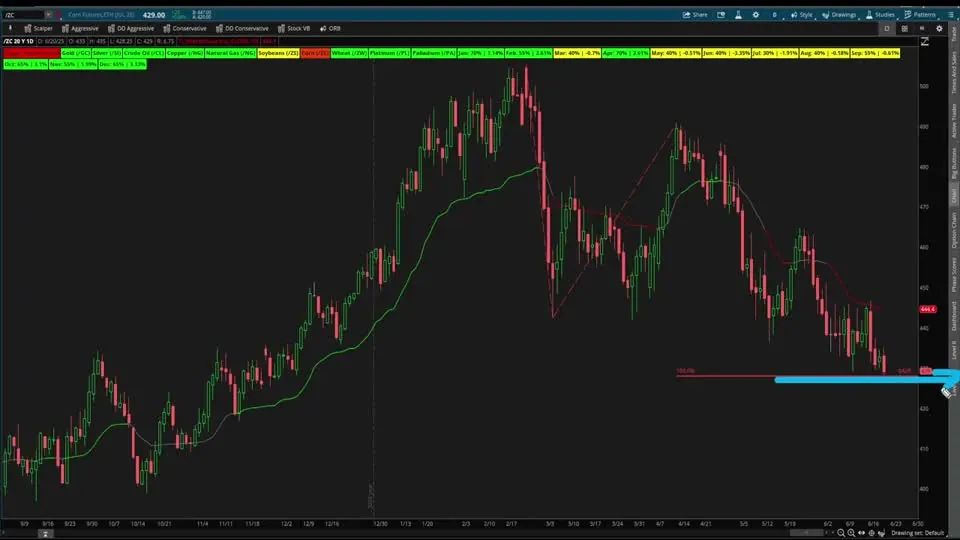
On this page
Overview
In this tutorial I build a commodities tracker for ThinkOrSwim: one study that shows 10 commodity futures as a row of labels, each colored by its Market Pulse stage. Gold, silver, crude oil, copper, natural gas, soybeans, corn, wheat, platinum and palladium fit in one view on any chart.
I build it from our sector Utility Labels code with a find-and-replace trick, then use it to look for opportunities while stocks were going sideways and money was flowing into commodities. It's for traders who want to see the whole commodity group at a glance and spot the markets that don't match the rest.
Key Takeaways
- The Commodities Tracker shows 10 labels: Gold (/GC), Silver (/SI), Crude Oil (/CL), Copper (/HG), Natural Gas (/NG), Soybeans (/ZS), Corn (/ZC), Wheat (/ZW), Platinum (/PL) and Palladium (/PA).
- Each label runs the Market Pulse code on its futures contract and is colored by stage: green for acceleration, light red for deceleration, yellow for accumulation and orange for distribution.
- The tracker is built from the sector Utility Labels code by swapping each ETF symbol for a futures symbol with find-and-replace (Ctrl+H in Notepad).
- In the video, 8 of the 10 commodities were in acceleration. Soybeans were in accumulation and corn was in deceleration.
- The study has one input,
length, set to 10: the length of the variable moving average (VMA) in each Market Pulse calculation.
What the Commodities Tracker Does
The Commodities Tracker is a ThinkOrSwim study that tracks the market stage of 10 commodity futures at once. It draws no lines. It adds a row of labels to the top of whatever chart you load it on, one label per commodity, so you can read the whole asset class at a glance.
I built it because commodities were drawing in big money while stocks went sideways. Gold, silver and crude oil had big rallies, some to new all-time highs, and I wanted to find the markets that still had room to join. Corn was one of them, and I only found it through this tracker.
The Market Pulse Behind Each Label
The Market Pulse is our substitute for moving averages, and it drives every label in the tracker. On a chart it draws one line in one of 3 colors: green for acceleration, red for deceleration and gray for accumulation or distribution. One line means no guesswork and no reading of 4 or 5 moving averages.
The tracker applies the same non-discretionary stage rules to 10 markets at once. Each label's color comes from 2 checks: how the 8, 21 and 34-bar volume-weighted moving averages (VWMAs) are stacked, and where the close sits against the VMA. The table shows how they combine.
| Market stage | VWMA stack | Close vs VMA | Label color |
|---|---|---|---|
| Acceleration | Bullish: 8 above 21 above 34 | At or above | Green |
| Deceleration | Bearish: 8 below 21 below 34 | At or below | Light red |
| Accumulation | Mixed, or bearish | Above | Yellow |
| Distribution | Mixed, or bullish | Below | Orange |
Our Market Pulse indicator tutorial explains the 4 stages and the code in full.
The 10 Commodities in the Tracker
The Commodities Tracker follows 10 futures contracts, the major commodities I think are worth tracking. Each label shows the market's name and its symbol.
| Label | Futures market |
|---|---|
| Gold (/GC) | Gold futures |
| Silver (/SI) | Silver futures |
| Crude Oil (/CL) | Crude oil futures |
| Copper (/HG) | Copper futures |
| Natural Gas (/NG) | Natural gas futures |
| Soybeans (/ZS) | Soybean futures |
| Corn (/ZC) | Corn futures |
| Wheat (/ZW) | Wheat futures |
| Platinum (/PL) | Platinum futures |
| Palladium (/PA) | Palladium futures |
The code reads each futures contract directly, so the labels show the same 10 markets whatever symbol is on your chart. If you'd rather track an ETF, plug its symbol in instead, for example GLD in place of /GC for gold.
How to Build the Tracker From the Utility Labels Code
The Commodities Tracker starts from our sector Utility Labels code, which already tracks a group of symbols in labels. We have Utility Labels for the broad sectors and for market internals, and this build makes a set for commodities. The sector code, TI_UtilityLabels_SectorsSTUDY.ts, comes in the download on our Market Pulse tutorial, and our sector performance tutorial covers the Utility Labels themselves.
- Create a new study and paste in the sector Utility Labels code. It still shows the sector ETFs, starting with XLK.
- In the first block, rename the XLK price and volume variables to GC and change the symbol to the gold futures contract. ThinkOrSwim then flags every line that still says XLK.
- Copy the rest of the XLK block into a plain text editor, such as Notepad on a PC or TextEdit on a Mac.
- Press Ctrl+H, find XLK, replace all with GC, and paste the block back over the old one.
- Change the label text from Technology to Gold and click Apply.
- Repeat for each block: XLV (healthcare) becomes SI for silver, XLF (financials) becomes CL for crude oil, and so on through the 10 commodities.
Find-and-replace saves you from fixing every variable by hand, which gets tedious across 10 blocks. I did gold, silver and crude oil on camera and finished the other 7 with the video paused.
The finished study is in the download and the Code tab. Our guide on how to import a study into ThinkOrSwim covers the import.
How Each Commodity Block Works
Each commodity block is the full Market Pulse calculation for one futures contract. The gold block is below, and the other 9 differ only in the 2-letter prefix and the symbol.
Price and Volume
The Market Pulse needs 2 inputs per market, the close and the volume, so each block starts by pulling both from its futures contract. The symbol parameter is what keeps the labels independent of your chart.
This step’s code is free with an account. Create one or sign in.
The Variable Moving Average
These lines are the variable moving average, the one line the Market Pulse draws. GCtmp1 and GCtmp2 hold each bar's up move and down move, and GCd2 and GCd4 add them up over length bars.
This step’s code is free with an account. Create one or sign in.
GCad3 turns those sums into a momentum reading from -100 to 100, with GCcond guarding against a divide by zero.
This step’s code is free with an account. Create one or sign in.
The VMA then moves toward price by a factor that grows with that reading. In a strong trend it follows price quickly, and in a choppy market it flattens out.
This step’s code is free with an account. Create one or sign in.
The Volume-Weighted Moving Averages
A volume-weighted moving average weights each close by its volume, so heavy-volume bars pull it harder. The block computes 3 of them, over 8, 21 and 34 bars. Each one sums volume times price and divides by the sum of volume.
This step’s code is free with an account. Create one or sign in.
The Stage and the Label
GCbullish is 1 when the 8 is above the 21 and the 21 is above the 34, and GCbearish is the reverse. The label tests acceleration first, then deceleration, then uses the VMA to split everything else into yellow and orange.
This step’s code is free with an account. Create one or sign in.
GCdistribution is also calculated in each block, but the label doesn't use it.
Inputs and Settings
The Commodities Tracker has one input, length, which sets the VMA length for all 10 markets. The default is 10.
| Setting | Default | What it does |
|---|---|---|
| length (input) | 10 | Bars in the VMA's up and down sums, for every commodity |
| showCommodities (def) | yes | Shows the labels. It's a def, so you change it in the code, not in the settings. |
| VWMA lengths | 8, 21, 34 | Fixed in each block's code |
Adding More Commodities
Adding a commodity to the tracker takes one more block, built the same way as the first 10. Copy any block, find-and-replace its 2-letter prefix with a new one, change the symbol in the close and volume lines, and edit the label text. Each block needs its own prefix, since 2 blocks with the same variable names won't compile.
What the Tracker Showed in the Video
The Commodities Tracker in the video had 8 of 10 commodities in a market stage of acceleration, nearly 80% of the group. Read as one asset class, that said full steam ahead: money was flowing into commodities. The 2 exceptions were soybeans and corn, and I looked at each.
Soybeans: Accumulation
Soybeans had a gray Market Pulse line, a stage of accumulation, and a lot of chop. A breakout above 1080 would switch the line back to green and could bring soybeans in line with the other commodities. Next to gold and silver, though, soybeans didn't show the same strength.
The 20-year seasonality for soybeans showed January and February as solid months, March as one to avoid, April as solid and the summer months as weak, with strength picking up in October, November and December. Historically, that pointed to more chop first. For seasonal charts like these, see our Seasonal Analysis indicator.
Corn: Deceleration
Corn was the one commodity in deceleration, with a red Market Pulse. I had run Fibonacci extensions on its move, and price was slamming right into the 428 level. A hold at 428 and a bounce would look like the bottom end of a bear channel on the weekly chart.
I marked 428 to 420 as the zone to build a position, since price could slip toward 420. Seasonality didn't help much: the 20-year pattern showed weak summer months and strength from October to December, and the 5-year pattern had August and September picking up.
Playing Corn Intraday
The setup I picked for corn was a 15-minute opening range breakout, the 9:30 to 9:45 range, to the long side and possibly the short side. I tested it with the opening range breakout backtester that comes with a Volatility Box membership, set to a full range stop and a half range target.
Trading the intraday breakout means you don't take overnight risk until a signal gives you a reason to. Our free Opening Range Breakout indicator draws the range, and members can test settings with the ORB backtester. The Fibonacci Trading Course covers extensions like the one on corn.
How I Use the Commodities Tracker
The Commodities Tracker sorts commodities into 2 groups for me. The markets in acceleration are candidates for buy-the-trend, buy-the-pullback setups: simple trend pullbacks and retests of previous highs. The outliers, like corn in the video, are where I look for trades with a skewed risk-to-reward ratio.
A label color is a read on the market stage. Pick the setup on the chart, decide where the stop goes before you enter, and size the position so a stop-out costs a small, fixed share of your account.
Common Problems and Fixes
Most Commodities Tracker problems come up while you edit the starting code:
- The labels still show sector names. The starting code is unchanged. Each block needs its symbol and label text edited.
- "No such variable" errors. You renamed the price and volume variables but not the lines below them. Run find-and-replace on the whole block.
- A label you don't want. Delete that commodity's block, or set
showCommoditiesto no in the code to hide them all. - Stages that flip too often or too slowly. Change
length. A higher number makes the VMA slower to react. The download's default is 10.
For more free studies, browse our ThinkOrSwim indicators.
Full thinkScript code
Create a free account or sign in to copy all 250 lines and download the file.
Download
Download the Commodities Tracker for ThinkOrSwim. The download is a .zip with one file, TI_CommoditiesTrackerSTUDY.ts: the 10 commodity labels with the Market Pulse code for each, the same code as the Code tab on this page. Import it as a study, or create a new study and paste in the code. If you haven't imported a study before, here's how to import into your ThinkOrSwim platform.
Questions
What commodities does the Commodities Tracker follow?
It follows 10 futures markets: gold (/GC), silver (/SI), crude oil (/CL), copper (/HG), natural gas (/NG), soybeans (/ZS), corn (/ZC), wheat (/ZW), platinum (/PL) and palladium (/PA). Each one gets a label at the top of the chart, colored by its Market Pulse stage.
How do I add the Commodities Tracker to ThinkOrSwim?
Download the .ts file and import it as a study, or click Studies, choose Create, paste in the code from the Code tab and click OK. The labels appear at the top of whatever chart you load it on, since the code pulls each commodity's data by its futures symbol.
What do the colors in the Commodities Tracker mean?
Green means acceleration: the 8, 21 and 34-bar volume-weighted averages are stacked bullishly and price is at or above the VMA. Light red means deceleration, the bearish mirror. Yellow means accumulation, price above the VMA without a bullish stack, and orange means distribution, price below the VMA without a bearish stack.
How do I add another commodity to the tracker?
Copy one commodity block, paste it below the last one, and use find-and-replace to swap its 2-letter prefix, such as GC, for a new one. Change the symbol in the close and volume lines and the text in the label. Each block needs its own prefix, or ThinkOrSwim reports duplicate variables.
Can I track ETFs like GLD instead of futures?
Yes. In the video I point out that you can plug in GLD in place of the gold futures symbol. Change the symbol in that block's close and volume lines and edit the label text. The Market Pulse uses volume, so the ETF's own volume then drives the averages.
What is the Market Pulse indicator?
The Market Pulse is our substitute for moving averages. It draws one line colored green for acceleration, red for deceleration and gray for accumulation or distribution, based on 3 volume-weighted moving averages and a variable moving average. The Commodities Tracker runs the same code on 10 futures contracts and shows the result as labels.
What does the length input do in the Commodities Tracker?
Length sets how many bars the variable moving average uses when it compares up moves with down moves, for all 10 commodities. The default is 10. A higher number makes the VMA slower to react. The 8, 21 and 34-bar volume-weighted averages are fixed in the code.
How is the Commodities Tracker different from the Utility Labels?
It uses the same idea and the same code structure. Our Utility Labels track groups like the market sectors and market internals, and the Commodities Tracker is a set of utility labels for commodities. I built it from the sector code by swapping each sector ETF for a commodity futures contract.
Related tools
 Market Pulse
 Market Pulse Dashboard
 Automated trading: "Buy the Dip" Script
 Trend Squeeze
Get each new indicator by email
One email on Sundays with the week's new tool and its code. A free account also unlocks every .txt download.
No credit card. Unsubscribe anytime.