
 False Breakout Scanner
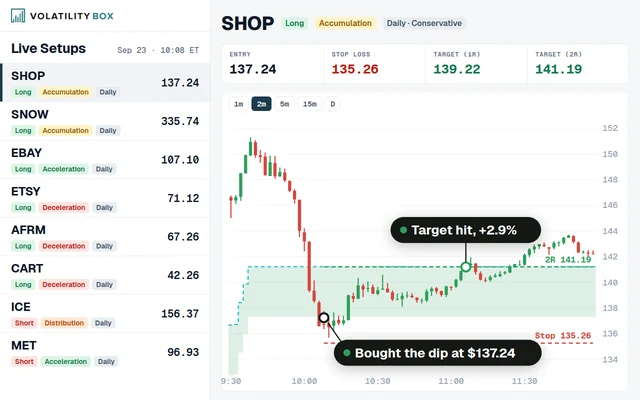 Stock Volatility Box
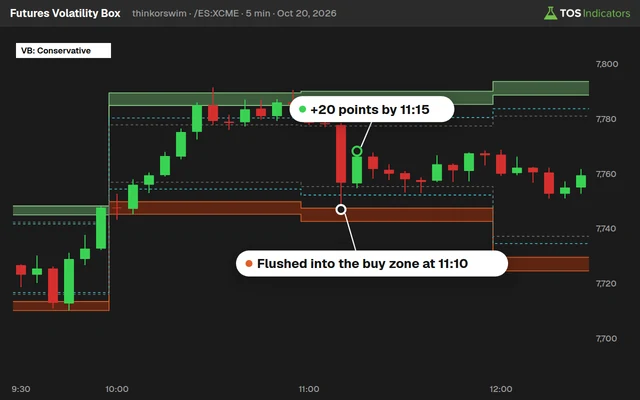 Futures Volatility Box
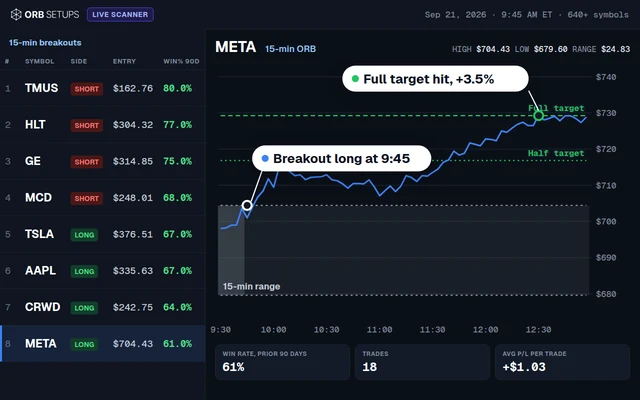 ORB Setups
 Squeeze Setups
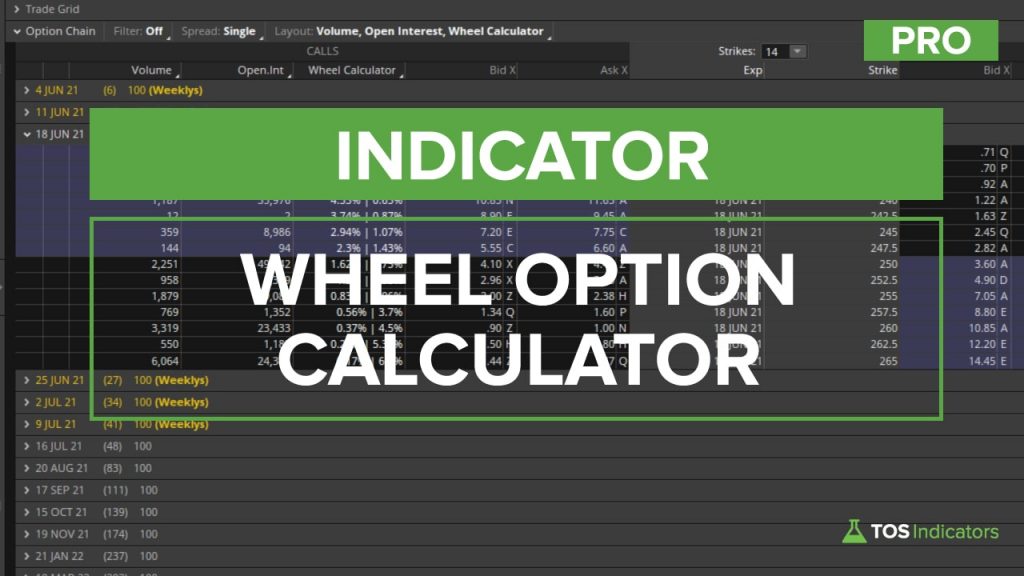
Wheel Option Calculator for ThinkorSwim
Our wheel option calculator for ThinkorSwim shows covered call returns on calls and put returns with breakeven prices on puts, in 1 custom quote.
On this page
What it does
In this members-only tutorial I build the wheel option calculator for ThinkorSwim, an all-in-one options calculator for the wheel strategy. One custom quote on the option chain shows covered call returns on the call side and cash-secured put returns, with breakeven prices, on the put side.
This is Part 3 of our options calculator series for Volatility Box members. I combine the advanced covered call calculator and the cash-secured put calculator into one script, so you can compare strikes, expirations and stocks for both halves of the wheel with a single column loaded.
Questions
What is a wheel option calculator?
It is a calculator for the wheel strategy, where you sell puts until you're assigned shares, then sell calls on those shares until they're called away. Ours is one ThinkorSwim custom quote that shows covered call returns on the call side of the option chain and put returns with breakeven prices on the put side.
How does the wheel calculator tell calls from puts?
It uses the built-in IsPut() function, which is true on a put row. I don't think thinkScript has an IsCall function, so the code checks !IsPut() for calls. An if/else runs the covered call math when !IsPut() is true and the cash-secured put math otherwise, and each label checks the same condition.
What does the wheel calculator show on the put side?
Each put shows 2 numbers. The left one is the premium for 1 contract as a percentage of the cost of 100 shares at the stock's last close. The right one is the breakeven price with a dollar sign: the strike minus the put's last price. In Part 2, BYD's 60 strike put in the 45-day series showed a $56.80 breakeven.
What does existingTradeMode do in the wheel calculator?
It switches the call side to measure returns from your costBasis input instead of the stock's last close, for shares you already own. It is set to no by default. The put side ignores it and always uses the stock's last close, so put numbers stay the same in either mode.
Why does every variable need to be defined outside the if statement?
thinkScript requires a variable that gets its value inside an if/else to be declared above it with def and to get a value in both branches. That's why the call branch sets newBreakevenPrice to 0 and the put branch sets the covered call variables to 0. Without that, the script throws errors.
Why doesn't the if-called return use my cost basis?
In the downloaded code, the cost basis version of the if-called return uses strikePriceGain, the gain from the current price. Change it to strikePriceGainExistingTradeMode in that line, and the right-hand number measures the gain from your entry. The premium return on the left is correct as downloaded.
How do I add a new calculation to the wheel calculator?
For a call-only calculation, put it inside the if block, give the same variable a value such as 0 in the else block, and declare it with def above the whole if/else. For a put-only calculation, do the reverse. Then add a label with the matching IsPut() condition.
Is the wheel calculator better than loading 2 separate calculators?
It saves a custom quote slot and keeps the chain clean. With the covered call and put calculators loaded separately, each prints on both sides of the chain, so half of the numbers aren't useful. The wheel calculator shows call math only on calls and put math only on puts, in one column.
Related
 Market Pulse Indicator for ThinkOrSwim: Find the 4 Market StagesIndicators · Beginner-Friendly
 How to Build a Fair Value Gap Indicator in ThinkOrSwimIndicators · Beginner-Friendly
 How to Build a Heiken Ashi Trend Dots Indicator in ThinkOrSwimIndicators · Beginner-Friendly
 How to Build a Commodities Tracker in ThinkOrSwimIndicators · Beginner
 Trend Squeeze Indicator for ThinkOrSwimIndicators · Beginner
 Volume Intensity Indicator for ThinkOrSwimIndicators · Beginner-Friendly