
 Fair Value Gap
 False Breakout Scanner
 Heiken Ashi Trend
 Stock Volatility Box
 Futures Volatility Box
 ORB Setups
 Squeeze Setups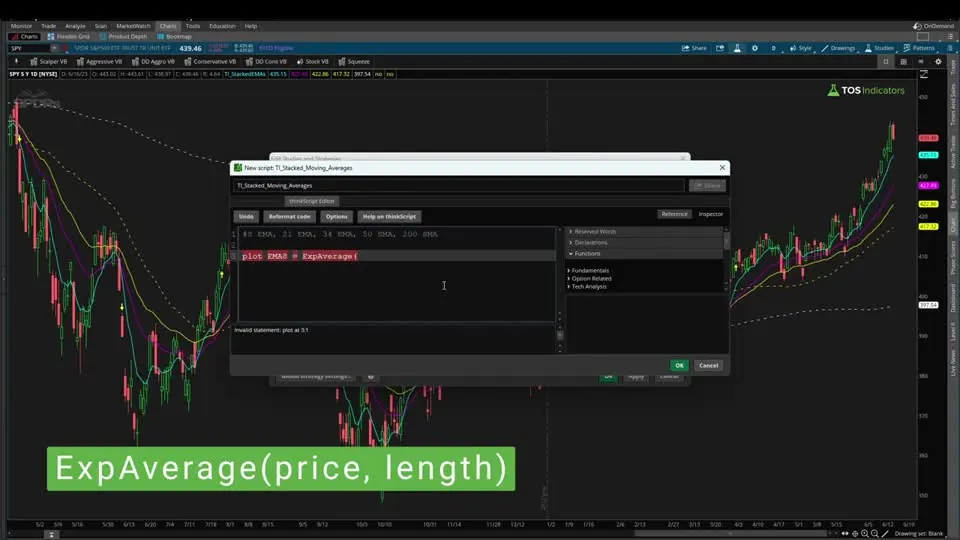
On this page
Overview
In this tutorial I build a stacked moving averages indicator for ThinkOrSwim. Instead of adding each moving average to the chart one at a time, it puts the 8, 21 and 34-period EMAs and the 50 and 200-period SMAs in one study, and it plots an arrow on the first bar the averages go from not stacked to stacked.
Most of the code is copy and paste, so it's a good first thinkScript project. Along the way you'll see how to call exponential and simple moving averages, set your own colors and line styles, find options in the reference panel, and show an arrow only the first time a condition is true.
Key Takeaways
- The Stacked Moving Averages indicator plots 5 lines in one ThinkOrSwim study: the 8, 21 and 34-period EMAs and the 50 and 200-period SMAs.
- A bullish stack in the code means the 8 EMA is above the 21 EMA, the 21 EMA is above the 34 EMA, and the 50 SMA is above the 200 SMA. A bearish stack reverses all 3.
- A light green up arrow marks the first bar of a bullish stack and a light red down arrow marks the first bar of a bearish stack. The arrow doesn't repeat while the stack holds.
ExpAverage(close, length)plots an EMA andSimpleMovingAvg(close, length)plots an SMA. The two SMAs use a short-dash line style.- The arrows use a line weight of 5, the largest weight ThinkOrSwim offers. Weights run from 1 to 5.
What the Stacked Moving Averages Indicator Shows
The Stacked Moving Averages indicator is one ThinkOrSwim study that plots 5 moving averages and marks the bar where they line up in order. Moving averages are one of the most common indicators traders use. Instead of adding each one to the chart by hand, you get all of them from one file, plus an arrow when they go from not stacked to stacked.
The table lists every plot in the download with its function, color and style.
| Plot | Type | thinkScript function | Color | Style |
|---|---|---|---|---|
| EMA8 | 8-period EMA | ExpAverage(close, 8) | Cyan | Solid |
| EMA21 | 21-period EMA | ExpAverage(close, 21) | Magenta | Solid |
| EMA34 | 34-period EMA | ExpAverage(close, 34) | Yellow | Solid |
| SMA50 | 50-period SMA | SimpleMovingAvg(close, 50) | Yellow | Short dash |
| SMA200 | 200-period SMA | SimpleMovingAvg(close, 200) | White | Short dash |
| bullStackedPlot | Bullish stack arrow | bullStacked and !bullStacked[1] | Light green | Up arrow, weight 5 |
| bearStackedPlot | Bearish stack arrow | bearStacked and !bearStacked[1] | Light red | Down arrow, weight 5 |
What Stacked Means in This Indicator
Stacked moving averages are averages sorted by speed. In a bullish stack, the faster averages sit above the slower ones. In a bearish stack, the faster averages sit below.
The indicator checks 3 comparisons on every bar:
| Comparison | Bullish stack | Bearish stack |
|---|---|---|
| 8 EMA vs 21 EMA | 8 EMA above | 8 EMA below |
| 21 EMA vs 34 EMA | 21 EMA above | 21 EMA below |
| 50 SMA vs 200 SMA | 50 SMA above | 50 SMA below |
Notice what isn't on the list. The code compares the EMAs with each other and the SMAs with each other, and it never compares the 34 EMA with the 50 SMA. A bullish stack can form while the 34 EMA is still below the 50 SMA.
If you want one unbroken chain from the fastest average to the slowest, our Trend Squeeze indicator uses 3 > 8 > 21 > 34 EMA > 50 SMA > 200 SMA and adds a squeeze filter on top.
The EMAs and SMAs do different jobs. An exponential moving average gives more weight to recent closes, so the 8, 21 and 34 turn quickly. A simple moving average weights every bar in its length equally, so the 50 and 200 move slowly and describe the longer trend.
How to Build the Indicator in ThinkOrSwim
Building the Stacked Moving Averages indicator takes one new study. Most of the code is copy and paste, so it's a good first thinkScript project.
- Click the Studies icon at the top of the chart. I removed the study I already had on the chart, since we're writing this one from scratch.
- Click Create and give the study a name. I called mine TI stacked moving averages.
- Delete the code that's already in the editor panel.
- Write the code in the steps below, or paste the finished code from the Code tab.
- Click OK, then Apply.
If you'd rather import the downloaded file, our guide on how to import a study into ThinkOrSwim covers it.
How the Code Works
The Stacked Moving Averages code comes together in 6 steps: the first EMA, the other EMAs, the SMAs, the stack conditions, the arrows and their formatting. Each snippet below is copied from the download, except the first-version arrow in Step 5.
Step 1: Plot the 8 EMA
The word plot tells ThinkOrSwim you want to see the value on the chart. EMA8 is the name I gave the variable.
This step’s code is free with an account. Create one or sign in.
ExpAverage is ThinkOrSwim's exponential moving average function. It takes 2 parameters: the price to average (high, open, low or close) and the length. Here that's the close and 8.
Without the second line, ThinkOrSwim picks the color for you. It's most likely cyan on your chart, but that's ThinkOrSwim's choice. setDefaultColor applies formatting to the variable you name, so this line keeps the 8 EMA cyan on every chart.
Step 2: Copy It for the 21 and 34 EMAs
Each EMA uses the same function, and only 2 things change: the variable name and the length.
This step’s code is free with an account. Create one or sign in.
Every time I clicked Apply before setting a color, ThinkOrSwim picked one at random. That's why I set my own. You probably have a color you like for a particular moving average, so change these to match.
Step 3: Add the 50 and 200 SMAs
The simple moving average function is SimpleMovingAvg. Its name isn't the one most people guess, and I think that causes most of the trouble people have with it. It takes the same 2 parameters as ExpAverage.
This step’s code is free with an account. Create one or sign in.
The 50 SMA is yellow, like the 34 EMA, so setStyle(Curve.Short_Dash) makes it a dashed line. Dashes make it easy to tell the simple moving averages from the exponential ones.
To see every color and line style you can use, open the reference panel on the right of the editor and go to the Look and Feel section. Click more details on an entry for the full list.
Step 4: Define the Stacks
The stack conditions use def instead of plot, because nothing needs to show on the chart yet.
This step’s code is free with an account. Create one or sign in.
If you click Apply now, nothing changes on the chart. A def only stores a value, so the stacks need plot variables before you see anything.
Step 5: Add the Arrows
The arrow needs its own plot with a different name from the def, so I added "Plot" to the end. My first version passed the stack condition straight in:
This step’s code is free with an account. Create one or sign in.
That plotted a lot of arrows, one on every bar of a bullish stack. I only want the arrow on the first bar the averages go stacked.
The fix is one more condition: and !bullStacked[1]. The exclamation mark means not, and [1] reads the previous bar. So the arrow plots when the stack is true now and wasn't true one bar ago. Here's the finished bullish arrow:
This step’s code is free with an account. Create one or sign in.
The bearish arrow is a copy with every name changed to the bear version and the painting strategy changed to a down arrow:
This step’s code is free with an account. Create one or sign in.
Step 6: Colors and Arrow Size
Arrow color and size are the last pieces of formatting, and the bearish arrow is why they matter. ThinkOrSwim gave the bearish arrow a default gray that merged into the background of my chart, so I set the colors myself: light green for bullish and light red for bearish.
setLineWeight controls the arrow size. The weight goes from 1, the smallest, to 5, the largest. I tried 3 first, then went to 5 so the arrows are as big as ThinkOrSwim makes them.
How to Read the Arrows
A Stacked Moving Averages arrow marks the bar where the averages go from not stacked to stacked. While the stack holds, no new arrow plots. You get another arrow only after the stack breaks and forms again.
That makes the arrow a read on the trend: the averages have lined up in one direction. It doesn't give you an entry price, a stop or a target. Before you trade off a stack, decide where your stop goes and size the position so a stop-out costs a small, fixed share of your account.
If you want an entry inside an established stack, the Trend Squeeze indicator waits for a pullback and a 3/8 EMA cross. To check the Squeeze settings with a 13, 21 and 34 EMA stack as the trend filter, our Squeeze backtester uses that stack.
Turn the Indicator Into a Scan
The Stacked Moving Averages indicator becomes a ThinkOrSwim scan with a few edits. A scan filter allows exactly one plot, so every line except the arrow you want to find becomes a def, and the formatting lines come out.
Our Stacked Moving Average Scans tutorial walks through those edits, runs the bullish and bearish scans on the daily timeframe, and shows the code for both. The scan finds every stock where the stack formed on the current bar.
Common Problems
Most problems with the Stacked Moving Averages indicator show up while you copy and paste the lines, and each one has a quick fix.
| Problem | Cause | Fix |
|---|---|---|
| Error that SMA50 is already used | You pasted a copy of the 50 SMA lines and didn't rename it | Rename the variable to SMA200 on every line of the copy and change the length to 200 |
| Nothing happens after adding the stack lines | A def doesn't draw anything | Add the arrow plots |
| An arrow on every bar of a trend | The plot is only bullStacked | Add and !bullStacked[1] |
| The bearish arrow is hard to see | The default gray blends into a dark background | Set its color with setDefaultColor |
| Line colors change from chart to chart | ThinkOrSwim picks colors when you don't | Add a setDefaultColor line for each plot |
| No arrows on the oldest bars of the chart | The 200 SMA needs 200 bars before it has a value | Load more history |
For errors not on this list, our tutorial on how to fix bugs in thinkScript code walks through finding them.
Stacked moving averages on real charts
Drawn from real daily bars with the code on this page, through Oct 20, 2026. A bullish stack in this code is the 8 EMA above the 21, the 21 above the 34, and the 50 SMA above the 200. The arrow prints on the first bar of a stack only. I picked the most recent stack in 2026 on a well-known name that held 20 days or more, and the most recent that broke within 3.
AMD, Sep 15, 2026: a stack that held
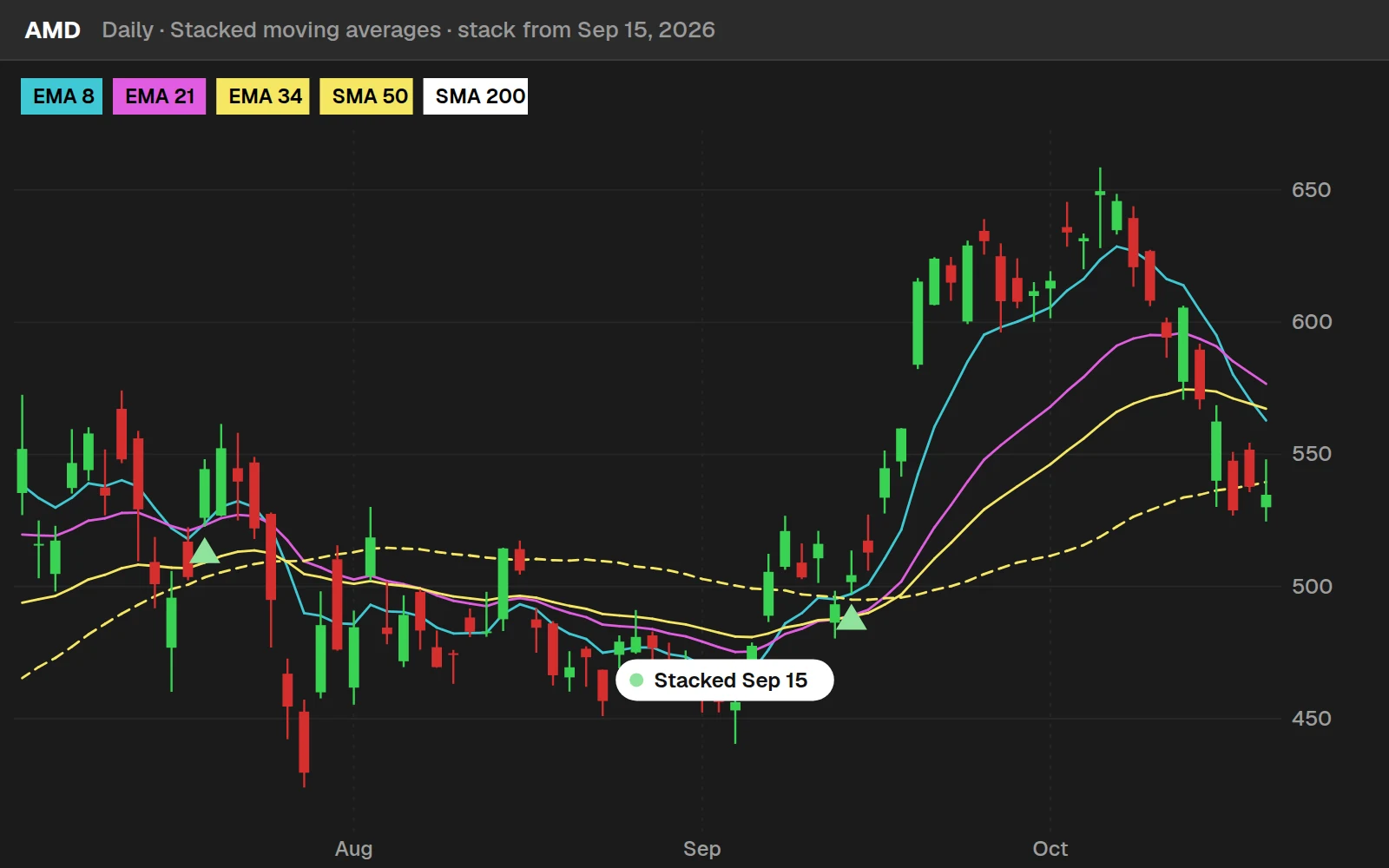
AMD stacked on Sep 15, 2026 and stayed stacked 23 trading days.
AMZN, Oct 13, 2026: one that broke
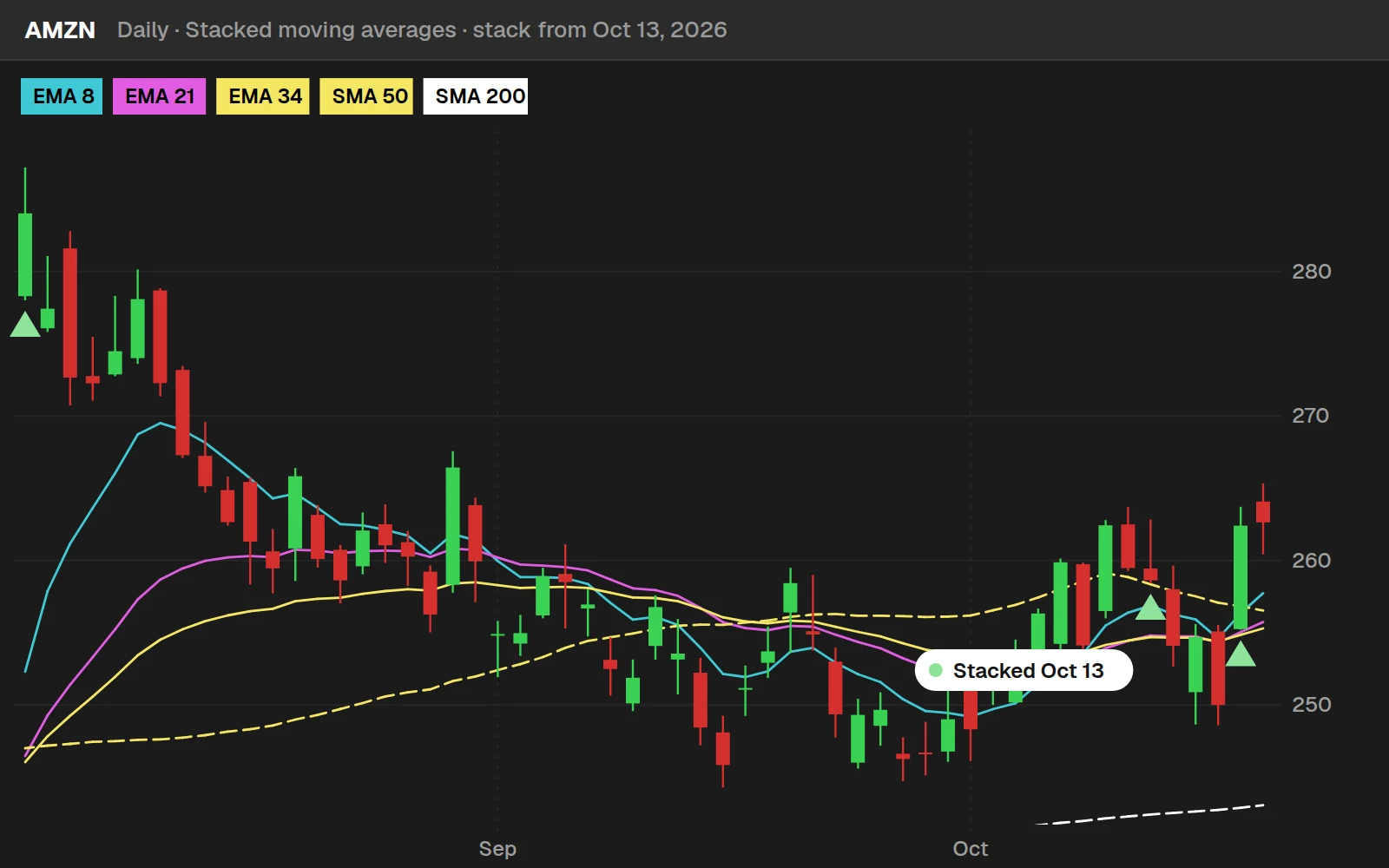
AMZN stacked on Oct 13, 2026 and lost the stack 3 trading days later. The arrow marks the moment the lines line up, nothing more.
By the numbers
Daily bars through Oct 20, 2026: most stocks from July 2024, 14 ETFs from 2016. A stack's length is how many days in a row it held (the median of the ones that ended).
Full thinkScript code
Create a free account or sign in to copy all 37 lines and download the file.
Download
Download the Stacked Moving Averages indicator for ThinkOrSwim. The download is a .zip with one study file, TI_Stacked_Moving_AveragesSTUDY.ts, the same code as the Code tab on this page. It plots the 8, 21 and 34 EMAs, the 50 and 200 SMAs, and the bullish and bearish stack arrows. If you haven't added a custom study before, here's how to import an indicator into your ThinkOrSwim platform.
Questions
What are stacked moving averages?
Stacked moving averages are moving averages sorted by speed. In a bullish stack the faster averages sit above the slower ones, and in a bearish stack they sit below. Our indicator checks the 8 EMA against the 21, the 21 against the 34, and the 50 SMA against the 200 SMA.
How do I add the stacked moving averages indicator to ThinkOrSwim?
Click the Studies icon, click Create, delete the starter code and name the study. Paste in the code from the Code tab, click OK, then Apply. You can also download the .ts file and import it. The 5 moving averages and the stack arrows appear on the chart.
Which moving averages does the indicator use?
It uses 5: the 8, 21 and 34-period exponential moving averages and the 50 and 200-period simple moving averages, all on the closing price. The EMAs are cyan, magenta and yellow. The 50 SMA is a yellow dashed line and the 200 SMA is a white dashed line.
Does the indicator compare the EMAs with the SMAs?
No. The code compares the EMAs with each other and the 50 SMA with the 200 SMA. It never checks the 34 EMA against the 50 SMA, so a bullish stack can form while the 34 EMA is below the 50 SMA. Add EMA34 above SMA50 to the condition if you want the full chain.
Why does the arrow only show on the first bar of a stack?
The arrow plot checks bullStacked and not bullStacked on the previous bar. Without that second check, an arrow plots on every bar while the stack holds. With it, you see one arrow when the averages first line up, and the next arrow only after the stack breaks and forms again.
What is the difference between ExpAverage and SimpleMovingAvg?
ExpAverage returns an exponential moving average, which gives more weight to recent prices. SimpleMovingAvg returns a simple moving average, which weights every bar in the length equally. Both take 2 parameters, the price and the length, such as close and 50.
How do I change the colors or the arrow size?
Change the color in each setDefaultColor line, for example Color.Cyan to another ThinkOrSwim color, or change it from the studies menu. setLineWeight sets the arrow size from 1, the smallest, to 5, the largest. The download uses 5. The Look and Feel section of the reference panel lists every color.
Can I scan for stacked moving averages in ThinkOrSwim?
Yes. Copy the indicator code into a custom study scan filter, change every plot except one arrow to def, and delete the formatting lines, because a scan allows exactly one plot. Our Stacked Moving Average Scans tutorial shows the bullish and bearish versions step by step.
Related tools
 Stacked Moving Averages
 Moving Average Clouds
 Multiple Time Frame Moving Averages
 Reversion to 50-Day Moving Average
 Moving Average Crossover Backtester
 Moving Average Pullback Backtester
Get each new indicator by email
One email on Sundays with the week's new tool and its code. A free account also unlocks every .txt download.
No credit card. Unsubscribe anytime.