
 Fair Value Gap
 False Breakout Scanner
 Heiken Ashi Trend
 Stock Volatility Box
 Futures Volatility Box
 ORB Setups
 Squeeze Setups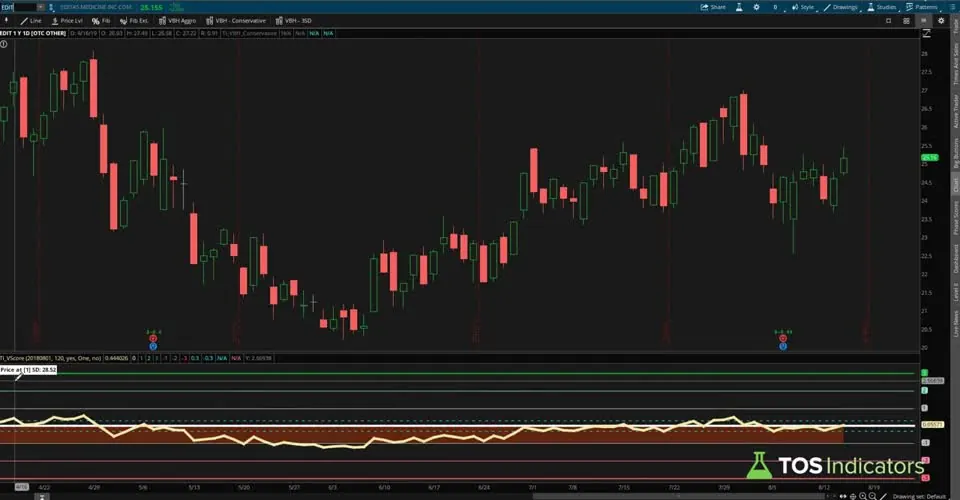
On this page
Overview
In this tutorial I build 4 V-Score scans for ThinkOrSwim from our free VScore indicator. Each one finds stocks reverting to the mean, the volume weighted average price, from above or from below. Two are strict scans that also check the trend clouds and the CCI. The other two are wide scans that only check the V-Score.
Most of the work is cutting the indicator code down until the scan engine accepts it, and I make every change on camera. If you want to know what the V-Score measures first, start with the VScore indicator tutorial. This page is for traders who already use it and want ThinkOrSwim to find the pullbacks for them.
Key Takeaways
- The V-Score scans are the VScore indicator code with every plot but one changed to def, and the alerts, painting strategies, AddCloud and AddLabel lines removed.
- The bullish signal scan needs a winning trend cloud above 0, a V-Score at or below 0.3 after a bar above 0, and a CCI above -100. In the video the cloud lookback was 120 bars.
- The wide scans drop the cloud and CCI checks. In the video, the wide bullish scan returned 47 results and the wide bearish scan returned 3.
- The VScore price label turns a standard deviation into a price. On Nike in the video, it put the mean at $80.83.
- The download is a .txt file with the original 4 scans as ThinkOrSwim shared links: Bull Signal, Bear Signal, Wide Bull Scan and Wide Bear Signal.
What the V-Score Scans Find
The V-Score scans look for reversion to the mean: stocks that traded above or below VWAP and are now heading back to it. The V-Score is the number of standard deviations between the close and VWAP. Our VScore indicator page covers how it's calculated and what the clouds mean.
The scans come in two strengths. The strict pair, which I call the signal scans, also requires a trend and a CCI reading. The wide pair casts a bigger net.
| Scan | V-Score on the previous bar | V-Score now | Trend cloud | CCI | In the video |
|---|---|---|---|---|---|
| Bull signal | Above 0 | 0.3 or below | Winning zone above 0 | Above -100 | Many results, including Amazon |
| Bear signal | Below 0 | 0.3 or above | Winning zone below 0 | Below 100 | No results on a down day |
| Wide bull | Above 0 | 0.3 or below | Not checked | Not checked | 47 results, including Nike |
| Wide bear | Below 0 | -0.3 or above | Not checked | Not checked | 3 results: EDIT, TZA and VXX |
Because the code keeps the clouds, the signal scans can use the most recent trend to decide which pullbacks to look at: to the 0 line, the 1, the 2 and so on.
Why the Indicator Code Fails in a Scan
The VScore indicator code throws an error when you paste it into a custom scan filter, because it's too complex for the scan engine. A scan doesn't draw anything on a chart, so the drawing code can go:
- The alerts
- The painting strategy lines that style the plots and arrows
- The
AddCloudline - The
AddLabelline
That leaves one error: "Exactly one plot expected." The indicator has a plot for the V-Score, each level line, the two 0.3 lines and both signals. A scan filter needs exactly one, so every plot except the signal you want becomes a def.
How to Build the Bullish Signal Scan
The bullish signal scan takes the full VScore code and 7 steps. Add the VScore indicator to a chart first. If you don't have it, our guide on how to import a study into ThinkOrSwim shows how to add the download.
- Open the studies pane, edit the VScore study and copy all of its code.
- In the Scan tab, choose Add study filter, scroll to the bottom and click Custom.
- Click the second tab, thinkScript Editor, and paste the code.
- Delete the alerts, the painting strategy lines,
AddCloudandAddLabel. - Change every plot to def: the V-Score, the 0, 1, 2, 3, -1, -2 and -3 lines, the two 0.3 lines and BearSignal.
- In BullSignal, change the -2 to 1 and
Double.nanto 0, so it returns true or false. - Click OK, run the scan, and save it as its own scan query.
The finished signal line reads:
This step’s code is free with an account. Create one or sign in.
It checks 4 things. The winning cloud is above 0, so the V-Score spent most of the lookback above the mean.
The V-Score is now 0.3 or below, close to the mean, and on the previous bar it was above 0, so price came from above. The CCI is above -100, so there isn't a ton of selling pressure. In the video the lookback was 120 bars. The indicator download defaults barsGoBack to 90, so change it to 120 to match the video.
To check the results, I opened Amazon on a daily chart. The V-Score had stayed above the mean, and a bullish arrow plotted on that day's bar.
How to Build the Bearish Signal Scan
The bearish signal scan is the same code with the two signals swapped. Click the edit icon on the scan, change BullSignal to def and BearSignal to plot, and change the 2 to 1 and Double.nan to 0.
This step’s code is free with an account. Create one or sign in.
It checks that the winning cloud is below 0 and the V-Score was below 0 on the previous bar.
The CCI has to be below 100 at its default settings, so there isn't heavy buying pressure. Save it as a second scan query.
The bearish V-Score test in the indicator code reads 0.3 or above, so it needs the score to move from below 0 to 0.3 or higher. When I built the wide bearish scan later in the video, I set that test to -0.3 or above instead, to catch any move back within 0.3 below the mean. Make the same change here if you want the two scans to match.
When I ran the bearish signal scan, it returned no results. The market was down a little more than 2.5% that day, and a day like that is unlikely to offer pullback entries to go short.
The Wide Scans Without Trend or CCI Filters
The wide V-Score scans drop the cloud and CCI checks and keep only the reversion test. To build the bullish one, copy the BullSignal line into a new plot named signal, change BullSignal and BearSignal to def, and delete the cloud and CCI conditions. Written out from the video, the line reads:
This step’s code is free with an account. Create one or sign in.
If the V-Score was above the mean and is now 0.3 or below, the scan returns true.
In the video it returned 47 results. Nike was one: the V-Score had been above 0 on the previous bar and pulled back to the mean, and the chart also showed a bullish arrow.
The wide bearish scan flips the test. I first forgot to change the 0.3, then set it to -0.3, because I care about shorting anywhere above that level. Written out from the video:
This step’s code is free with an account. Create one or sign in.
It returned 3 results: EDIT, TZA and VXX.
On EDIT, the V-Score had been below the mean and had pulled back to it, sitting slightly above 0, at a point that would otherwise count as an entry.
Using the Price Label to Plan the Trade
The VScore price label shows the price at any standard deviation level, which most z-score indicators leave you to guess. Right-click the study on the chart, choose Edit study, and change the devStop input. Here's what the label showed in the video:
| Stock | Scan | devStop | Label price | How I used it |
|---|---|---|---|---|
| Nike | Wide bull | Zero (0) | $80.83 | The mean, a level to park a long order |
| EDIT | Wide bear | NegOne (-1) | $21.39 | Target for a short, at a level that held as support before |
| EDIT | Wide bear | One (1) | $28.52 | Stop for the same short |
On Nike you might guess price was close to the mean. The label shows the exact price, so if a pullback to 0 is your condition to go long, you can have your order parked there ahead of time. On EDIT, the -1 and 1 labels gave the target and the stop before the trade.
How I Use the Scan Results
The V-Score scans build a watchlist of stocks pulling back toward their mean. Open each result on a chart, as I do with Amazon, Nike and EDIT in the video, and check that the clouds and arrows match what the scan says. Then use the price label to see the levels around price before deciding anything.
A scan hit is a read on a pullback, not an entry by itself. Set the stop and the target from the label first, and size the position so a stop-out costs a small, fixed share of your account. On a day like the 2.5% drop in the video, the strict bearish scan can come back empty.
Our upper VScore has its own one-line scan that calls the study by name, covered on the VScore indicator page. For another way to scan around VWAP, try our anchored VWAP scans.
How to Import the Ready-Made Scans
The V-Score scans download is a .txt file with 4 ThinkOrSwim shared links: Bull Signal and Bear Signal (more filter criteria), and Wide Bull Scan and Wide Bear Signal (less filter criteria). To load one:
- In ThinkOrSwim, click Setup in the top right corner.
- Choose Open shared item.
- Paste in the link and save the scan.
The shared links are the original scans. The Code tab on this page shows the bullish signal scan rebuilt from the steps in the video, starting from the Lower VScore download, plus notes for the other 3. For the same custom filter steps on a simpler scan, see our increasing volume scans, and browse more on the scans page.
The scans on real data
Drawn from real daily bars with the code on this page, through Oct 20, 2026. The V-Score is how many standard deviations the close sits from a VWAP anchored at the scan's anchorDate, January 1, 2021. Only our 14 ETFs have daily bars that far back, so these results cover them alone, and because our data has no intraday VWAP for each day, the typical price (high plus low plus close, over 3) stands in for it. The cloud lookback is the code's 90 bars.
The scans on Oct 20, 2026
On Oct 20, none of the 14 ETFs was on any of the four scans.
XLRE, Apr 6, 2026
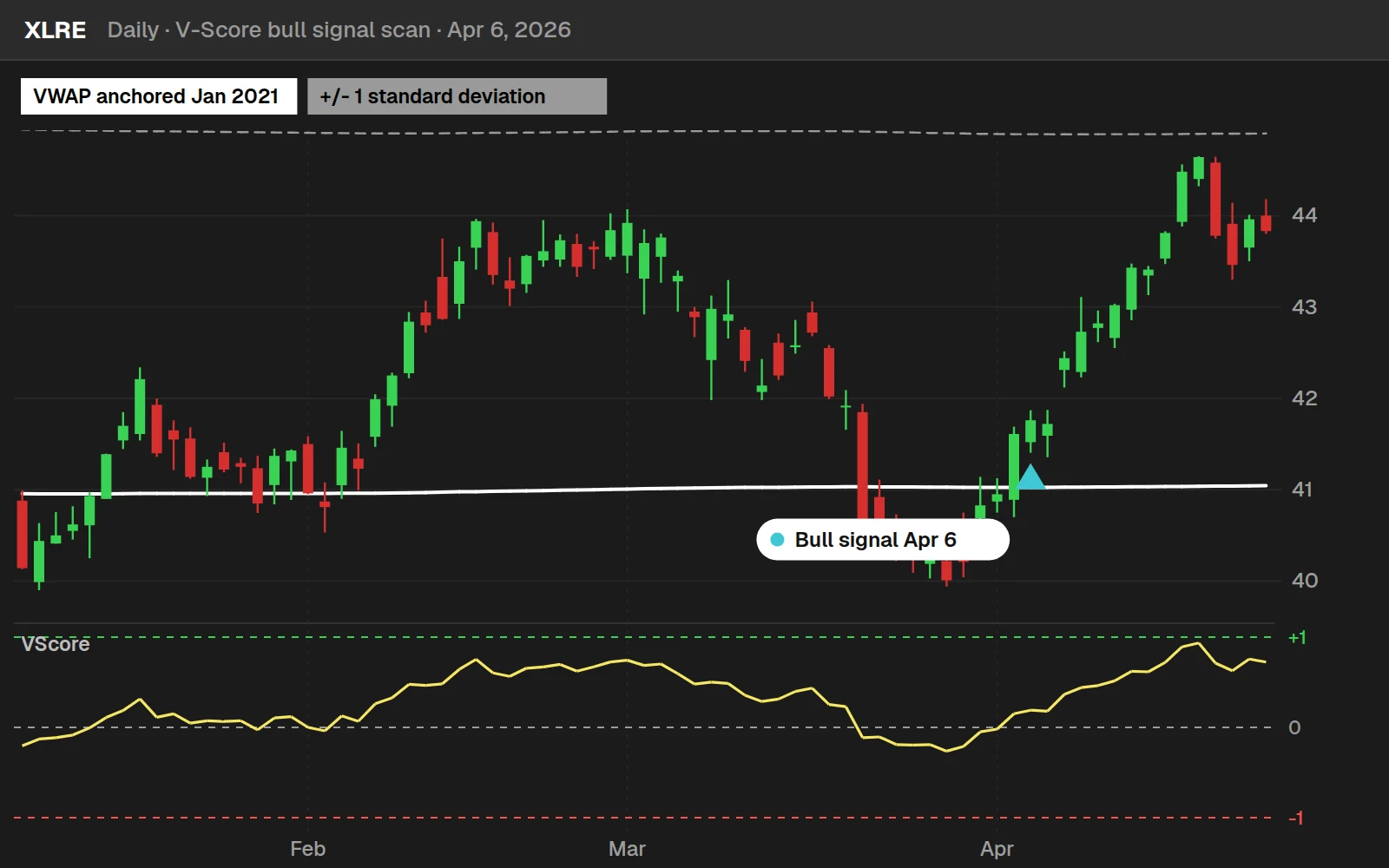
XLRE gave the most recent bull signal among the 14 ETFs. It closed at $41.76 that day and at $44.64 ten trading days later, +6.9%.
By the numbers
SPY, QQQ, IWM, DIA and 10 sector ETFs, Jun 1, 2021 to Oct 20, 2026. Wide bull hits were higher 10 days later 55.5% of the time. The yardstick is every day in the same funds and dates.
Full thinkScript code
Create a free account or sign in to copy all 121 lines and download the file.
Download
Download the V-Score Scans for ThinkOrSwim. The download is a .txt file with 4 ThinkOrSwim shared links: Bull Signal and Bear Signal (more filter criteria), and Wide Bull Scan and Wide Bear Signal (less filter criteria). In ThinkOrSwim, click Setup in the top right corner, choose Open shared item, and paste in a link. If you haven't opened a shared item before, here's how to import into your ThinkOrSwim platform.
Questions
What are the V-Score scans?
They are 4 free ThinkOrSwim scans built from our VScore indicator. Each finds stocks reverting to VWAP. The bull and bear signal scans also check the trend clouds and the CCI. The wide scans only check that the V-Score was on one side of the mean on the previous bar and is now within the 0.3 or -0.3 test.
How do I turn the VScore indicator into a scan?
Copy the indicator code into a Custom study filter in the Scan tab. Delete the alerts, painting strategies, AddCloud and AddLabel, then change every plot to def except the signal you want. Make that signal return 1 or 0 instead of an arrow position, then run and save the scan.
Why do I get an "Exactly one plot expected" error?
A scan filter can have only one plot, and the VScore indicator has many: the score, each level line, the 0.3 lines and both signals. Change every plot to def except the one signal you are scanning for, and the error goes away.
What does the bullish V-Score signal scan look for?
It looks for a winning trend cloud above 0, a V-Score at or below 0.3 after a bar above 0, and a CCI above -100. In plain terms, the stock has spent most of the lookback above VWAP, has pulled back close to it, and is not under heavy selling pressure.
Why did the bearish scan return no results?
In the video the market was down a little more than 2.5% that day, and a day like that is unlikely to offer pullback entries to go short. The strict bearish scan also needs a red cloud and a CCI below 100. The wide bearish scan, without those checks, returned 3 results.
What is the difference between the signal scans and the wide scans?
The signal scans require the trend cloud and the CCI to agree with the direction of the trade. The wide scans drop both checks and only look for a V-Score moving back toward 0, so they return more stocks. In the video the wide bullish scan found 47.
How do I find the price at the mean for a scan result?
Right-click the VScore study, choose Edit study and set devStop to 0. The label then shows the price at the 0 standard deviation line. On Nike in the video it read $80.83, so if a pullback to the mean was your condition to go long, you could park an order there ahead of time.
Do the V-Score scans work on the upper VScore?
These 4 scans are cut from the lower VScore code. The upper VScore has its own one-line scan that calls the study by name and reads its BullSignal plot, and the indicator download includes shared links for an upper bullish scan and an upper bearish scan.
Related tools
 VScore
 Bollinger Bands Reversal
 Reversion to 50-Day Moving Average
 DMI Power Move Scans
 Unusual Volume
 High Short Interest Near 52 Week Highs
Get each new indicator by email
One email on Sundays with the week's new tool and its code. A free account also unlocks every .txt download.
No credit card. Unsubscribe anytime.