
 False Breakout Scanner
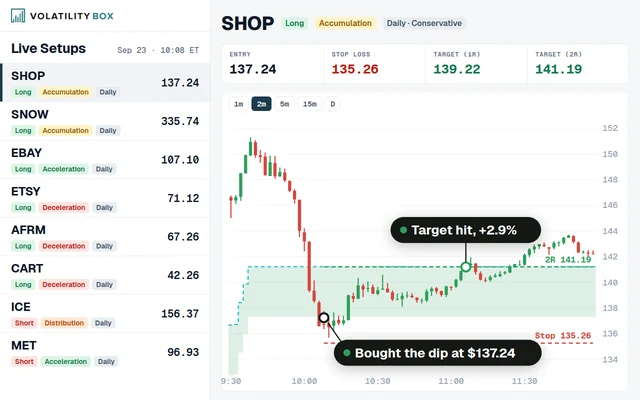 Stock Volatility Box
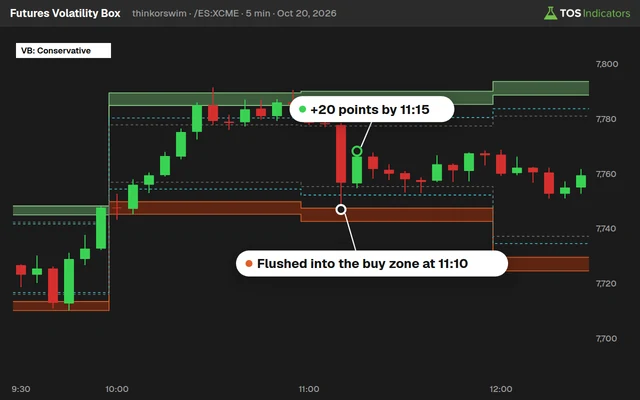 Futures Volatility Box
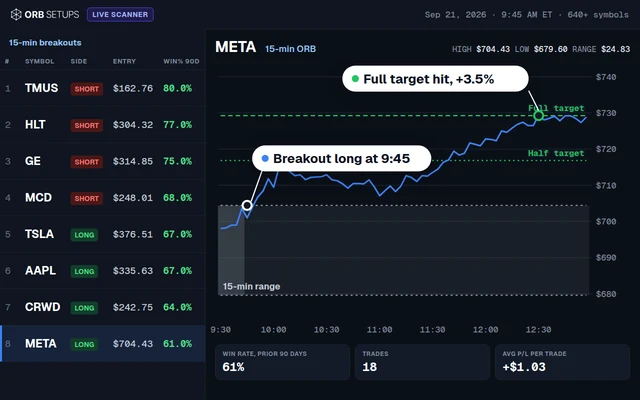 ORB Setups
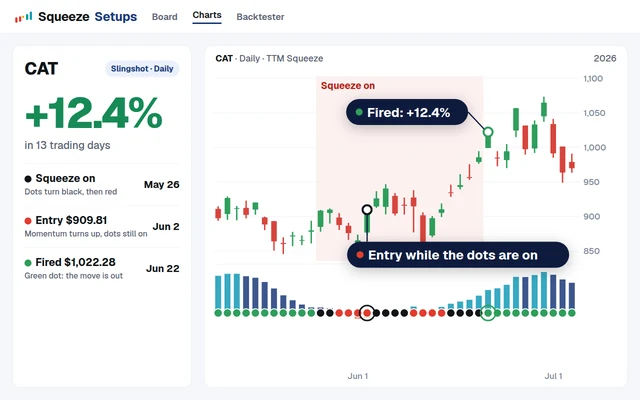 Squeeze Setups
Advanced Covered Call Calculator for ThinkorSwim
Our advanced covered call calculator for ThinkorSwim adds a cost basis input, so the option chain shows covered call returns on shares you already own.

On this page
What it does
In this members-only tutorial I build the advanced covered call calculator for ThinkorSwim by adding a cost basis to our free covered call calculator. You enter the price you paid for shares you already own, and the option chain shows covered call returns from that entry instead of from today's close.
This is Part 2 of the covered call calculator tutorial, for Volatility Box members. It's for traders who hold stocks with gains and want to collect premium on them, or who buy on a pullback and sell calls once momentum makes the premium richer.
Questions
What is the advanced covered call calculator?
It is a ThinkorSwim custom quote for the option chain that shows covered call returns from your own cost basis. It works like our free covered call calculator, with 2 returns on every call, and adds a yes/no switch and a cost basis input for shares you already own. It is for Volatility Box members.
How do I enter my cost basis in ThinkorSwim?
In the Trade tab, click Layout, choose Customize, and click the scroll icon on the covered call custom quote. Set customCostBasisMode to yes and costBasis to your entry price per share, then click Apply and OK. The column recalculates from that price.
What does customCostBasisMode do?
It picks the price the calculator measures from. Set to no, the default, every return uses the stock's last close, which fits a new trade. Set to yes, every return uses the costBasis input, which fits shares you already own. Only the label for the active mode shows in the column.
How is the covered call return calculated from a cost basis?
The premium return is the premium for 1 contract divided by 100 times your cost basis. The if-called return multiplies the strike minus your cost basis by 100 shares, adds the premium, and divides by the same amount. The premium itself doesn't change with your entry.
Why did my percentages go up after I entered a cost basis?
A cost basis below the current price makes the cost of the shares smaller, so the same premium is a bigger percentage. In the video, a $197 Visa cost basis against a $208 close moved the at-the-money premium return from 1.99% to 2.11%. Rocket at a $19.21 cost basis went from 7.51% to 9.01%.
Can I still use it for new covered call trades?
Yes. Leave customCostBasisMode set to no, the default, and the calculator works like the free version, measuring every return from the stock's last close. Switch it to yes only when you want returns on shares you already hold, and set costBasis to your entry price.
Why don't my numbers match the video in cost basis mode?
The video's if-called numbers in cost basis mode still measured the share gain from the current price: on Visa, about $599 over a $19,700 cost basis is the 3.04% to 3.05% shown. The downloaded code measures the gain from your cost basis, the strike minus costBasis, so with a cost basis below the price it reads higher. The premium return matches.
How do I change the 50% green threshold?
Edit the 0.5 in both AddLabel lines. As downloaded, the labels compare the if-called return against a typed-in 0.5, so changing the maxPctThreshold input alone has no effect. My suggested edit, not from the video, replaces each 0.5 with maxPctThreshold so the input controls the color. Use 0.3 for 30%.
Related
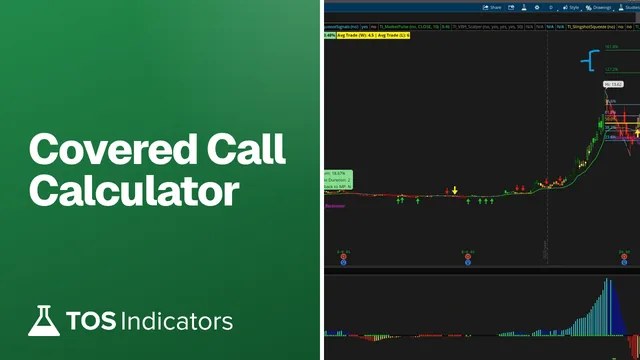 How to Build a Covered Call Calculator in ThinkOrSwimIndicators · Beginner
 How to Build a Fair Value Gap Indicator in ThinkOrSwimIndicators · Beginner-Friendly
 How to Build a Heiken Ashi Trend Dots Indicator in ThinkOrSwimIndicators · Beginner-Friendly
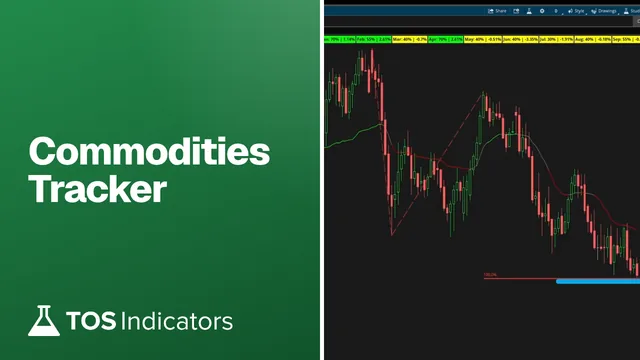 How to Build a Commodities Tracker in ThinkOrSwimIndicators · Beginner
 Trend Squeeze Indicator for ThinkOrSwimIndicators · Beginner
 Volume Intensity Indicator for ThinkOrSwimIndicators · Beginner-Friendly