
 Fair Value Gap
 False Breakout Scanner
 Heiken Ashi Trend
 Stock Volatility Box
 Futures Volatility Box
 ORB Setups
 Squeeze Setups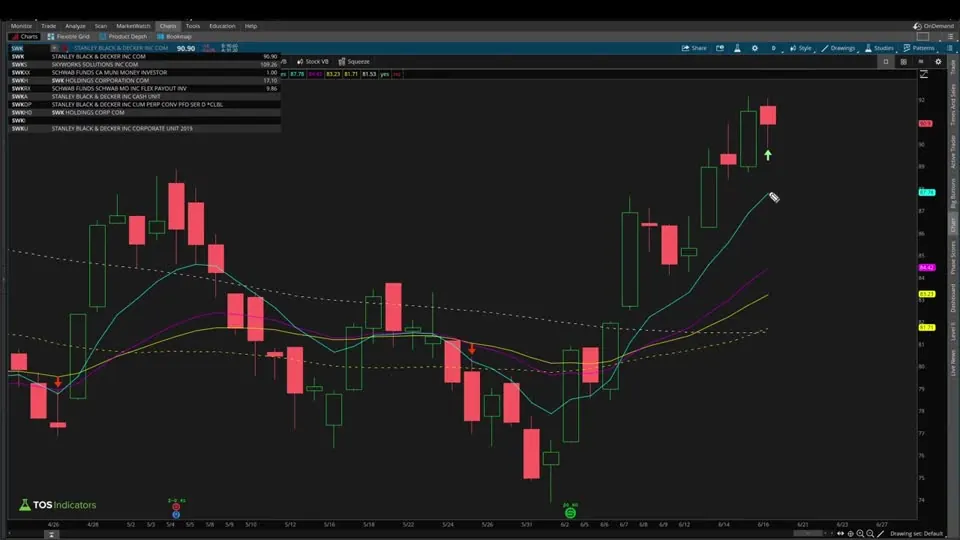
On this page
Overview
In this tutorial I turn our Stacked Moving Averages indicator into two stacked moving average scans for ThinkOrSwim. The bullish scan finds stocks where the 8, 21 and 34-period EMAs and the 50 and 200-period SMAs went into a bullish stack on the current bar, and the bearish scan finds the first bar of a bearish stack.
The work is editing: a scan accepts exactly one plot, so every other plot becomes a def and the formatting lines come out. It's for traders who like the stack arrows on a chart and want a list of every stock where one printed on the latest bar.
Key Takeaways
- The stacked moving average scans find stocks where the moving averages went into a stack on the current bar: the 8 EMA above the 21 EMA, the 21 EMA above the 34 EMA and the 50 SMA above the 200 SMA for bullish, all 3 reversed for bearish.
- Both scans are built from our Stacked Moving Averages indicator code. Every plot except one becomes a def and the formatting lines come out, because a ThinkOrSwim scan accepts exactly one plot.
- In the video, the daily bullish scan on all optionable symbols returned 73 results. Adding an ask price filter above $10 cut that to about 56.
- Stanley Black & Decker (SWK) was one bullish result: its 50 SMA had newly crossed above its 200 SMA. Disney (DIS) was at the top of the bearish list.
- The finished bullish and bearish scans are also saved as 2 ThinkOrSwim shared links (tos.mx links) in our Stacked Moving Average Scans file.
What the Stacked Moving Average Scans Find
The stacked moving average scans are two ThinkOrSwim stock scans that look for the first bar of a moving average stack. On a chart, our Stacked Moving Averages indicator marks that bar with an arrow. The scans search a list of symbols, all optionable stocks in the video, for the same arrow on the current bar, so you don't have to flip through charts to find it.
The indicator page covers the moving averages, the colors and how the arrow logic works. This page covers turning that code into a scan. The table shows what each scan checks.
| Check | Bullish scan | Bearish scan |
|---|---|---|
| 8 EMA vs 21 EMA | Above | Below |
| 21 EMA vs 34 EMA | Above | Below |
| 50 SMA vs 200 SMA | Above | Below |
| Previous bar | Not a bullish stack | Not a bearish stack |
| The one plot left in the code | bullStackedPlot | bearStackedPlot |
All of the checks have to be true on the current bar, and the stack must not have been true on the bar before. That's what makes it the first bar of the stack instead of any bar inside one.
Why a Scan Needs Exactly One Plot
A ThinkOrSwim scan filter accepts exactly one plot. That's the whole idea of a scan: you give it one thing to look for, and it goes and finds wherever that's happening.
The Stacked Moving Averages indicator has 7 plots: 5 moving averages and 2 arrows. Paste it into a scan as is and ThinkOrSwim refuses it. The edits come down to this:
| What you see | Why | Fix |
|---|---|---|
| At least one plot should be defined | The editor is empty after you delete the ADXCrossover code | Paste in the indicator code |
| Exactly one plot expected | The indicator code has 7 plot variables | Change every plot except one to def |
| Errors on the formatting lines | You can't apply formatting to a def | Delete the setDefaultColor, setStyle, setPaintingStrategy and setLineWeight lines |
Delete the formatting even on the plot you keep. Scans don't use it, it tends to cause more errors than anything, and even with only one plot I found it affects the scan's performance. The goal is clean code.
How to Build the Bullish Scan in ThinkOrSwim
Building the bullish stacked moving average scan starts from the indicator code. Copy all of it from the indicator's Code tab or the downloaded file first.
- Open the Scan tab. If it already has custom scripts, you may want to remove them.
- Click Add filter and choose Study. By default the filter loads the ADXCrossover study.
- Click the pencil icon on the right of the filter to open the editing panel, and select thinkScript Editor.
- Delete the ADXCrossover code and paste in the Stacked Moving Averages code.
- Change
plottodefon the 8, 21 and 34 EMAs and the 50 and 200 SMAs, and delete their color and style lines. - Delete the arrow formatting lines, then change
plot bearStackedPlottodef.bullStackedPlotis the one plot left. - Leave the aggregation period on daily and click OK.
- Run the scan in all optionable symbols and click Scan.
Here's what the first moving average looks like before and after the edit. In the indicator:
This step’s code is free with an account. Create one or sign in.
In the scan:
This step’s code is free with an account. Create one or sign in.
The same change goes on all 5 moving averages. If you'd rather skip the typing, the Code tab on this page has the bullish scan, rebuilt from the indicator download with the edits shown in the video.
The Scan Code, Line by Line
The stacked moving average scan code is the indicator's logic with nothing to draw. The snippets below and the Code tab are rebuilt from the indicator download with the video's edits applied, and 3 groups of lines are left.
The Moving Averages
This step’s code is free with an account. Create one or sign in.
Each line is now a def, a value the scan can use without plotting it. ExpAverage gives the exponential moving averages and SimpleMovingAvg the simple ones, all on the close.
The Stack Conditions
This step’s code is free with an account. Create one or sign in.
These lines were already definitions in the indicator, so they don't change. They hold the logic that checks whether the averages are stacked.
The One Plot
This step’s code is free with an account. Create one or sign in.
This is the trick from the indicator that finds the first time the averages go into a stacked mode. !bullStacked[1] means the stack was not true on the previous bar.
With bearStackedPlot as a def, the scan looks for one condition only: the 8 above the 21, the 21 above the 34 and the 50 SMA above the 200 SMA, all true on the current bar and not true on the previous one.
The Bearish Scan
The bearish stacked moving average scan is the same code with the plot moved to the other arrow. Go back to the filter, click the edit icon, change bearStackedPlot to the plot, and turn bullStackedPlot back to a def:
This step’s code is free with an account. Create one or sign in.
Another way, if the flip-flop feels messy, is to comment out the line you don't want to run. Put a # at the start of the line and ThinkOrSwim grays it out and ignores it. Then the other arrow line can be the one plot without an error.
Narrowing the Results
The stacked moving average scan returned 73 results on its first run in the video: the daily bullish scan on all optionable symbols, with no other filters. These were the stocks where the averages went stacked on Friday's close, since I recorded on a Sunday.
| Run in the video | Symbols | Extra filter | Results |
|---|---|---|---|
| Bullish, daily | All optionable | None | 73 |
| Bullish, daily | All optionable | Ask price greater than $10 | About 56 |
| Bearish, daily | All optionable | Not stated | Not stated; Disney at the top |
To add the price filter, click Add filter and add a stock filter for an ask price greater than 10. You can keep adding stock filters, volume filters and so on. Our increasing volume scan pairs a price filter with a volume filter in the same way.
What the Scans Found in the Video
The stacked moving average scans in the video returned results from the day I recorded, so your list will be different. To check a result, I opened its chart with the indicator already loaded.
- Stanley Black & Decker (SWK), bullish. The chart showed a bullish arrow on the current bar because the averages had gone stacked for the first time. The 8 was above the 21 and the 21 above the 34, and the 50 SMA had newly crossed above the 200 SMA, so even the 50 was above the 200.
- Disney (DIS), bearish. Disney was at the top of the bearish results. The 8 was below the 21, the 21 below the 34 and the 50 below the 200. The trigger happened on the current bar because on the previous bar, a green candle, the 8 was slightly above the 21.
How I Use the Results
The stacked moving average scan is a way to build a watchlist of stocks where a trend lined up on the latest bar. It tells you the averages are in order. It doesn't give you an entry, a stop or a target, so open a result on a chart before deciding anything, as I did with SWK and Disney in the video.
Before you trade a name from the list, decide where your stop goes and size the position so a stop-out costs a small, fixed share of your account. A stack that formed on Friday can break the next week.
For an entry inside a stack, our Trend Squeeze indicator waits for a pullback, a squeeze and a 3/8 EMA cross. To find squeezes instead of stacks, try our Squeeze dots scan.
Changing the Timeframe
The stacked moving average scan code is the same on every timeframe. The aggregation setting on the study filter decides what one bar is, and the video uses daily bars.
Set it to weekly or to an intraday period if you trade shorter timeframes. The 200 SMA then needs 200 bars of that period, so on a weekly scan it covers 200 weeks. The same plot-to-def method works for our other indicators, as in the rate of change scans.
Common Problems
Most problems with the stacked moving average scans come from the one-plot rule or the account you run them in.
- The scan won't run in paperMoney. In the video I said you'll need the live-money version of ThinkOrSwim to follow along.
- Exactly one plot expected. More than one line still starts with
plot. Change all but one todef. - Errors after changing plot to def. Formatting lines are still attached to a
def. Delete them. - A result shows no arrow on its chart. Check that the chart uses the same timeframe as the scan's aggregation, daily in the video, and that the indicator is loaded.
If you haven't loaded a study file before, our guide on how to import a study into ThinkOrSwim covers it. You'll find more free scans on the scans page.
The scans on real data
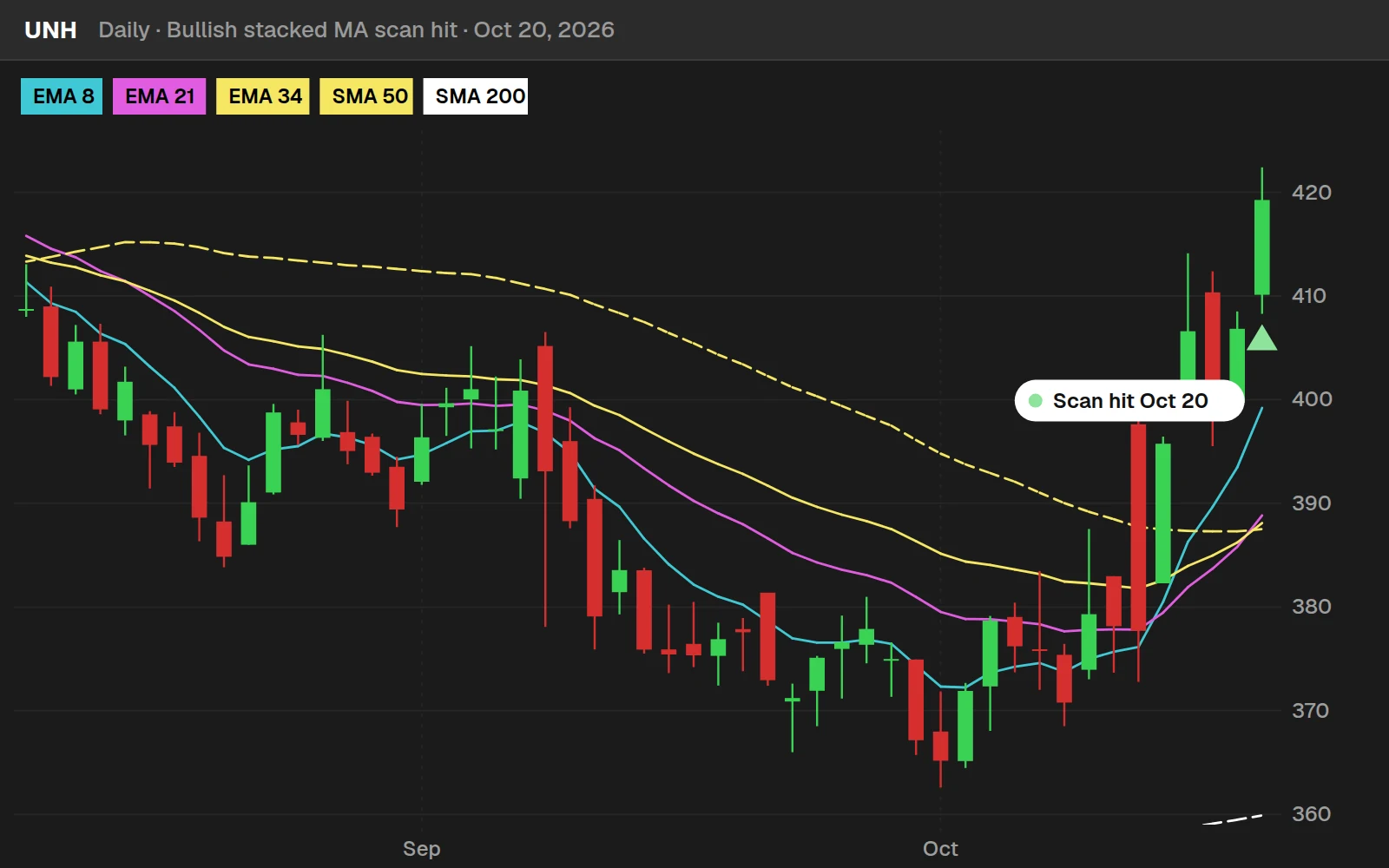
Drawn from real daily bars with the code on this page, through Oct 20, 2026. I ran both scans on the daily bars of 646 stocks and ETFs, the way ThinkOrSwim would at each close: the bullish scan lists symbols on the first bar of a bullish stack, the bearish scan the first bar of a bearish one.
The scan on Oct 20, 2026
The bullish scan returned 10 symbols: UNH, BLK, MRK, BIL, REGN, FOXA, FANG, PTEN, MQ, OPK. The bearish scan returned 3: CLS, SRLN, MSTY. Biggest dollar volume first.
Hits per day, last 20 sessions
| Day | Bullish hits | Bearish hits |
|---|---|---|
| Sep 23 | 6 | 11 |
| Sep 24 | 7 | 5 |
| Sep 25 | 4 | 8 |
| Sep 28 | 1 | 6 |
| Sep 29 | 1 | 6 |
| Sep 30 | 6 | 7 |
| Oct 1 | 6 | 10 |
| Oct 2 | 8 | 3 |
| Oct 5 | 10 | 4 |
| Oct 6 | 9 | 3 |
| Oct 7 | 5 | 7 |
| Oct 8 | 11 | 3 |
| Oct 9 | 19 | 7 |
| Oct 12 | 8 | 6 |
| Oct 13 | 4 | 6 |
| Oct 14 | 3 | 8 |
| Oct 15 | 10 | 4 |
| Oct 16 | 7 | 4 |
| Oct 19 | 10 | 5 |
| Oct 20 | 10 | 3 |
A symbol shows up once, on the day its stack forms. The busiest day was Oct 9, with 19 bullish hits.
Full thinkScript code
Create a free account or sign in to copy all 28 lines and download the file.
Download
Download the Stacked Moving Averages indicator for ThinkOrSwim, the code these scans start from. The download is a .zip with one study file, TI_Stacked_Moving_AveragesSTUDY.ts. To turn it into a scan, paste the code into a custom study filter, change every plot except one arrow to def and delete the formatting lines, or copy the bullish scan from the Code tab, rebuilt from this file with the edits shown in the video. If you haven't loaded a study file before, here's how to import into your ThinkOrSwim platform.
Questions
How do I scan for stacked moving averages in ThinkOrSwim?
Copy the Stacked Moving Averages indicator code, open the Scan tab, click Add filter and choose Study. Click the pencil icon, open the thinkScript Editor, delete the ADXCrossover code and paste yours in. Change every plot except bullStackedPlot to def, delete the formatting lines, keep the daily aggregation and run the scan.
What does the stacked moving average scan look for?
It looks for the first bar of a stack. The bullish scan needs the 8 EMA above the 21 EMA, the 21 above the 34 and the 50 SMA above the 200 SMA on the current bar, and the stack must not have been true on the previous bar. The bearish scan reverses every comparison.
Why do I get the exactly one plot expected error in a scan?
A ThinkOrSwim scan accepts exactly one plot, and the indicator code has 7: 5 moving averages and 2 arrows. Change every plot except the arrow you want to find into def, and the error goes away. Then delete the formatting lines, because formatting can't be applied to a def.
How do I switch the scan from bullish to bearish?
Edit the filter, change bearStackedPlot from def to plot, and change bullStackedPlot from plot to def. Another way is to put a hash sign at the start of the line you don't want. ThinkOrSwim grays it out and ignores it, so the other arrow line can be the one plot.
Can I run the stacked moving average scan in paperMoney?
In the video I said you'll need the live-money version of ThinkOrSwim to follow along, and I build the custom study filter there. If the scan won't run in paperMoney, switch to your live account and build it from the Scan tab with Add filter, then Study.
How many stocks did the stacked moving average scan find in the video?
The daily bullish scan on all optionable symbols returned 73 results as of Friday's close. Adding a filter for an ask price greater than $10 cut it to about 56. Stanley Black and Decker was one bullish result, and Disney was at the top of the bearish scan.
Why remove the formatting lines from a scan?
A scan doesn't draw anything, so it doesn't need colors, line styles or arrows. Formatting attached to a def causes errors, and even on the one plot you keep, I found it affects the scan's performance. Removing it leaves clean code that only defines the values the scan checks.
Can I run the scan on weekly or intraday bars?
Yes. The code stays the same, and the aggregation setting on the study filter picks the bar size. The video uses daily bars. Pick weekly or an intraday period instead. The 200 SMA needs 200 bars of whatever period you choose, so a weekly scan looks back 200 weeks.
Related tools
 Stacked Moving Averages
 TTM Squeeze Scanner
 Monthly Watchlist Scan
 Upcoming Earnings Scan
 Average True Range Scanner
 Rate of Change Scans
Get each new indicator by email
One email on Sundays with the week's new tool and its code. A free account also unlocks every .txt download.
No credit card. Unsubscribe anytime.