
 Fair Value Gap
 False Breakout Scanner
 Heiken Ashi Trend
 Stock Volatility Box
 Futures Volatility Box
 ORB Setups
 Squeeze Setups
On this page
Overview
In this tutorial I show you how to maximize chart space in ThinkOrSwim by taking the RSI indicator off the lower panel and plotting its signals on the price chart. You get back the chart real estate the RSI panel took up, and you see the RSI's up and down arrows right next to price action, without extra lines.
First I break down the built-in RSI code for anyone new to thinkScript: declare lower, inputs, def versus plot, and the signal plots. Then we write a short study that reads the RSI's arrows, change its settings with parameters, and size the arrows. It's for traders who want cleaner charts and a first look at how thinkScript references another study.
Key Takeaways
- To maximize chart space in ThinkOrSwim, I plot a lower-panel indicator's signals on the price chart. In the video I move the built-in RSI's crossover arrows onto price, so the RSI panel can come off the chart.
- The custom study reads 2 plots from the built-in RSI,
RSI().UpSignalandRSI().DownSignal, and draws them withPaintingStrategy.BOOLEAN_ARROW_UPandBOOLEAN_ARROW_DOWN. - Only a study's plot variables can be referenced this way. Its def variables aren't available after the period.
- The RSI takes 6 parameters in a fixed order, starting with the length.
RSI(20)changes only the length, andRSI(14, 80)keeps 14 and changes the overbought level to 80. SetLineWeightsets the arrow size, and 5 is the largest weight you can choose. Weight 5 was too large for me, so I settled on 3.
Why Plot RSI Signals on the Price Chart
Plotting the RSI's signals on the upper panel is a way to save the space a lower-panel RSI takes up and give that chart real estate back to price. It also lets you focus on the signals you care about and see them directly with price action. You don't have to worry about too many lines or too many indicators.
The RSI (Relative Strength Index) is a momentum oscillator from J. Welles Wilder. It compares the average gain with the average loss over a set number of bars, 14 by default, and plots the result from 0 to 100. Readings above 70 are usually called overbought and below 30 oversold.
The built-in RSI in ThinkOrSwim marks the bars where the RSI crosses back over those levels with arrows. Those arrows are the part this study keeps. If you want an RSI with more conditions behind its arrows, our free Dynamic RSI indicator has an upper study that puts its arrows on the price chart.
How the Built-In RSI Code Is Organized
The built-in RSI is a short thinkScript study you can read line by line. Load the RSI on your chart from the studies list, then click the scroll icon with the lock next to it to bring up its code. The table maps the parts I walk through in the video.
| Lines | Code | What it does |
|---|---|---|
| 5 | declare lower; | Always plots the study in a lower panel |
| 7 to 12 | 6 input lines | The settings you can change from the study settings menu |
| 14 to 16 | 3 def lines | The calculations, ending with the change ratio |
| 18 | plot RSI | The RSI line itself |
| Next | plot OverSold, plot OverBought | The horizontal lines at 30 and 70 |
| Next | plot UpSignal, plot DownSignal | The up and down arrows |
| The rest | Formatting lines | When the arrows show, their colors and direction, and the RSI line's colors |
declare lower vs declare upper
Line 5 is the first line of code: declare lower;. It tells ThinkOrSwim this indicator should always plot on the lower panel. If it said declare upper instead, the indicator would always plot on the price panel.
Inputs Are the Study Settings
Lines 7 to 12 are the input variables. Inputs are the values a user can change from the study settings menu without opening the code. Double-click the RSI on your chart and you'll see all of them. In the video I changed the length from 14 to 20, clicked OK, and the RSI in the lower panel adjusted on its own.
def vs plot
Lines 14 to 16 are the calculations for the RSI, and the last one, the change ratio, funnels into the RSI variable on line 18. Those 3 calculations are def variables, and the RSI is a plot variable. That's the difference between the 2 kinds:
| def | plot | |
|---|---|---|
| Shows on the chart | No: it runs behind the scenes | Yes |
Can be read from another study with Study().Name | No | Yes |
| In the built-in RSI | The 3 calculations, such as ChgRatio | RSI, OverSold, OverBought, UpSignal, DownSignal |
The Level Lines and the Signal Plots
Next come 2 static plots, OverSold and OverBought. Both are tied to the inputs, overbought equals 70 and oversold equals 30, and they draw the 2 horizontal lines on the RSI panel. The last 2 plots, UpSignal and DownSignal, are the arrows. In the built-in code they look like this:
This step’s code is free with an account. Create one or sign in.
When the RSI crosses above the oversold level, UpSignal plots a green arrow at the oversold mark. DownSignal is the opposite: the RSI crossing below the overbought level, with a down arrow in the downtick color. The formatting lines below them show the arrows only if the user selected show breakout signals, the last input, and set each arrow's color and direction.
How to Build the Upper-Panel RSI Arrows
The upper-panel RSI study is 8 lines of thinkScript plus an optional declare upper, and every line is written out in the video. Open the study settings menu, click Create to start a new study, and delete the code that's already in the editor. Then build it in the steps below. The full study is in the Code tab.
Step 1: Reference the RSI's Signal Plots
This step’s code is free with an account. Create one or sign in.
Type the study name, RSI, with parentheses, because it's a built-in indicator. The period after it means you're calling one specific variable from inside the RSI. UpSignal compiles because it's the exact name the RSI code gives that plot: plot UpSignal.
Only plot variables can be called with this period approach. If you put one of the RSI's def variables after the period, it won't work. Our increasing volume scan uses the same syntax to read VolumeAvg().Vol, and our AddLabel tutorial uses it to print another study's value in a label.
Step 2: Turn the Signal Into a Plot
With only the 2 def lines, the study shows up red when you click OK, and when you click Apply nothing appears on the chart. Open the code and you'll see the error message: At least one plot should be defined. A def never draws anything, so the study needs a plot.
This step’s code is free with an account. Create one or sign in.
I gave the plot a slightly different name from the def, upPlot, and fed in the up value. Click Apply and you'll still see nothing on the chart. The plot needs formatting before it shows up.
Step 3: Draw the Arrows
This step’s code is free with an account. Create one or sign in.
SetPaintingStrategy tells ThinkOrSwim how to draw the plot, and BOOLEAN_ARROW_UP draws an up arrow on each bar where the value is true. Click Apply and the arrows appear on the price chart the way you'd expect. Repeat it for the down side:
This step’s code is free with an account. Create one or sign in.
Click Apply and the down arrows appear too. They line up exactly with the arrows on the lower panel RSI.
Step 4: Make the Arrows Bigger
This step’s code is free with an account. Create one or sign in.
SetLineWeight sets the size of the arrows. I tried a weight of 5 first, which is the largest weight you can choose, and the arrows got much bigger, maybe obnoxiously large. Bringing it down to 3 keeps the arrows manageable while they're still easy to see.
Step 5: Add declare upper (Optional)
ThinkOrSwim plots a new study like this on the upper panel by default. If you want to go out of your way to specify it, add declare upper; as the first line. That tells ThinkOrSwim to always plot the study on the upper panel charts.
How to Change the RSI Settings in Your Study
The custom study reads the RSI at its default settings unless you pass parameters. You could copy the RSI's input variables into your study, but then you'd need to bring in all of its calculations too. The smarter way is to pass the values you want as parameters inside the parentheses after RSI.
The RSI has 6 parameters, and they go in a specific order. You can't type 80 as the first value and expect the RSI to know you mean the overbought level. The first value is always the length.
| Order | RSI input | Value in the video |
|---|---|---|
| 1 | length | 14 |
| 2 | over_Bought | 70 |
| 3 | over_Sold | 30 |
| 4 | price | close |
| 5 | averageType | Wilders |
| 6 | showBreakoutSignals | yes |
Specify only the parameters you want to be different from the defaults. To change one after the first, list every parameter before it in order, from left to right, and leave off the ones after it. The same goes for the moving averages. These are the calls I used in the video:
| You write | What the RSI uses |
|---|---|
RSI() | The defaults: 14, 70, 30, close, Wilders |
RSI(20) | Length 20, everything else at its default |
RSI(14, 80) | Length 14, overbought 80, oversold still 30 |
RSI(20, 80, 20) | Length 20, overbought 80, oversold 20 |
Match the Lower RSI When You Compare
The parameters in your code don't follow the settings of the RSI on your lower panel. In the video I set my code to RSI(20, 80, 20), then changed the lower RSI's levels back to 70 and 30 with a length of 20. The lower RSI showed arrows, which meant I had to come back and change the code's parameters as well.
Changing the code to RSI(20, 70, 30) lined the arrows up: the same pairs of arrows on the price chart as on the RSI panel, with one hiding behind a chart bubble. Since 70 and 30 are the RSI's defaults, RSI(20) gives the same arrows with less typing.
How I Read the Arrows on Price
An up arrow on the price chart is the bar where the RSI crossed back above the oversold level at your settings, and a down arrow is the bar where it crossed back below overbought. With the arrows on the candles, you see each one next to the price action around it, without looking down at a second panel.
Treat an arrow as a read on momentum and check it against price before you act on it. Decide where your stop goes first, and size the trade so a stop-out costs a small, fixed share of your account.
Common Problems and Fixes
Most problems with this study come from one of the steps above. Our guide on how to fix bugs in thinkScript code covers errors more generally.
| What you see | Why | Fix |
|---|---|---|
| The study is red and nothing plots | At least one plot should be defined: the study only has def lines | Add plot upPlot = up; and plot downPlot = down; |
| The plots exist but nothing shows | No painting strategy yet | Add SetPaintingStrategy with BOOLEAN_ARROW_UP and BOOLEAN_ARROW_DOWN |
| The reference doesn't compile | The name after the period isn't one of the RSI's plots | Use the exact plot names, UpSignal and DownSignal |
| The arrows don't match the lower RSI | The parameters in the code differ from the RSI's settings | Pass the same values in order, such as RSI(20) |
| The arrows are too big or too small | Line weight | Change SetLineWeight; 5 is the largest |
Customizing the Study
The upper-panel RSI study is a starting point you can change through trial and error, which is how you get a better feel for thinkScript. The 3 changes from the video are the parameters inside RSI(), the line weight, and the optional declare upper.
One more change that isn't in the video: the built-in RSI colors its arrows with the uptick and downtick colors. To do the same on the price chart, add these 2 lines to the study:
This step’s code is free with an account. Create one or sign in.
For more lessons like this one, see our thinkScript tutorials.
RSI arrows on real charts
Drawn from real daily bars with the code on this page, through Oct 20, 2026. The code reads the built-in RSI's UpSignal and DownSignal: with the default RSI (length 14, Wilder's average), the up arrow prints when RSI crosses back above 30 and the down arrow when it crosses back below 70. Both sit on the price panel, so the RSI panel can go.
IWM: both arrows on the price chart
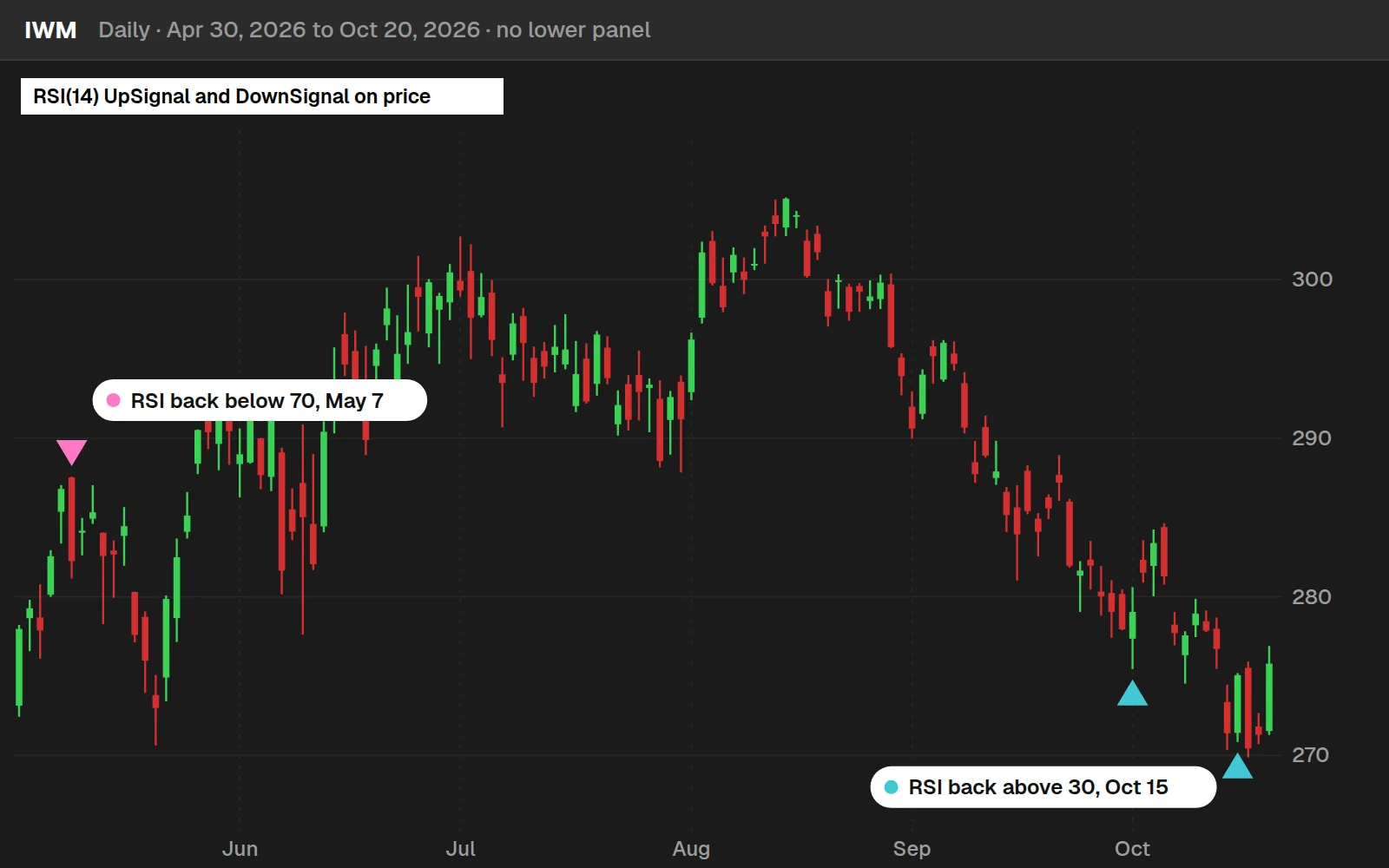
The arrow marks the bar the RSI left the extreme, not the bar it entered it, so it comes after the low or high. On May 7, 2026 IWM closed at $282.26 as its RSI fell back through 70; on Oct 15, 2026 it closed at $275.06 as RSI rose back through 30.
By the numbers
SPY daily, Jan 4, 2016 to Oct 20, 2026; 26 up arrows with 10 days after them. A small sample: read it as a description of these years, not a rule.
Full thinkScript code
Create a free account or sign in to copy all 24 lines and download the file.
Download
Download Maximize Your Chart Space With This Simple Trick for ThinkOrSwim.
Video: Maximize Your Chart Space With This Simple Trick, built line by line
16 minutes on YouTube.
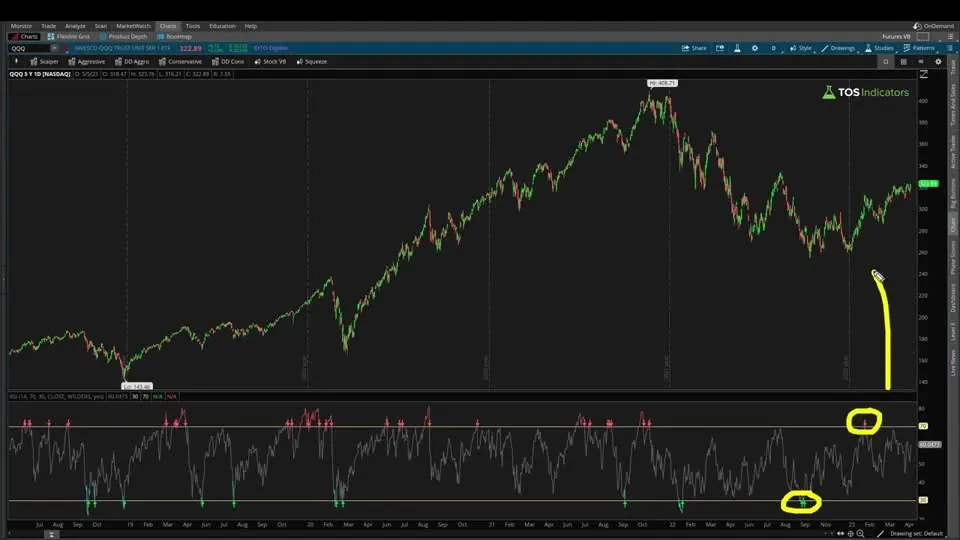 Watch on YouTube
Questions
How do I maximize chart space in ThinkOrSwim?
Move the signals of a lower-panel indicator onto the price chart and remove the lower panel. In the video I do it with the RSI: a short custom study reads the built-in RSI's UpSignal and DownSignal plots and draws them as arrows on the candles, so you keep the signals without giving up space below the chart.
How do I put RSI arrows on the price chart in ThinkOrSwim?
Create a new study and write def up = RSI().UpSignal; and def down = RSI().DownSignal;. Plot each one, then give them SetPaintingStrategy with PaintingStrategy.BOOLEAN_ARROW_UP and BOOLEAN_ARROW_DOWN. Click Apply and the arrows show on the price chart, lined up with the arrows on the lower RSI.
What is the difference between declare lower and declare upper?
declare lower tells ThinkOrSwim to always plot a study in a lower panel, which is how the built-in RSI starts on line 5. declare upper always plots it on the price panel. A new custom study plots on the upper panel by default, so declare upper is optional there.
What is the difference between def and plot in thinkScript?
A def is a calculation that runs behind the scenes and doesn't appear on the chart. A plot is something you see, like the RSI line. Only plot variables can be read from another study with the period approach, such as RSI().UpSignal, and a study needs at least one plot to show anything.
Why does ThinkOrSwim say at least one plot should be defined?
The study has no plot, only def lines, so it turns red and draws nothing. Add a plot line, such as plot upPlot = up;, and then a painting strategy so ThinkOrSwim knows how to draw it. In the video the error appeared right after I wrote the 2 def lines.
How do I change the RSI length in a custom thinkScript study?
Pass it as the first parameter: RSI(20).UpSignal uses a length of 20. The RSI's parameters go in a fixed order: length, overbought, oversold, price, average type and show breakout signals. To change a later one, list every parameter before it, as in RSI(14, 80) for an overbought level of 80.
Why can't I reference a def variable from another study?
The period approach only reaches plot variables. RSI().UpSignal works because the RSI code declares it as plot UpSignal. The RSI's calculations are def variables, so they aren't available that way. Use the exact name the study gives its plot, or the reference won't compile.
How do I make arrows bigger in ThinkOrSwim?
Add SetLineWeight to the plot, such as upPlot.SetLineWeight(3);. The weight goes up to 5, the largest you can choose. In the video, 5 made the arrows obnoxiously large, so I brought it down to 3, which keeps them manageable and still easy to see.
Related tools
 Dynamic RSIIndicator · Free
 Custom Toolbars - Instantly 10x Your ProductivitythinkScript tutorial · Free
 How to Track Percent Change From OpenthinkScript tutorial · Free
 Add Label FunctionthinkScript tutorial · Free
 How to Import a thinkScript Study into ThinkOrSwimthinkScript tutorial · Free
 How to Fix Bugs in thinkScript CodethinkScript tutorial · Free
Get each new indicator by email
One email on Sundays with the week's new tool and its code. A free account also unlocks every .txt download.
No credit card. Unsubscribe anytime.