
 Fair Value Gap
 False Breakout Scanner
 Heiken Ashi Trend
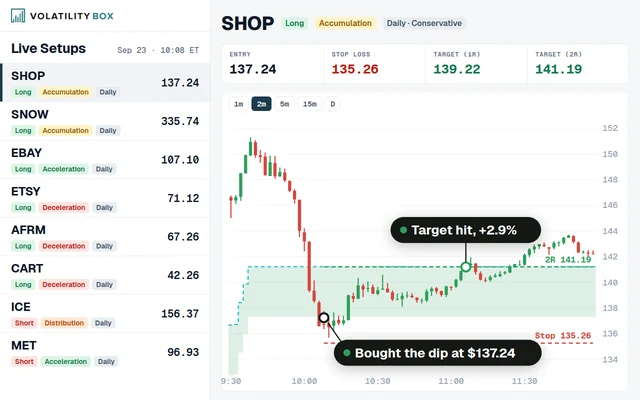 Stock Volatility Box
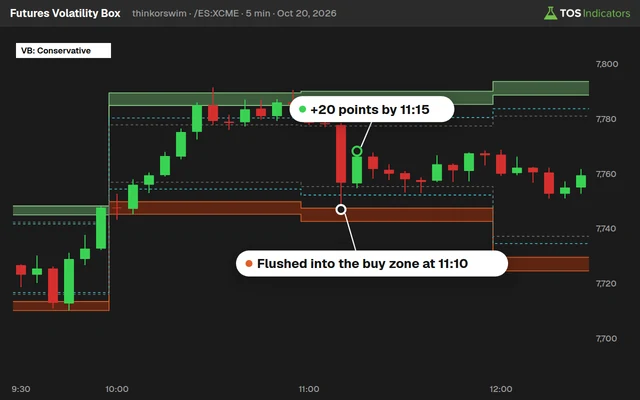 Futures Volatility Box
 ORB Setups
 Squeeze Setups
On this page
Overview
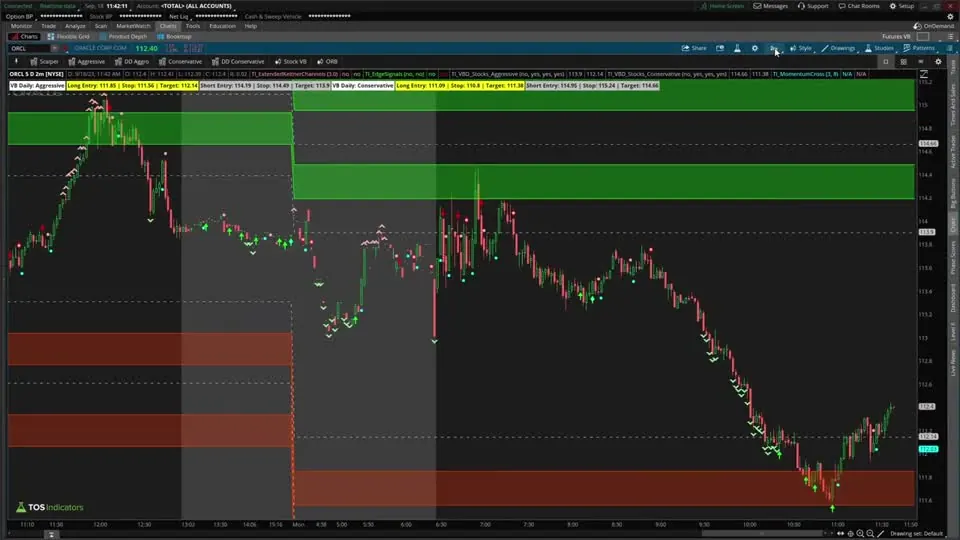
In this tutorial I set up a custom toolbar in ThinkOrSwim and link its buttons to saved styles and study sets, so one click loads a complete chart setup. In the video, a single button takes an Oracle (ORCL) chart from the daily timeframe to a 2-minute chart with our Stock Volatility Box models loaded.
The toolbar is for traders who switch between setups, timeframes or groups of indicators during the day and are tired of reloading studies by hand. I also explain the difference between a style and a study set, so you know which one each button should load.
Key Takeaways
- The ThinkOrSwim custom toolbar is turned on in the settings, on the General tab, in the My tools section: change it from Off to On each chart and click Apply.
- The toolbar holds up to 7 buttons. After the 7th, ThinkOrSwim grays out the option to add another.
- A toolbar button can link to a drawing tool, a study set or a style, the 3 options I cover in the video. I use my buttons for styles and study sets.
- A style saves the studies, the timeframe and chart settings such as extended hours. A study set saves only the studies and keeps the chart's current timeframe.
- In the video, an ORB button loads the opening range breakout indicator on a 1-minute chart, and a Stock Volatility Box button loads the models with the timeframe I use for them.
What a Custom Toolbar Does in ThinkOrSwim
A custom toolbar in ThinkOrSwim is a row of buttons on your charts, and each button loads something you saved ahead of time. Without it, testing a different setup means loading your custom indicators one at a time and changing the timeframe by hand. With it, you click one button.
In the video I start on a daily chart of Oracle. One click on my Stock Volatility Box button moves the chart to the 2-minute timeframe with all of our indicators loaded and ready to go. You do the setup work once, save it, and get it back in one click every time after that.
I link my buttons to styles and study sets, because each one saves a whole group of studies. The sections below show how to turn the toolbar on, how the two differ and how to save each one.
How to Turn On the Toolbar
The ThinkOrSwim toolbar is controlled from the My tools section of the settings, and ThinkOrSwim leaves it off by default. These are the steps and menu names as they were when I recorded the video. ThinkOrSwim may have moved things since, so a label can read a little differently on yours.
- Click the settings icon near the top of the screen.
- Stay on the General tab. It's the main tab the settings open to.
- Find the My tools section and change it from Off to On each chart.
- Click Apply. The toolbar now shows on your charts.
Set My tools back to Off and the toolbar disappears again. A new toolbar usually starts with 1 button. If you configured it before, you may see a few more.
Style vs Study Set in ThinkOrSwim
A style in ThinkOrSwim saves the studies on your chart together with the timeframe and your chart settings. A study set saves only the studies. That one difference decides which to link to a button.
When to Use a Style
A style fits a setup that is tied to a timeframe and to chart settings. Chart settings include things like extended hours turned on or off and a set number of bars on the time axis. When you save a style, all of that is saved with the indicators.
I use a style to load an entire setup's workspace in one click. Our Momentum Reversal setup for Stock Volatility Box members is an example. It calls for a 2-minute or 5-minute chart, extended hours turned on and a specific series of indicators, and a style brings back all three at once. Members may also keep separate sets for the aggressive and the conservative models.
When to Use a Study Set
A study set fits when you want to swap indicators and keep everything else. Say you're on a daily chart and like to look at it through a few lenses. One lens holds trend indicators such as the Market Pulse and the Squeeze. Another holds oversold and overbought indicators such as the RSI or our Dynamic RSI.
A third lens might split fundamental from technical studies. Each lens can be its own study set, and loading one keeps the daily chart as it is.
For Stock Volatility Box members, comparing daily and hourly models is the example. If you already have the timeframe you want and only want to swap between the aggressive and the conservative models, a study set does it. A style would also reload its saved timeframe and overwrite your current settings.
For most traders I think the style is the winner, because it moves you between whole setups and timeframes in one click.
How to Save a Style
A ThinkOrSwim style is saved from the Style menu at the top of the chart. Set the chart up first, exactly as you want the button to load it.
- Pick the timeframe, for example a 2-minute chart.
- Set your chart settings, such as extended hours on or off.
- Load every study the setup uses.
- Open the Style dropdown and click Save style at the bottom of the menu.
- In the prompt that opens, select the option to include patterns and study set, then save the style.
Including the study set is the step that saves your indicators along with the timeframe and chart settings. Make sure it's selected every time you save a style.
How to Save a Study Set
A ThinkOrSwim study set is saved from the study settings, and it holds the indicators on the chart and nothing else.
- Load the indicators you want in the set. If one of them is a custom study, add it first with our guide on how to import a study into ThinkOrSwim.
- Click the study settings icon.
- Click Save as a set.
- Give the set a name and save it.
How I Use the Toolbar
The custom toolbar lets me move through my trading day in a few clicks. The ORB button is my first click of the morning in the video. One click on my ORB button loads our Opening Range Breakout indicator on a 1-minute chart, with the 5-minute breakout and its targets already plotting.
When I want the Stock Volatility Box models instead, one more click changes the chart to the timeframe I use for them, with the right set of indicators. I don't fumble with settings or reload indicators, because I did that work once when I saved the style.
A button loads a setup, and the trade decision is still yours. Follow each setup's own rules, decide where your stop goes before you enter, and size the position so a stop-out costs a small, fixed share of your account.
Common Problems and Fixes
Most ThinkOrSwim toolbar problems come from the My tools setting or from how a style or study set was saved.
- No toolbar on the chart. My tools is off by default. In the settings, on the General tab, change it to On each chart and click Apply.
- You can't add another button. The toolbar holds 7. Replace a button you use less, such as a drawing tool.
- A button changed your timeframe. It's linked to a style. Link it to a study set if you want to keep the current timeframe.
- A style loads the timeframe but not your studies. Save the style again with the include patterns and study set option selected.
- A custom study is missing from a set. Import the study, load it on the chart, then save the set again.
For another way to clean up a crowded chart, our tutorial on plotting RSI signals on the price chart instead of a lower panel frees up chart space. More free tutorials are on the thinkScript page.
Download
Download Custom Toolbars - Instantly 10x Your Productivity for ThinkOrSwim.
Video: Custom Toolbars - Instantly 10x Your Productivity, built line by line
9 minutes on YouTube.
 Watch on YouTube
Questions
How do I add a custom toolbar in ThinkOrSwim?
Click the settings icon at the top of ThinkOrSwim and stay on the General tab. In the My tools section, change the setting from Off to On each chart and click Apply. The toolbar then appears on your charts, usually with 1 button, and you can add more buttons up to a total of 7.
How many buttons can the ThinkOrSwim toolbar hold?
The toolbar holds up to 7 buttons. After the 7th, ThinkOrSwim grays out the option to add a new one. With so few slots, link the buttons to the setups you use most, such as styles and study sets, rather than to drawing tools that already have their own menu.
What is the difference between a style and a study set in ThinkOrSwim?
A style saves the studies on your chart plus the timeframe and chart settings, such as extended hours and the number of bars on the time axis. A study set saves only the studies, so loading one keeps your current timeframe and settings. Use a style for a whole setup and a study set to swap indicators on the same chart.
How do I save a style in ThinkOrSwim?
Set up the chart first: timeframe, chart settings and studies. Then open the Style dropdown at the top of the chart and click Save style at the bottom. In the prompt, select the option to include patterns and study set so the indicators are saved along with the timeframe and chart settings, then save it.
How do I save a study set in ThinkOrSwim?
Load the indicators you want, click the study settings icon and click Save as a set. Give the set a name and save it. A study set holds only the indicators, so loading it later keeps whatever timeframe and chart settings you have at the time.
Can a toolbar button change the chart timeframe in ThinkOrSwim?
Yes, when the button is linked to a style. A style saves the timeframe, so clicking it switches the chart to that timeframe and loads the studies. In the video, one click moves an Oracle chart from daily to 2-minute. A study set button leaves the timeframe as it is.
Should I put drawing tools on the ThinkOrSwim toolbar?
You can link a button to any drawing tool, such as the trendline. I don't, because the toolbar holds only 7 buttons and the drawing tools already have their own menu. A button that loads a style or study set saves far more time than one that selects a drawing tool.
Why did my ThinkOrSwim toolbar disappear?
The toolbar is controlled by the My tools setting on the General tab of the settings, and when it is set to Off the toolbar disappears from your charts. Change it back to On each chart and click Apply. ThinkOrSwim leaves this setting off by default.
Related tools
 How to Track Percent Change From OpenthinkScript tutorial · Free
 Add Label FunctionthinkScript tutorial · Free
 How to Import a thinkScript Study into ThinkOrSwimthinkScript tutorial · Free
 How to Fix Bugs in thinkScript CodethinkScript tutorial · Free
 How to Set Custom Hours in thinkScriptthinkScript tutorial · Free
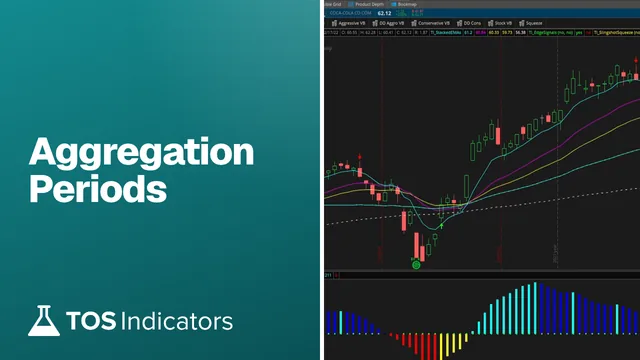 Aggregation Periods - How to Plot Larger Time Frame Indicators on Smaller Time FramesthinkScript tutorial · Free
Get each new indicator by email
One email on Sundays with the week's new tool and its code. A free account also unlocks every .txt download.
No credit card. Unsubscribe anytime.