
 Fair Value Gap
 False Breakout Scanner
 Heiken Ashi Trend
 Stock Volatility Box
 Futures Volatility Box
 ORB Setups
 Squeeze Setups
On this page
Overview
In this tutorial I show you how to create TICK alerts in ThinkOrSwim that send you a text any time the NYSE TICK hits an extreme reading. We'll call extreme +1,000 and -1,000, and set up one price alert for each on the $TICK chart.
Our TICK indicators help you study the internals on a chart. These alerts answer a simpler question while you're away from it: is there a lot of buying pressure or a lot of selling pressure right now? They're for day traders who want to track the TICK on their phone while they focus on other markets.
Key Takeaways
- TICK alerts in ThinkOrSwim are 2 price alerts on the NYSE TICK symbol, $TICK: one when the mark is at or above +1,000 and one when it is at or below -1,000.
- Each alert starts with a right-click on a $TICK chart and Create alert. The text in the Notes box is the message you receive.
- Under Notify with, I turn on play sound, send text messages during US market hours, and a push notification to the ThinkOrSwim mobile app.
- Under Options, I submit the alert now with no expiration and set the reverse crossover to a silent alert, so only the move to the extreme sends a text.
- Both alerts are listed under MarketWatch, Alerts. When I created the +1,000 alert in the video, the TICK read -532.
What the NYSE $TICK Measures
The NYSE TICK ($TICK in ThinkOrSwim) is the number of NYSE stocks ticking up minus the number ticking down at that moment. A reading of +1,000 means 1,000 more stocks were ticking up than down, and -1,000 means the reverse. Traders read it as a market internal for buying and selling pressure across the exchange.
We've built many indicators and tools around the internals, but in the video I say there's no better one than the NYSE TICK itself. I treat +1,000 and -1,000 as extreme readings. A +1,000 reading says there's a lot of buying pressure happening right now, and a -1,000 reading says there's a lot of selling pressure.
Why Get Text Alerts for Extreme TICK Readings
A TICK text alert is a way to keep track of the TICK without watching the $TICK chart all day. The alerts are most useful when you're trying to focus on other markets.
In periods like the week before I recorded, when the first 30 minutes of the morning trend hard in one direction, the alerts arrive as a series of texts. A run of +1,000 texts tells you there's a lot of buying pressure, a run of -1,000 texts tells you there's a lot of selling pressure, and you get it on your phone without looking at a chart.
How TICK Alerts Compare to Our TICK Indicators
TICK alerts are the narrowest of our TICK tools: they only tell you when the raw TICK reaches an extreme. The indicators below read the TICK on a chart in other ways.
| Tool | What it does with the TICK | Access |
|---|---|---|
| TICK text alerts (this page) | Texts you when $TICK reaches +1,000 or -1,000 | Built into ThinkOrSwim |
| Cumulative TICK | Keeps a running total of the TICK through the day | Free |
| Cumulative TICK Pro | Gives a heads-up when the market is likely to trend, or likely to exhaust its trend and revert to its mean | Volatility Box members |
| Extreme TICK Counter | Counts today's +1,000 and -1,000 readings in 2 chart labels | Free |
The free Cumulative TICK tutorial is the one to watch if you're curious how it was built or want to learn more about the TICK. For a sector-wide view of the market, our Utility Labels indicator tracks sectors and internals in chart labels.
What Cumulative TICK Pro Showed
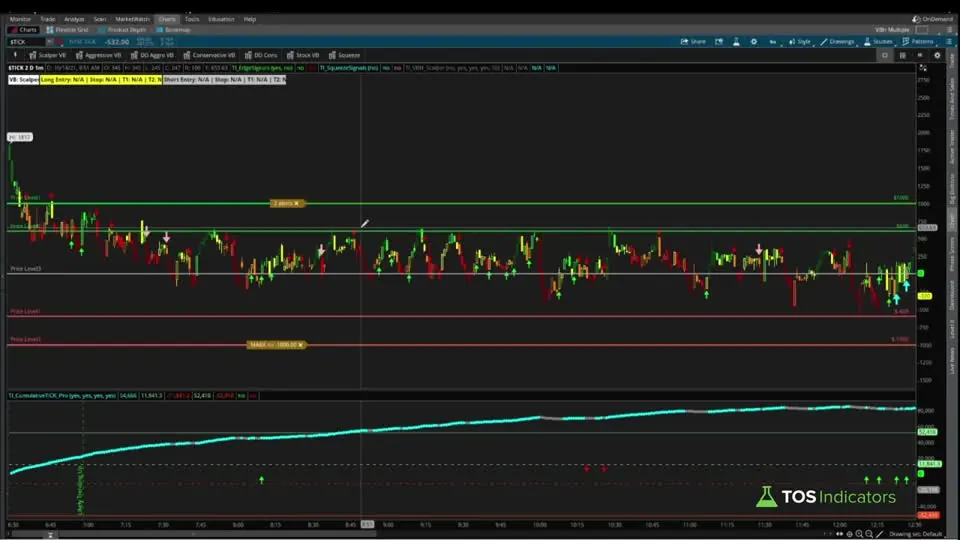
Before building the alerts, I show what Cumulative TICK Pro looks like on Thursday's chart. It printed a likely trending up notification at 7 a.m. Pacific. The Pro version takes the same cumulative TICK as the free version and turns it into something you can act on.
It uses the first 30 minutes of data to ask what the internals look like. Every time we've seen similar TICK readings, did the market have a tendency to trend up, give no insight either way, or exhaust a previous trend? The alerts on this page watch the physical TICK itself.
How to Create the +1,000 TICK Alert
The +1,000 TICK alert is a price alert on the $TICK symbol. Here are the steps from the video:
- Load a chart of the NYSE TICK. The symbol is
$TICK. - Right-click anywhere on the chart and choose Create alert. That opens ThinkOrSwim's create alert on price window.
- Leave the symbol as
$TICK. Set the price to the market price, Mark, and the condition to at or above. - Change the number to 1000.
- In Notes, type the message you want to receive. I used "tick is at or above +1000". Change it to whatever you prefer.
- Open the Notify with section below and check Send text messages during US market hours. I also turn on Play sound and the push notification to my mobile device.
- Scroll down to the Options section. Set the alert to submit now with no expiration date, and set Alert for reverse crossover to Create silent alert.
- Click Create.
The alert tells ThinkOrSwim you want a message any time the market price of the NYSE TICK is at or above +1,000. With all 3 delivery options on, you get a text, a push alert from the mobile app, and a sound and notification inside the platform. Our ThinkOrSwim text alerts tutorial explains each Notify with option and how ThinkOrSwim delivers them.
The Alert Settings I Used
The 2 TICK alerts share every setting except the condition, the level and the note. The table puts them side by side.
| Setting | +1,000 alert | -1,000 alert |
|---|---|---|
| Symbol | $TICK | $TICK |
| Price | Mark | Mark |
| Condition | At or above | At or below |
| Level | 1000 | -1000 |
| Notes (your text) | tick is at or above +1000 | tick is at or below -1000 |
| Notify with | Play sound, text during US market hours, push notification | Same |
| Submit | Now | Now |
| Expiration | Never | Never |
| Alert for reverse crossover | Create silent alert | Create silent alert |
I leave out the expiration date because I want the alert to keep recycling. The silent reverse crossover means I don't get a text for the reverse side, only when the TICK crosses to the +1,000 or -1,000 reading.
How to Create the -1,000 TICK Alert
The bottom side alert, at -1,000, is a copy of the first one with 3 changes. Right-click the $TICK chart again, choose Create alert, and follow the same process with these differences:
- Change the condition from at or above to at or below.
- Change the level from 1000 to -1000.
- Change the note to something like "tick is at or below -1000".
Keep the same Notify with choices (play sound, text message and push notification) and the same Options (submit now, never expire, silent alert for the reverse crossover), then click Create. The result is the bottom side alert, linked to the -1,000 mark.
Where to Find Your TICK Alerts
ThinkOrSwim lists every alert you create under the MarketWatch tab. Click MarketWatch at the top of the platform, then Alerts.
In the video, the first alert read mark is at or above +1,000, with the note "tick is at or above +1000" beside it. The current TICK reading was -532 at the time. Once you've built the second alert, both show in the same list, one at +1,000 and one at -1,000.
Where ThinkOrSwim Sends the Texts
The phone number for alert texts is set in Application Settings, and a lot of people don't have it configured. When I recorded the video, the path was Setup in the top right corner, then Application Settings, then the Notifications tab. Confirm your phone number under Send text to, and set an address under Send email to if you want email alerts.
The rest of the delivery side is in our scan alerts tutorial, including how reliable scan alerts are on different timeframes and how to get a daily list of stocks from a scan instead of an alert on one symbol.
How I Use TICK Alerts
TICK alerts are how I keep track of the TICK without constantly monitoring the chart. Treat each text as a read on the internals and wait for your own setup before you trade.
Decide where your stop goes before you enter, and size the trade so a stop-out costs a small, fixed share of your account. For ways to read the TICK on trend days, see 2 ways to use the NYSE $TICK to spot trend days.
If you'd rather see a running count of those readings on the chart, our Extreme TICK Counter keeps one label for +1,000 readings and one for -1,000 readings, and starts over each day.
Adding More TICK Levels
Each extra TICK level needs its own price alert. The setup in the video is 2 levels, but the same steps work for more granular levels: create another price alert on $TICK with the number you want, a note that names the level, and the same Notify with and Options settings. Give each level its own note so the text tells you which one fired.
Download
Download How to Create Text Alerts for Extreme $TICK Readings for ThinkOrSwim.
Video: How to Create Text Alerts for Extreme $TICK Readings, built line by line
9 minutes on YouTube.
 Watch on YouTube
Questions
How do I set a TICK alert in ThinkOrSwim?
Load a $TICK chart, right-click it and choose Create alert. Set the price to Mark, the condition to at or above, and the level to 1000. Type the message you want in Notes, check Send text messages during US market hours, set no expiration and a silent alert for the reverse crossover, then click Create.
What is an extreme TICK reading?
In the video I call +1,000 and -1,000 extreme TICK readings. The NYSE TICK is the number of NYSE stocks ticking up minus the number ticking down, so +1,000 means 1,000 more stocks were ticking up than down. A +1,000 reading points to a lot of buying pressure, and -1,000 to a lot of selling pressure.
What symbol is the NYSE TICK in ThinkOrSwim?
The NYSE TICK is $TICK in ThinkOrSwim, spelled with a dollar sign. Type it in a chart's symbol box to load the TICK chart, then right-click that chart to create the alerts. The symbol in the create alert window should stay as $TICK for both the +1,000 and the -1,000 alert.
How do I add more TICK alert levels in ThinkOrSwim?
Create one more price alert on $TICK for each level you want. Right-click the $TICK chart, choose Create alert, set Mark at or above or at or below the new level, and write a note that names the level so the text tells you which one fired. Use the same Notify with and Options settings as the +1,000 and -1,000 alerts.
What does Alert for reverse crossover do in a ThinkOrSwim alert?
It sets what happens when the price crosses back the other way. I set it to Create silent alert, since I don't want a text for the reverse side, only when the TICK crosses to +1,000 or -1,000. I also leave the expiration date off, since I want the alert to keep recycling.
Where can I see my active alerts in ThinkOrSwim?
Click the MarketWatch tab at the top of the platform, then Alerts. Each alert shows its condition, such as mark is at or above +1,000, along with the note you'll receive and the current reading. In the video the TICK read -532 when I created the +1,000 alert.
Can I get a push notification instead of a text?
Yes. The Notify with section has a push notification option for your mobile device, which works if you have the ThinkOrSwim mobile app downloaded. You can pick it alone or with others. I turn on play sound, the text message and the push notification, so I hear the alert in the platform and see it on my phone.
How are TICK alerts different from the Cumulative TICK?
A TICK alert watches the physical TICK and texts you when one reading reaches +1,000 or -1,000. The Cumulative TICK keeps a running total of the TICK through the day and plots it on a chart. The members-only Cumulative TICK Pro adds a heads-up when the market is likely to trend or to exhaust its trend.
Related tools
 Supply Demand EdgeIndicator · Free
 Cumulative TICKIndicator · Free
 Extreme TICK CounterIndicator · Free
 Build Your Own Automated Text Message Alert SystemthinkScript tutorial · Free
 Add Label FunctionthinkScript tutorial · Free
 Backtest Weekly Fisher Transformer Signals in 10 MinutesthinkScript tutorial · Free
Get each new indicator by email
One email on Sundays with the week's new tool and its code. A free account also unlocks every .txt download.
No credit card. Unsubscribe anytime.