
 Fair Value Gap
 False Breakout Scanner
 Heiken Ashi Trend
 Stock Volatility Box
 Futures Volatility Box
 ORB Setups
 Squeeze Setups
On this page
Overview
In this tutorial I write an automated buy the dip script for ThinkOrSwim that buys whenever price pulls back to the weekly Market Pulse line. I start from the code of our free Market Pulse indicator, cut it down to one trigger that ThinkOrSwim can use as an order condition, and deploy the order in VGT, the Vanguard Information Technology ETF.
Once the order is live, ThinkOrSwim watches the line for you and sends the order only when price gets there. It's for traders who already like a trend and want a hands-off way to get a starting position on the next dip, then decide by hand whether to add more.
Key Takeaways
- The buy the dip script is one line of thinkScript,
plot buySignal = close <= VMA;, added to the code of our free Market Pulse indicator. - VMA is the variable moving average that the Market Pulse draws on your chart. In the video I set the order condition to the weekly time frame, so the order triggers on a pullback to the weekly line.
- To work as an order condition, the Market Pulse code needs
plot VMAchanged todef VMA, and its line color code and AddLabel line deleted. The trigger is the only plot left. - In the video, the order buys 2 shares of VGT with the limit price linked to the bid and the time in force set to GTC.
- The order follows the line, so it keeps working when the line moves. The weekly line read 542.50 in the video, and the order isn't tied to that number.
What the Buy the Dip Script Does
The buy the dip script is a ThinkOrSwim conditional order that buys when price pulls back to the Market Pulse line on the weekly chart. The condition is one true-or-false test: is the close at or below the variable moving average (VMA)? On a weekly bar that's still forming, the close is the latest price.
I use it to open a starting position, almost like a better alert. ThinkOrSwim gets me into a small position at the line, and then I evaluate the trade by hand before I add more size. If you're new to orders that fire on a thinkScript condition, our beginner's guide to automated trading covers the idea from the start.
Why I Picked VGT for the Order
VGT was my long-side candidate in the video because its weekly trend was still intact. The Market Pulse line on the weekly chart was green, which tells me the trend so far is still bullish.
The daily chart told a different story: the daily trend had broken. Price was pulling back into an area where I might expect support, along with some key daily Fibonacci levels. A pullback to the weekly Market Pulse line plus a chance to buy into daily Fib levels made me a happy buyer on the longer time frames.
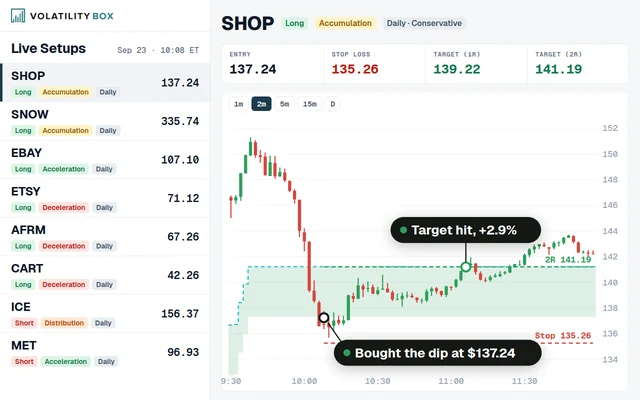
Volatility was high across tech stocks that day. Microsoft fell into the aggressive models of our Stock Volatility Box and AMD into its conservative models, and buyers came in on both. Google moved less than the other tech names, while Nvidia had more volatility than usual. There were some gems in there, but it was the index market I wanted to take advantage of on this pullback, through the ETF.
The Market Pulse Line Behind the Trigger
The Market Pulse line is a variable moving average with a length of 10, plotted by our free Market Pulse indicator. It's green when the 8, 21 and 34-bar volume-weighted moving averages are stacked bullishly and price is at or above the line. It's red in the bearish mirror case and gray the rest of the time.
The VMA changes speed with the market. The code compares the up-moves and down-moves of the last 10 bars: when price moves mostly one way, the line follows price closely, and in choppy trade it flattens. On a weekly chart, a dip to that line is a pullback inside the trend the line has been tracking.
The trigger only reads the line's value. The colors and the stage label are for your eyes, and ThinkOrSwim rejects them in an order condition, so the next section deletes them.
How to Turn the Market Pulse Code Into an Order Condition
The Market Pulse indicator code needs a few changes before ThinkOrSwim accepts it as an order condition. Copy the full code from the indicator first. In the video I copied it on the weekly chart, where the order runs, and pasted it into the order's study editor.
Step 1: Write the Trigger
The trigger is the one plot ThinkOrSwim uses for the order. It's true when the close is less than or equal to the VMA line:
This step’s code is free with an account. Create one or sign in.
VMA is a variable the Market Pulse code creates near the top. As written, the trigger is true on any close at or below the line, whatever color the line is. That was fine for VGT, because I placed the order while the weekly line was green.
Step 2: Change the VMA Plot to a Def
In the indicator, the VMA is a plot, which is how you see it drawn on your chart. The order condition only needs the trigger to plot. These are the two lines as they come in the indicator:
This step’s code is free with an account. Create one or sign in.
Change the first line to def and delete the second, which sets the line's color:
This step’s code is free with an account. Create one or sign in.
Step 3: Delete the Code That Draws on the Chart
Two more pieces of the indicator only draw on the chart, and ThinkOrSwim rejects both in an order condition. The table lists the errors I got in the video and the fix for each.
| Error in the editor | What causes it | Fix |
|---|---|---|
| AddLabel is not allowed in this context | The stage label (Acceleration, Deceleration, Accumulation, Distribution) | Delete the AddLabel line |
| Cannot call AssignValueColor on VMA | The lines that color the VMA green, red or gray. With no line plotted, there's nothing to color | Delete the VMA.AssignValueColor lines |
With those gone, the editor showed no errors and one plot, buySignal, for ThinkOrSwim to use. The Market Pulse download also has optional chart bubbles. The Code tab on this page leaves those lines out as well, since they only draw on the chart.
How to Set Up the Automated Order in ThinkOrSwim
The automated buy the dip order is a regular buy order with a study condition in its Order Rules panel. These are the steps I followed in the video:
- Start a buy order for your symbol. Keep the quantity small if this is your first automated order.
- Click the settings icon on the order to open the Order Rules panel.
- Under Conditions, click Symbol. It fills in the order's symbol, VGT in the video.
- Under Method, select Study, click Edit, and paste in the Market Pulse code. Make the edits from the section above until the errors clear.
- Set the time frame to weekly and the trigger to true, so the order fires only when the close is at or below the line. Click OK.
- Link the limit price to the bid, since you're buying. Leave the offset at 0, or set one if you want a better price than the bid, for example 50 cents.
- If you want the order to expire, add a cancel condition with a date and time filter, such as the close of the next trading day. I left it off.
- Click Save, change the time in force to GTC, and click Confirm and Send.
The table sums up the order I sent in the video.
| Order setting | What I used in the video |
|---|---|
| Symbol | VGT |
| Side and quantity | Buy 2 shares as a starting position |
| Condition method | Study, with the edited Market Pulse code |
| Condition time frame | Weekly |
| Trigger | True: the close is at or below the VMA line |
| Limit price | Linked to the bid, offset 0 |
| Cancel condition | None (a date and time filter is optional) |
| Time in force | GTC |
Why the Order Follows the Line
The buy the dip order is connected to the Market Pulse line itself, which makes it dynamic. In the video the weekly line read 542.50, and that value can change by the next day. Because the condition reads the VMA, you don't need to track the line's price or move a limit order by hand.
A plain limit order at 542.50 would stay at 542.50 while the line drifted away from it. The study condition moves with the line, and ThinkOrSwim sends the order only when price crosses below it. If you want the Market Pulse trend on several time frames at once, our members' MTF Market Pulse shows it as a row of labels.
Adding a Trend Filter With the Bullish Variable
The bullish variable in the Market Pulse code lets the order check the trend too. As written, buySignal has no idea whether the line is green, gray or red. To buy only while the trend is bullish, add it to the trigger:
This step’s code is free with an account. Create one or sign in.
In the code, bullish is true when the 8-bar volume-weighted moving average is above the 21 and the 21 is above the 34:
This step’s code is free with an account. Create one or sign in.
That stack is the trend half of what turns the line green. A close below the line turns it gray, so the stack is the part you can still test at the moment of the dip. I left the filter out in the video and kept the one-liner, since the weekly line was already green.
How I Use the Script, and Why I Test It First
I use the automated buy the dip order to get a starting position, like a better alert. When it fills, I look at the trade again by hand and decide whether to add size.
If you've never run an automated order, start in paperMoney and test it hard before you go live, then move to small sizes. There are a lot of glitches to iron out, and paper trading is the easiest way I've found to do that.
The order fills once. ThinkOrSwim doesn't repeat it for you, so to buy a later dip you send a new order. Our beginner's guide to automated trading covers that limit.
The order handles the entry only. Decide where your stop goes before the order goes live, and size the position so a stop-out costs a small, fixed share of your account.
More Automated Trading Examples
The buy the dip script is one of several automated trading tutorials on TOS Indicators. Our automated trading hub shows them all, and two pair well with this one:
- Automated pullback entry with a squeeze cancel: a similar Market Pulse pullback order with a second condition that cancels it if the squeeze fires first.
- Automated trading with the Momentum Cross: an automated entry built on a different indicator.
The order on real charts
Drawn from real daily bars with the code on this page, through Oct 20, 2026. The order condition is close <= VMA on weekly bars. On a weekly bar that comes down to price trading at or below last week's line, so the order trips the first time price touches it and fills about there (at the open if the week gaps below it). I counted dips that came after at least 8 weekly closes above the line, the pullback in an uptrend the video is after.
NVDA, week of Jun 22, 2026
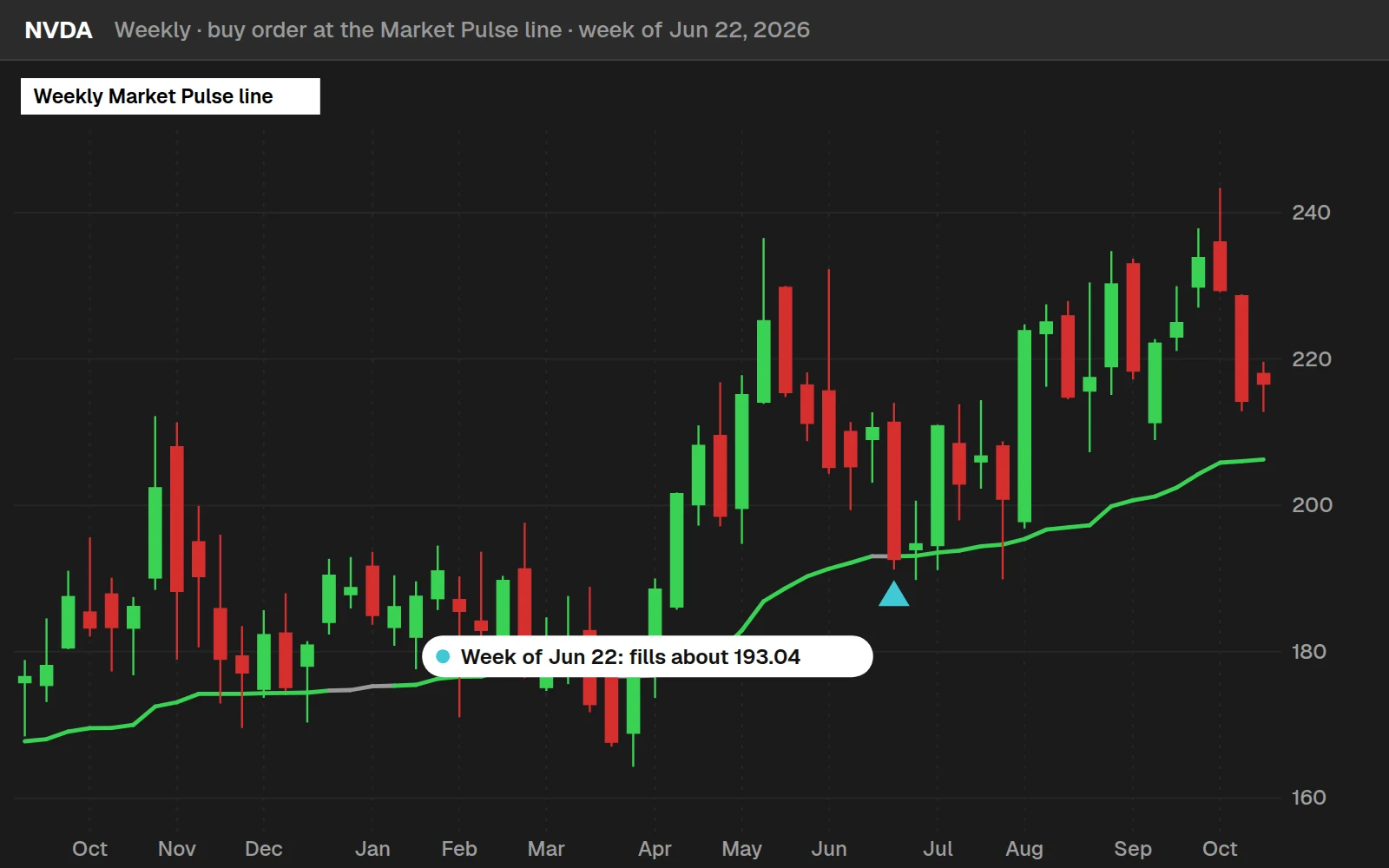
NVDA had closed above its weekly line for 8 weeks or more when it traded down to about $193.04 in the week of Jun 22, 2026. Thirteen weeks later it closed at $225.07, +16.6% from that fill. It is the most recent such dip on a well-known name that was higher a quarter later.
The latest one: MA, week of Sep 28, 2026
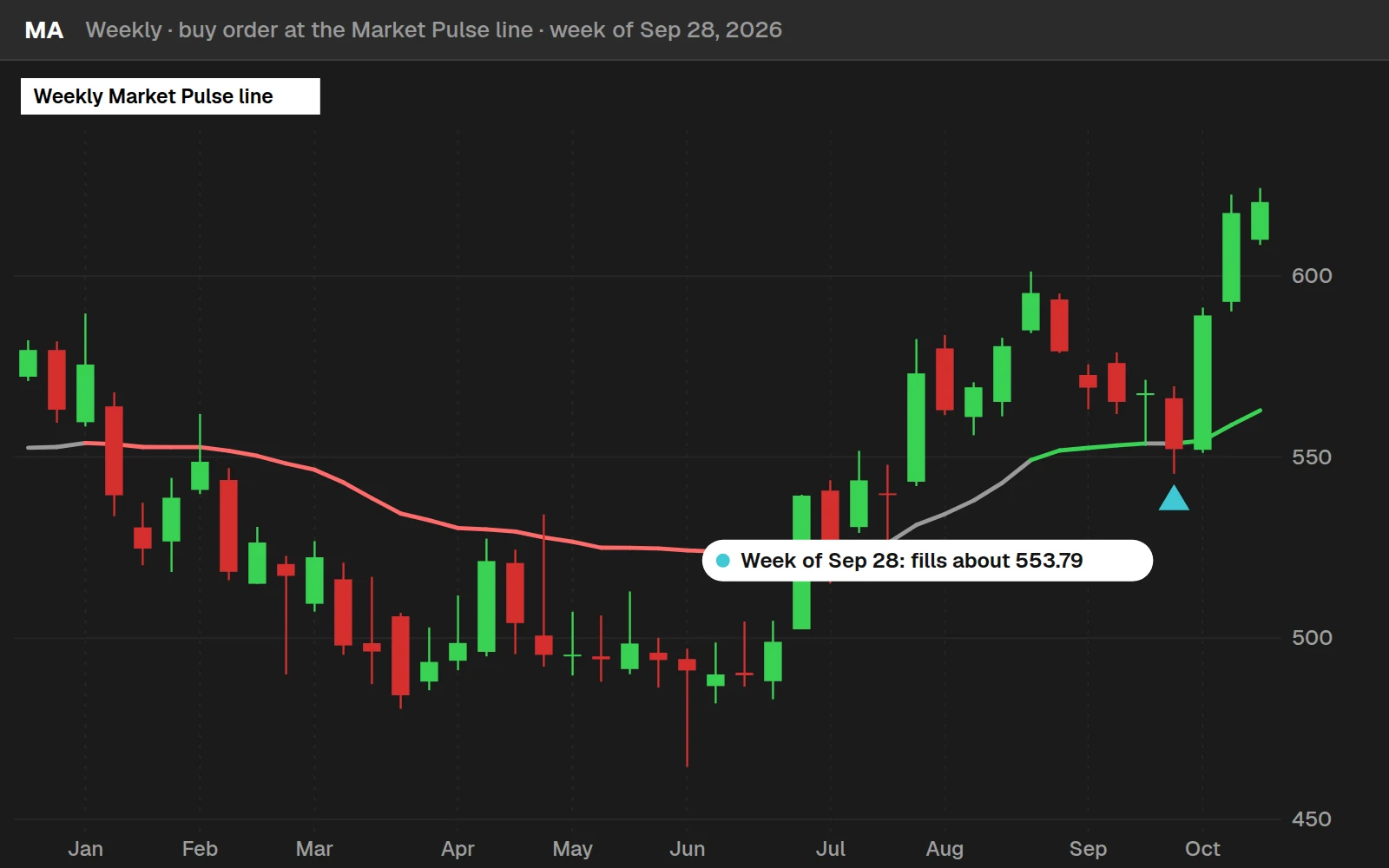
The order would have filled at about $553.79; MA closed the Oct 20, 2026 session at $620.42, +12.0% from there, before a full quarter has passed.
By the numbers
Weekly bars of our stocks and ETFs through Oct 20, 2026: the 14 ETFs from 2016, most stocks from July 2024, so 84% of these dips are from 2025 and 2026. The commented-out line in the code adds the stacked-VWMA filter; its column uses the same dips.
Full thinkScript code
Create a free account or sign in to copy all 40 lines and download the file.
Download
Download Automated trading: "Buy the Dip" Script for ThinkOrSwim.
Video: Automated trading: "Buy the Dip" Script, built line by line
8 minutes on YouTube.
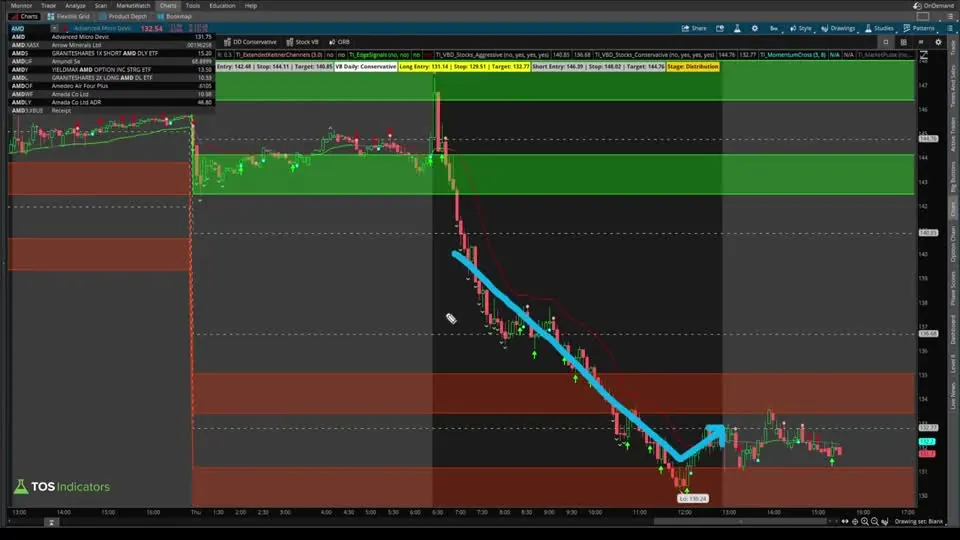 Watch on YouTube
Questions
How do I automate a buy the dip order in ThinkOrSwim?
Copy the free Market Pulse code, open the Order Rules panel on a buy order, choose Study under Method and paste it in. Add a buySignal plot that is true when the close is less than or equal to VMA, change plot VMA to def VMA, and delete the color and label lines. Set the time frame to weekly and the trigger to true, link the limit to the bid, and send it GTC.
What does the buySignal line in the order condition do?
It is the trigger ThinkOrSwim reads. It is true when the close is less than or equal to the VMA, the line the Market Pulse indicator plots. With the condition set to the weekly time frame and the trigger set to true, ThinkOrSwim sends the order when price reaches or drops below the weekly line.
Why do I get "AddLabel is not allowed in this context"?
Order conditions in ThinkOrSwim reject code that only draws on the chart, and the Market Pulse stage label is one of those lines. Delete the AddLabel line. If you also see "Cannot call AssignValueColor on VMA", delete the VMA.AssignValueColor lines, since VMA is now a def and has no line to color.
What is the VMA in the Market Pulse indicator?
VMA is a variable moving average with a length of 10. It compares the up-moves and down-moves of the last 10 bars, follows price closely when price moves mostly one way, and flattens in choppy trade. The Market Pulse plots it as one line and colors it green, red or gray by trend.
Can I make the order buy only while the Market Pulse line is green?
Yes. Add "and bullish" to the end of the buySignal line in the Code tab. The bullish variable is true when the 8-bar volume-weighted moving average is above the 21 and the 21 is above the 34, the trend half of a green line. In the video I left it out because the weekly line was already green.
Why link the limit price to the bid?
You are buying, so the bid is the price you link to. I used an offset of 0. If you want a better fill, offset the limit below the bid, for example by 50 cents, at the cost of maybe not getting filled. Pick the setting that fits your trading style.
Do I need to update the order when the Market Pulse line moves?
No. The condition reads the line itself, so the order moves with it. In the video the weekly line read 542.50, and that value can change the next day. A plain limit order at 542.50 would stay put, while the study condition follows the line until price crosses below it.
Should I test an automated order in paperMoney first?
Yes. Automated orders have a lot of glitches to iron out, so run the order in paperMoney first and test it hard. Then go live with a small size. I use the order for a starting position and decide by hand whether to add more.
Goes with
Related tools
 Commodities Tracker
 Market Pulse
 Market Pulse Dashboard
 Beginner's Guide to Automated Trading
 Automated trading: Momentum Cross
 Automated trading: Candlestick Example
Get each new indicator by email
One email on Sundays with the week's new tool and its code. A free account also unlocks every .txt download.
No credit card. Unsubscribe anytime.