
 Fair Value Gap
 False Breakout Scanner
 Heiken Ashi Trend
 Stock Volatility Box
 Futures Volatility Box
 ORB Setups
 Squeeze Setups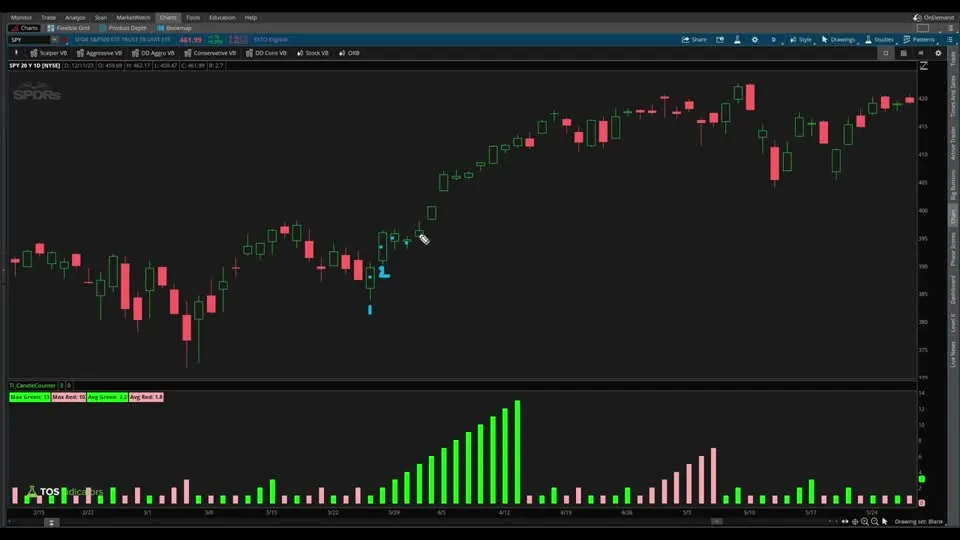
On this page
Overview
In this tutorial I build a candle counter indicator for ThinkOrSwim that counts how many green candles, and how many red candles, print in a row. A histogram in a lower panel shows each count bar by bar, and 4 labels show the highest and the average count for each color across all the data on your chart.
I built it to profile the S&P 500: how many green days in a row it tends to have before a red day, and the reverse, so you have a better idea of where a trend might be exhausting. It's also a short, beginner-friendly thinkScript exercise in counter variables, resetting them, labels and histograms.
Key Takeaways
- The candle counter is a free ThinkOrSwim lower study that counts consecutive green candles (close above open) and consecutive red candles (close at or below open). Each count resets to 0 when a candle of the other color prints.
- It plots both counts as histograms, green for green candles and pink for red, and prints 4 labels: Max Green, Max Red, Avg Green and Avg Red.
- A doji, where the close equals the open, counts as a red candle, so it ends a green run.
- In the video, with 20 years of daily SPY data loaded, Max Green read 13, a run that started on March 25, and Max Red read 10.
- The labels use HighestAll and TotalSum, so they cover every bar loaded on the chart. Load more history and the max and average can change.
What Is a Candle Counter?
A candle counter is an indicator that counts how many candles of the same color have printed in a row. On a daily chart, a green count of 5 means the market has closed above its open 5 days running.
The question behind ours is simple: how many green days in a row does the S&P 500 have before a red day, and how many red days before a green one? Knowing the longest run and the average count gives you a profile of the market, so a run that is getting long by that market's standards stands out.
The video is also a thinkScript lesson. You'll see how to create counter variables, how to reset them, how to plot a histogram, and how to keep two groups of data, the green candles and the red candles, separate from each other.
What the Candle Counter Shows
The candle counter shows 2 histograms in a lower panel and 4 labels at the top of that panel. The histograms count, and the labels summarize those counts over the whole chart.
| Item | What it shows | Color |
|---|---|---|
| Green histogram | How many green candles in a row up to this bar, 0 on a red candle | Green |
| Red histogram | How many red candles in a row up to this bar, 0 on a green candle | Pink |
| Max Green label | The highest green count on the chart | Green |
| Max Red label | The highest red count on the chart | Pink |
| Avg Green label | The average green count across all green candles, to 1 decimal | Green |
| Avg Red label | The average red count across all red candles, to 1 decimal | Pink |
In the video's example, 6 green candles in a row built the green histogram up to a bar of 6. The next red candle dropped it back to 0 and started the red count.
How to Add the Candle Counter to ThinkOrSwim
The candle counter is a regular ThinkOrSwim study, created from the Studies menu.
- Click the Studies icon on your chart, then click Create.
- Name the study, for example candle counter, and delete the starter code in the editor.
- Paste in the code from the Code tab on this page, then click OK and Apply.
- Load enough history for the labels to mean something. I used 20 years of daily candles on SPY.
The code starts with declare lower, so it opens in its own panel under the price chart. To import the downloaded file instead, follow our guide on how to import a study into ThinkOrSwim.
How the Code Works
The candle counter code is 23 lines of thinkScript, built in 5 steps. The snippets below come from the downloaded file.
Step 1: Define Green and Red Candles
This step’s code is free with an account. Create one or sign in.
A green candle closes above its open. A red candle closes below its open or right at it, so a doji counts as red.
Step 2: The Counter Variables
This step’s code is free with an account. Create one or sign in.
If the bar is green, the green counter takes its value from the previous bar, greenCounter[1], and adds 1. If the bar is red, it resets to 0.
The red counter is the mirror image. While I built it in the video, I put the green counter in a chart bubble over each candle: it counted 1, 2, 3 up to 6, dropped to 0 on the next red candle and started again at 1 on the next green one. Then I removed the bubble.
Step 3: The Max Values
This step’s code is free with an account. Create one or sign in.
HighestAll finds the highest value of a variable across every bar on the chart. I made the red labels pink so they're easier to see.
Step 4: The Average Values
An average is a sum divided by the number of values. For the numbers 1, 2, 3, 4 and 5, you add them up to 15 and divide by 5 to get 3. The candle counter does the same with its counters, one color at a time:
This step’s code is free with an account. Create one or sign in.
TotalSum adds a value up across every bar on the chart.
The occurrences line counts 1 only where the green counter is 1 or more. If you divided by every bar, all the 0s from red candles would drag the average down. The red side repeats the same three lines with redCounter.
Step 5: The Labels and the Histograms
This step’s code is free with an account. Create one or sign in.
Round(..., 1) keeps each average to 1 decimal place.
This step’s code is free with an account. Create one or sign in.
The two plots draw the counters. In the video they showed nothing until I added declare lower at the top.
Plotted as lines, they rise with each candle of the same color and fall back to 0. The histogram painting strategy is easier to read, and the default colors fix the green and pink no matter what else is on your chart.
What the Avg Labels Measure
The Avg Green label is the average reading of the green counter across every green candle on the chart. Each green candle adds its count to the sum: the first candle of a run adds 1, the second adds 2, and so on.
That makes the label different from the average length of a run. If a single run of 5 green candles were the only one on the chart, the counter would read 1, 2, 3, 4 and 5, and Avg Green would show 3. Read it as the count a typical green candle sits at, and Max Green as the longest run.
If you want the average length of a run instead, here is a suggested edit, not in the video or the download. Add these 2 lines below the existing average lines:
This step’s code is free with an account. Create one or sign in.
greenRuns counts the bars where a new run starts. Green candles divided by runs is the average run length. For the red side, copy both lines, change every green to red (redRuns, redCounter, totalRedOccurrences and the label text) and use color.pink.
Examples From the Video
The candle counter examples in the video ran on daily candles with 20 years of data loaded. I read out the max labels and found each run on the chart. The video doesn't read out the Avg Green or Avg Red values.
| Symbol and chart | Reading | What I found |
|---|---|---|
| SPY, daily, 20 years | Max Green 13 | The tallest green spike. The run started on March 25 (the year isn't stated), and I counted the 13 candles off one by one. |
| SPY, daily, 20 years | Max Red 10 | Found by scrolling back toward the start of the data: 10 red candles, then a green one. |
| SPY, daily | A spike of 7 | While the counters were still plotted as lines, one spike lined up with 7 green candles in a row. |
| QQQ, daily, 20 years | Max Red | A little bigger than SPY's. No figure read out. |
To find the max run yourself, zoom out and look for the tallest bar of that color in the histogram, then zoom in on it. The label and the bar should show the same number.
How to Read the Candle Counter
The candle counter tells you the personality of a market: how long its runs of green and red candles have been, at their longest and on average. The current histogram bar tells you where today's run stands against that history.
- Compare markets. Switch the symbol and the labels update. I went from SPY to QQQ in the video, and you can do the same with the Dow, the Russell or single stocks like Apple and Microsoft.
- Compare the current run. A green bar near Max Green means the run is already long by that market's own standards, which is where a trend might be exhausting.
- Keep the history long. The labels cover only the bars on your chart, so a short chart gives you a short profile.
A long run is context, and it doesn't time the turn. Use the count to anticipate where a trend may be stretched, decide your stop before you trade, and size the position so a stop-out costs a small, fixed share of your account.
Common Problems and Fixes
The candle counter is short, and most problems come from three places.
- The histograms don't show. Check that
declare loweris at the top of the code, so the study plots in its own panel. - The labels changed. HighestAll and TotalSum use every bar on the chart, so a new time range or symbol gives new numbers.
- A green run ended on a doji. A doji closes at its open and counts as red, so it resets the green counter.
Our AddLabel tutorial explains how the labels work if you want to change their text or colors.
More Ways to Count Bars in ThinkOrSwim
The candle counter's pattern, adding 1 to the previous bar's value while a condition holds and resetting to 0 when its opposite appears, works for other conditions too. Replace the green and red definitions with your own pair of opposite conditions and the counters, labels and histograms follow.
For other examples, our increasing volume scan checks for 3 bars in a row with Sum, and our Extreme TICK counter counts +1,000 and -1,000 NYSE TICK readings each day. To define more detailed candles, see how to turn candlestick patterns into code. More free studies are on our ThinkOrSwim indicators page.
Candle Counter on real charts
Drawn from real daily bars with the code on this page, through Oct 20, 2026. A candle is green when it closes above its open and red otherwise. The labels read the bars on the chart: "Avg" is the average of the counter on every green (or red) bar, so a 3-day run adds 1, 2 and 3.
SPY over the last year
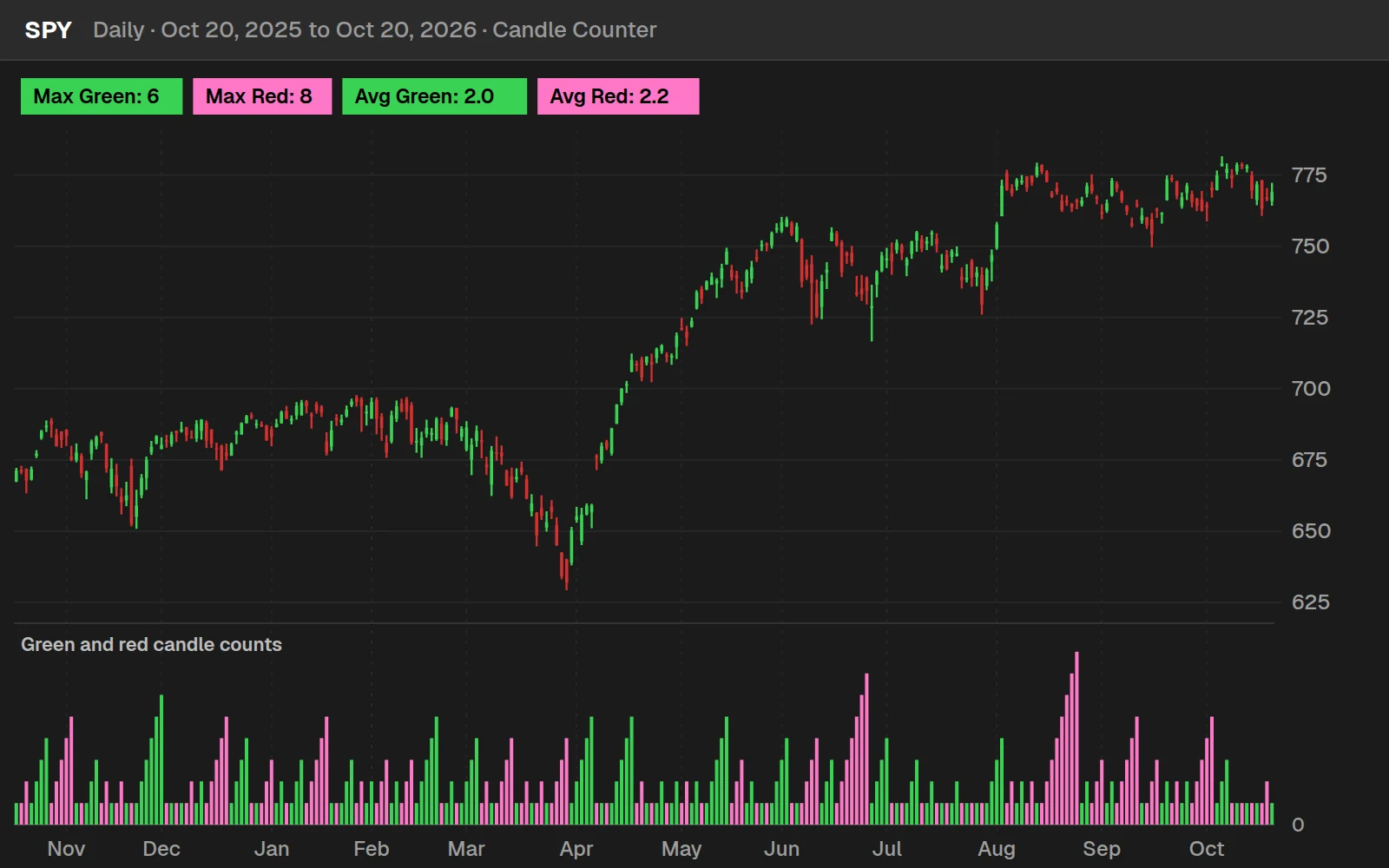
Over the last 252 sessions SPY's longest green run was 6 days and its longest red run 8. Change the chart's range and the labels change with it.
The longest green run since 2016
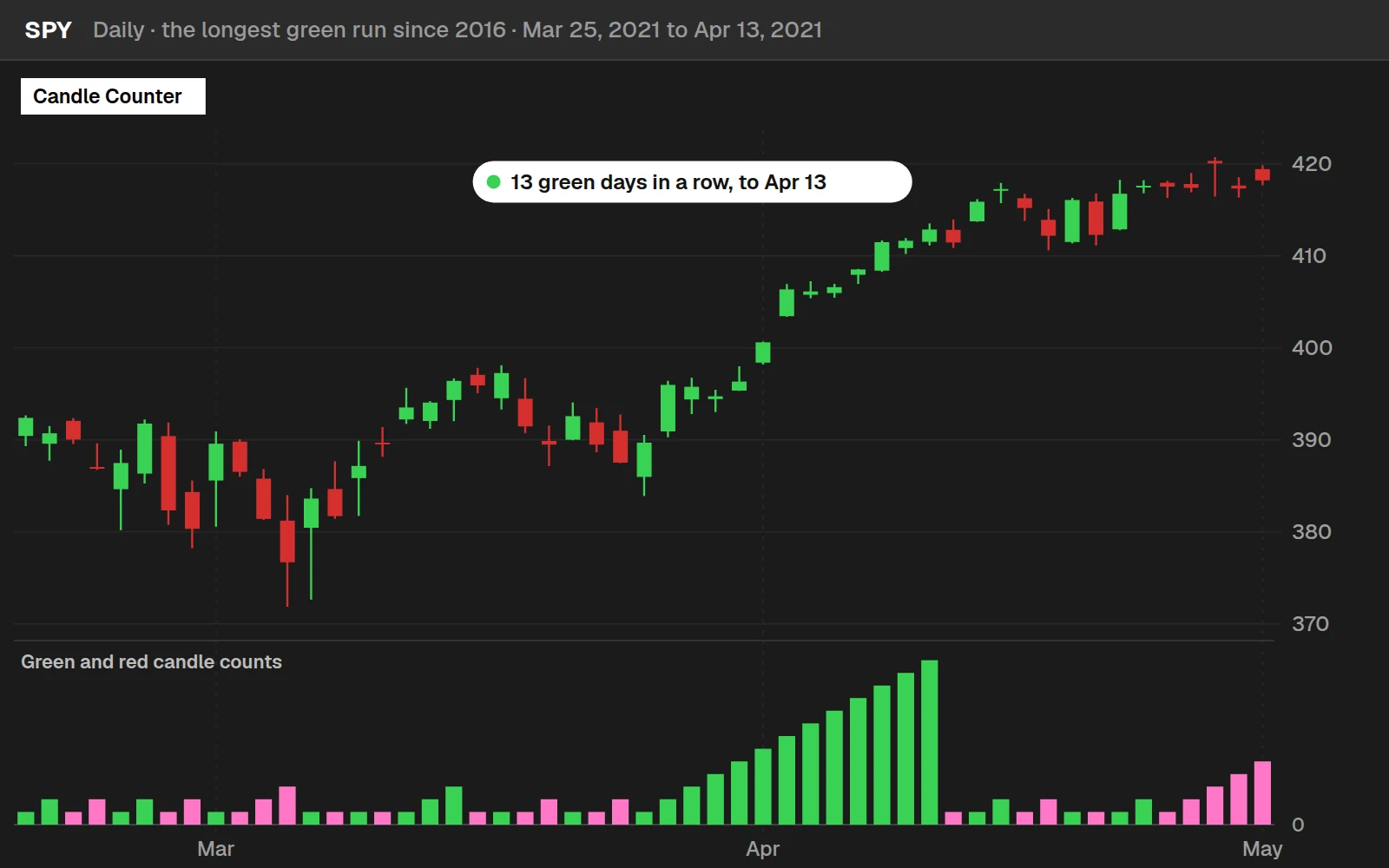
From Jan 4, 2016 to Oct 20, 2026, SPY's longest green run was 13 days, ending Apr 13, 2021, and its longest red run was 10 days, ending Dec 24, 2018.
After a green run, what was the next candle?
How often SPY printed another green candle after a run of a given length, against 54.1% for any day in the same years.
| Green days in a row | Times | Next candle green |
|---|---|---|
| 1 | 684 | 53.5% |
| 2 | 366 | 52.7% |
| 3 | 193 | 54.4% |
| 4 | 105 | 52.4% |
| 5 | 55 | 56.4% |
| 6 | 31 | 51.6% |
| 7 | 16 | 56.2% |
SPY daily, Jan 4, 2016 to Oct 20, 2026. Runs with fewer than 5 cases are left out. A long green run did not make the next candle much more likely to be red than any other day; the counter tells you where a run stands, not when it ends.
Full thinkScript code
Create a free account or sign in to copy all 46 lines and download the file.
Download
Download the Candle Counter indicator for ThinkOrSwim. The download is a .zip with one study file, TI_CandleCounterSTUDY.ts, the same code as the Code tab on this page. Import it as a study and it opens in a lower panel with the green and pink histograms and the 4 labels. If you haven't imported a file before, here's how to import into your ThinkOrSwim platform.
Questions
What is a candle counter indicator?
A candle counter counts how many candles of the same color print in a row. Ours is a free ThinkOrSwim lower study that counts green candles and red candles separately, plots each count as a histogram, and labels the highest and the average count for each color across the chart.
How do I add the candle counter to ThinkOrSwim?
Click the Studies icon, click Create, name the study and delete the starter code. Paste in the code from the Code tab, click OK and Apply. You can also import the downloaded TI_CandleCounterSTUDY.ts file. The study opens in its own panel under the price chart because the code starts with declare lower.
How does the candle counter reset?
The green counter adds 1 to its previous value on every green candle and resets to 0 on a red candle. The red counter does the opposite. So after 6 green candles the green histogram reads 6, and the next red candle drops it to 0 while the red histogram starts at 1.
Does a doji count as a green or red candle?
A doji counts as red. The code defines a red candle as a close at or below the open, so a candle that closes exactly at its open is red. That means a doji ends a green run, resets the green counter to 0 and adds 1 to the red counter.
What was the longest run of green days in the S&P 500 in the video?
With 20 years of daily SPY data loaded, the Max Green label read 13: a run of 13 green candles in a row that started on March 25. The video doesn't state the year. The longest red run on the same chart was 10 candles. Both numbers cover only the data loaded at the time.
How is the Avg Green label calculated?
Avg Green adds up the green counter on every bar and divides by the number of bars where it is 1 or more, which leaves out the 0s from red candles. That gives the average count a green candle sits at. A single run of 5 green candles would read 3, while its length is 5.
Why don't the candle counter histograms show on my chart?
Check that declare lower is at the top of the code. In the video the two plots showed nothing until I added it, because declare lower moves the study into its own panel under the price chart. Also check that both plots use the histogram painting strategy if you see lines instead of bars.
Can I use the candle counter on other symbols and timeframes?
Yes. The code has no symbol or timeframe setting, so it counts the candles of whatever chart you load. In the video I switched from SPY to QQQ, where Max Red was a little bigger, and mentioned the Dow, the Russell, Apple and Microsoft. On an intraday chart it counts intraday candles the same way.
Related tools
 Custom Candlestick Patterns
 How to Turn Candlestick Patterns into Code
 Automated trading: Candlestick Example
 Moving Average Clouds
 Smarter MACD
 Parabolic SAR
Get each new indicator by email
One email on Sundays with the week's new tool and its code. A free account also unlocks every .txt download.
No credit card. Unsubscribe anytime.