
 Fair Value Gap
 False Breakout Scanner
 Heiken Ashi Trend
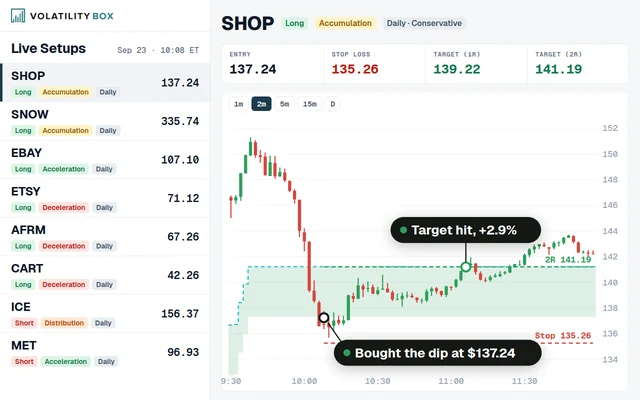 Stock Volatility Box
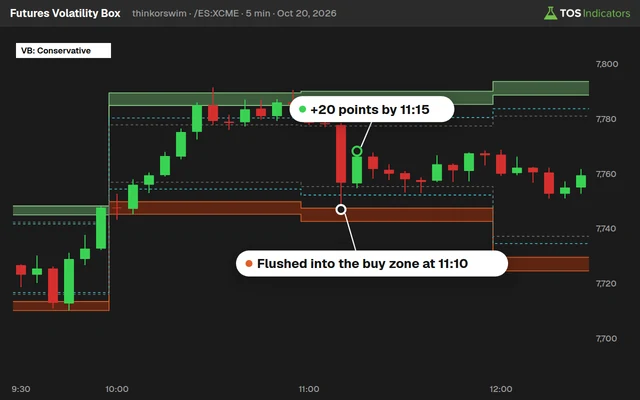 Futures Volatility Box
 ORB Setups
 Squeeze Setups
Unusual Volume Dashboard for ThinkorSwim: A Watchlist Column in Standard Deviations
Our unusual volume dashboard for ThinkorSwim adds a watchlist column that flags volume of 3+ standard deviations, green on up bars and red on down bars.
On this page
What it does
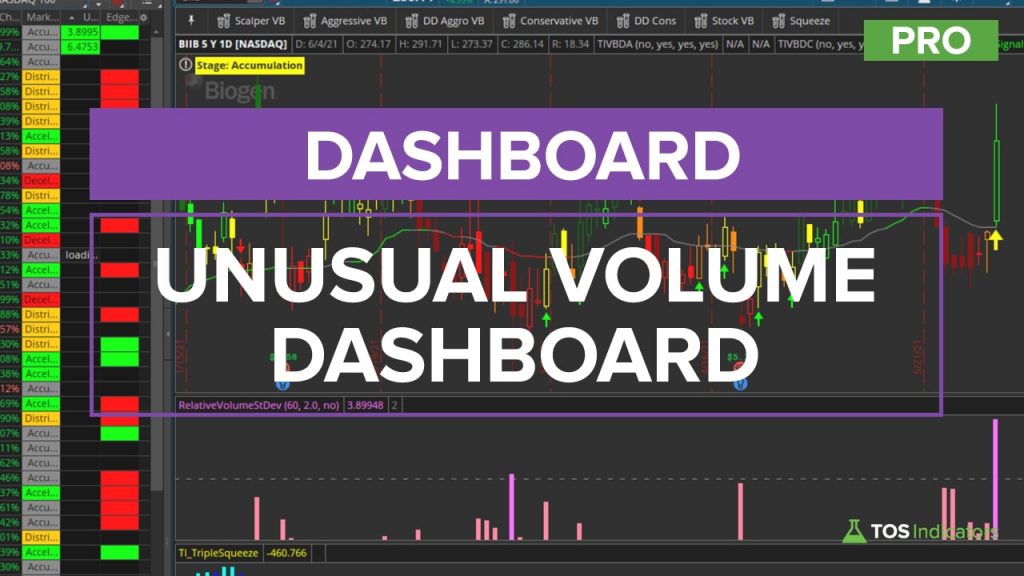
In this 15-minute members-only video I build an unusual volume dashboard for ThinkorSwim: a custom quote that adds a column to any watchlist and shows, with one click, which symbols have volume far above normal. It reads the same Relative Volume StDev study as our free unusual volume scans and prints the reading only when it reaches 3 standard deviations.
A cell turns green when the bar closed above its open and red when it closed below, and the rest of the column stays dark. I built it for Volatility Box members to run next to the Market Pulse and Edge Signals columns, so one watchlist shows the trend stage, the volume and the trigger.
Included with Volatility Box and the Bundle
The full walkthrough, the thinkScript code, the download and the build video for Unusual Volume Dashboard for ThinkorSwim: A Watchlist Column in Standard Deviations are for Volatility Box and Bundle members, along with every other members-only tool and the Squeeze Course.
Questions
What is the Unusual Volume Dashboard?
It is a custom quote for ThinkorSwim that adds an unusual volume column to any watchlist. It reads the RelVol plot of the Relative Volume StDev study and shows the reading only at 3 standard deviations or more, green when the bar closed above its open and red when it closed below. It is for Volatility Box members.
How do I add an unusual volume column to a ThinkorSwim watchlist?
Click the watchlist cog icon, choose Customize, open Custom Quotes and pick an empty slot. Click the scroll icon, go to the thinkScript Editor tab, name it Unusual Volume, set the aggregation and paste in the code. Or import the shared link from the download through Setup and Open shared item, which adds a new slot.
What do the green and red cells mean?
A green cell means volume was 3 or more standard deviations above normal on a bar that closed above its open, a bullish bar. A red cell means the same volume on a bar that closed below its open, a bearish bar. The number in the cell is the RelVol reading, such as 3.8 on Biogen in the video.
Why does my watchlist say custom expression limit reached?
ThinkorSwim shows that message once more than 1,500 custom quotes run at once. Each custom quote column counts once for every symbol in the watchlist, and option chain custom quotes count too. Remove custom quotes you have elsewhere or switch to a smaller watchlist. In the video, the Weeklies list hit the limit.
Why do some cells show NaN or Loading?
Loading appears while ThinkorSwim calculates the column and clears on its own. NaN appears where the reading is between 0 and the threshold, because no label covers that range. The black background keeps NaN from standing out, so only the green and red cells catch your eye.
Can I use the unusual volume dashboard on intraday charts?
Yes. The video uses daily bars, but you can change the custom quote's aggregation to 1 minute or another intraday period and choose whether to include extended hours. The code stays the same, and the 60-bar length then covers 60 bars of the period you choose.
How do I change the standard deviation threshold?
Edit the line def volumeThreshold = 3, the first line after the header comments. A lower number such as 2 colors more symbols, and a higher number such as 4 colors fewer. The labels and the background color all read the same variable, so one change updates the whole column.
How is the dashboard different from the unusual volume scans?
Both read the Relative Volume StDev study. The scans search the whole market and can alert you when unusual volume triggers. The dashboard shows the reading for every symbol in a watchlist you choose, so you can see which of the stocks you trade have unusual volume and sort them in one click.
Related
 Best Volume Indicators for ThinkOrSwim: Relative Volume, VWAP, and OBVResearch
 Market Pulse Indicator for ThinkOrSwim: Find the 4 Market StagesIndicators · Beginner-Friendly
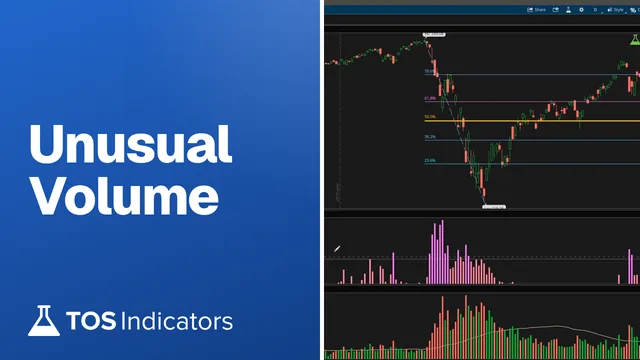 How to Build an Unusual Volume Scanner in ThinkOrSwimScans · Beginner
 How to Build a Relative Performance Dashboard in ThinkOrSwimDashboards · Beginner
 Hourly Sizzle Index Dashboard for ThinkOrSwimDashboards · Beginner
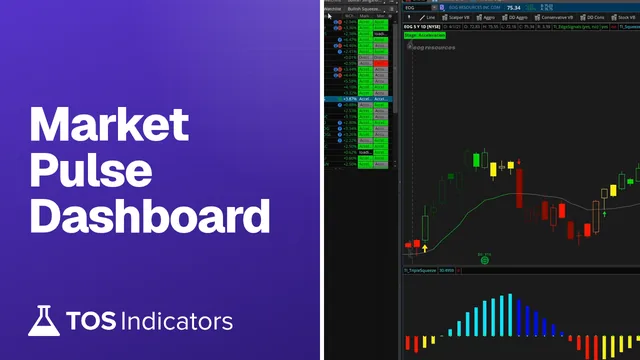 How to Build a Market Pulse Dashboard in ThinkOrSwimDashboards · Beginner