
 Fair Value Gap
 False Breakout Scanner
 Heiken Ashi Trend
 Stock Volatility Box
 Futures Volatility Box
 ORB Setups
 Squeeze Setups
On this page
Overview
In this tutorial I add one line of thinkScript that sets custom hours for any ThinkOrSwim indicator or backtester. The line defines a variable, marketHours, that is true only between a start time and an end time, 9:30 AM and 4:00 PM Eastern by default. Then I add it to the conditions that draw signals or place trades.
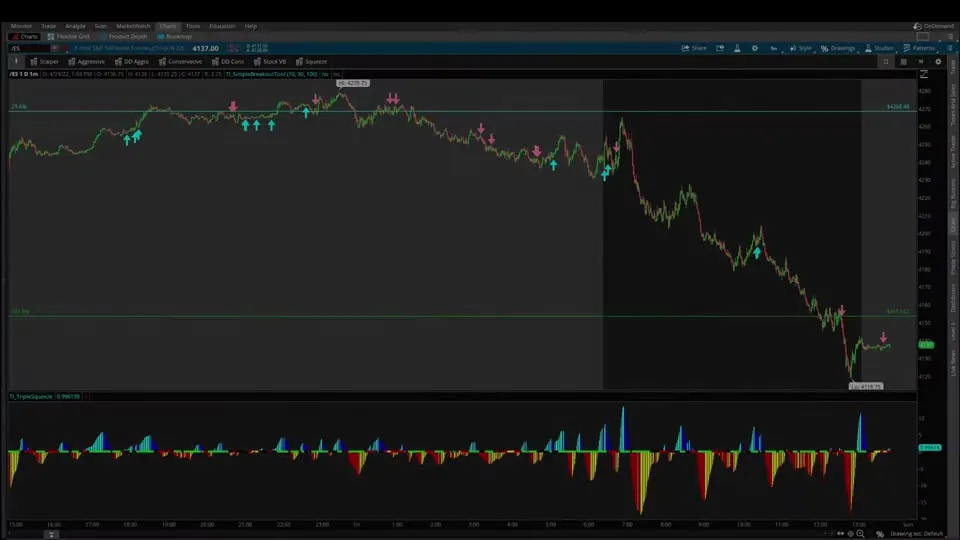
I show it on two of our free tools: the Moving Average Crossover Backtester, where it removes the after-hours trades from the P&L, and the Simple Breakout Tool, where it removes the after-hours arrows. It's for anyone who edits thinkScript and wants to test a strategy only during the hours they care about.
Key Takeaways
- Custom hours in thinkScript take 1 line:
def marketHours = if SecondsTillTime(startTime) <= 0 and SecondsTillTime(endTime) > 0 then 1 else 0; - With a start of 930 and an end of 1600, marketHours is 1 from the 9:30 AM bar up to the bar before 4:00 PM Eastern, and 0 at every other time.
- The filter works once you add marketHours to a condition: the opening AddOrder lines of a backtester, or the plots that paint an indicator's signals.
- Two inputs, startTime = 930 and endTime = 1600, let you change the hours from the studies menu without editing the code.
- In the video, the filter removed the extended-hours trades from the Moving Average Crossover Backtester and the extended-hours arrows from the Simple Breakout Tool.
Why Set Custom Hours in thinkScript
Custom hours in thinkScript limit a study or a strategy to the part of the day you care about. In the video I give 3 reasons to add them:
- Better backtests. Test and optimize a strategy for only the hours you trade.
- Cleaner P&L reports. Filter out after-hours activity so it doesn't affect the results.
- Specific market conditions. Replicate a part of the day more accurately, for example testing a strategy only during FOMC hours. Our guide to the 4 stages of FOMC volatility covers that part of the day.
The filter is the same line in indicators and in backtesters. Only the place where you add it changes.
The One Line That Sets Custom Hours
The custom hours line defines a variable, marketHours, that returns 1 inside your hours and 0 outside them. With the regular session written in, it reads:
This step’s code is free with an account. Create one or sign in.
Read it left to right. SecondsTillTime(930) is less than or equal to 0 once the opening bell at 9:30 has rung. SecondsTillTime(1600) is greater than 0 until the closing bell at 4:00 PM. When both are true, marketHours returns 1. Otherwise it returns 0.
Put the line near the top of the code, after the input variables and before the main logic starts. On its own the line changes nothing on the chart. It filters once you add marketHours to a condition, which the two examples below show.
How SecondsTillTime Works
SecondsTillTime is a built-in thinkScript function that returns the number of seconds from each bar's time until the time you give it. Times use the 24-hour clock with no colon, so 930 is 9:30 AM and 1600 is 4:00 PM, Eastern time. Before that time the result is positive, at that time it's 0, and after it the result is negative.
| Bar time (Eastern) | SecondsTillTime(930) | SecondsTillTime(1600) | marketHours |
|---|---|---|---|
| 8:00 AM | 5,400 | 28,800 | 0 |
| 9:30 AM | 0 | 23,400 | 1 |
| 12:00 PM | -9,000 | 14,400 | 1 |
| 3:55 PM | -23,100 | 300 | 1 |
| 4:00 PM | -23,400 | 0 | 0 |
| 6:00 PM | -30,600 | -7,200 | 0 |
The 9:30 bar counts, because the opening check is less than or equal to 0. The 4:00 PM bar doesn't, because the closing check needs more than 0. On a 5-minute chart, the last bar inside the window is the 3:55 bar.
ThinkOrSwim's thinkScript reference notes that SecondsTillTime always returns 0 on charts of 1 day or longer. On a daily chart, marketHours is 0 on every bar, so a filtered study shows no signals there. Use the filter on intraday charts.
Example 1: Custom Hours in a Backtester
The Moving Average Crossover Backtester is one of our free strategies, and in the video it was taking trades during extended hours, the shaded part of the chart, as well as the regular cash session. These are its two opening orders in the Moving Average Crossover Backtester download:
This step’s code is free with an account. Create one or sign in.
The fix takes 2 steps. I paste the marketHours line below the inputs, then add marketHours as one more boolean check in both opening orders, the long side and the short side:
This step’s code is free with an account. Create one or sign in.
After I clicked Apply, the trades in after-hours activity disappeared. The result was a P&L made only of trades taken inside the regular cash session hours.
The video adds the filter to the opening orders only. The two closing orders still fire on any bar, so a trade opened late in the session can close on an extended-hours crossover. If you want every exit inside your hours too, add marketHours to the closing orders. A trade then stays open until a crossover happens inside your hours.
Example 2: Custom Hours in an Indicator
The Simple Breakout Tool is our free indicator that paints up and down arrows, and in the video it was plotting signals in after-hours activity as well as regular hours. I paste the same marketHours line after its inputs, before the code starts. Then I add it to the two plots that paint the arrows, bullish and bearish:
This step’s code is free with an account. Create one or sign in.
The only change to each line is marketHours and right after if. After I clicked Apply, only the arrows during the cash session were left. The rest of the code is the same as the Simple Breakout Tool download.
Another Way to Write It: SecondsFromTime
SecondsFromTime is the mirror of SecondsTillTime: it counts the seconds since a time instead of until it. The result is 0 at that time and positive after it. Our free Supply Demand Edge indicator uses it in a regular-session check so the study works with extended hours on or off:
This step’s code is free with an account. Create one or sign in.
The difference is the first bar. secondsFromTime(0930) is 0 on the 9:30 bar, so the greater-than check leaves that bar out, while the video's less-than-or-equal check on SecondsTillTime keeps it. Both stop before the 4:00 PM bar, and && means the same as and in thinkScript.
How I Use Custom Hours
Custom hours are worth adding whenever a test should match the hours you trade. A backtest limited to the cash session keeps after-hours trades out of the P&L report, and an indicator without after-hours arrows shows only the signals from the session you trade.
For one more example, the video points to our free Moving Average Pullback Backtester tutorial. Its download takes the same edit: add marketHours to the conditions of its BUY_TO_OPEN and SELL_TO_OPEN orders.
Custom hours make a backtest closer to how you trade, and its results are still historical. Before trading a filtered strategy, decide where your stop goes and size the position so a stop-out costs a small, fixed share of your account.
Common Problems and Fixes
Most custom hours problems come from the chart's timeframe, the time format or a condition that didn't get the filter.
- Every signal disappeared on a daily chart. SecondsTillTime returns 0 on daily and longer charts, so marketHours is never 1. Use the filter on intraday charts.
- Trades still show in extended hours. Add marketHours to every opening order, long and short.
- Arrows still show on one side. Add marketHours to both the bullish and the bearish plot.
- An error after typing a time. Write 930 or 1600, with no colon.
- An overnight window never fires. The start has to come before the end on the same day. A window such as 1800 to 0200 never returns 1.
- The hours look shifted. The times are Eastern. Enter 930 for the open wherever you live.
If you're adding the filter to a study you haven't installed yet, start with our guide on how to import a study into ThinkOrSwim. For other errors, see how to fix bugs in thinkScript code.
Custom hours on real data
Drawn from real intraday bars with the code on this page, through the Oct 20, 2026 close. The post adds one line, def marketHours = if SecondsTillTime(startTime) <= 0 and SecondsTillTime(endTime) > 0 then 1 else 0, and puts marketHours into the opening order of a backtester. In the video it removed extended-hours trades. Our intraday data covers the regular session only, so here the same two inputs cut the session into windows instead: the Moving Average Crossover Backtester (8 EMA crossing the 21 EMA, long only, 100 shares) on SPY 5-minute bars, with the exit left unfiltered as in the post.
SPY, Oct 20: the filter at work
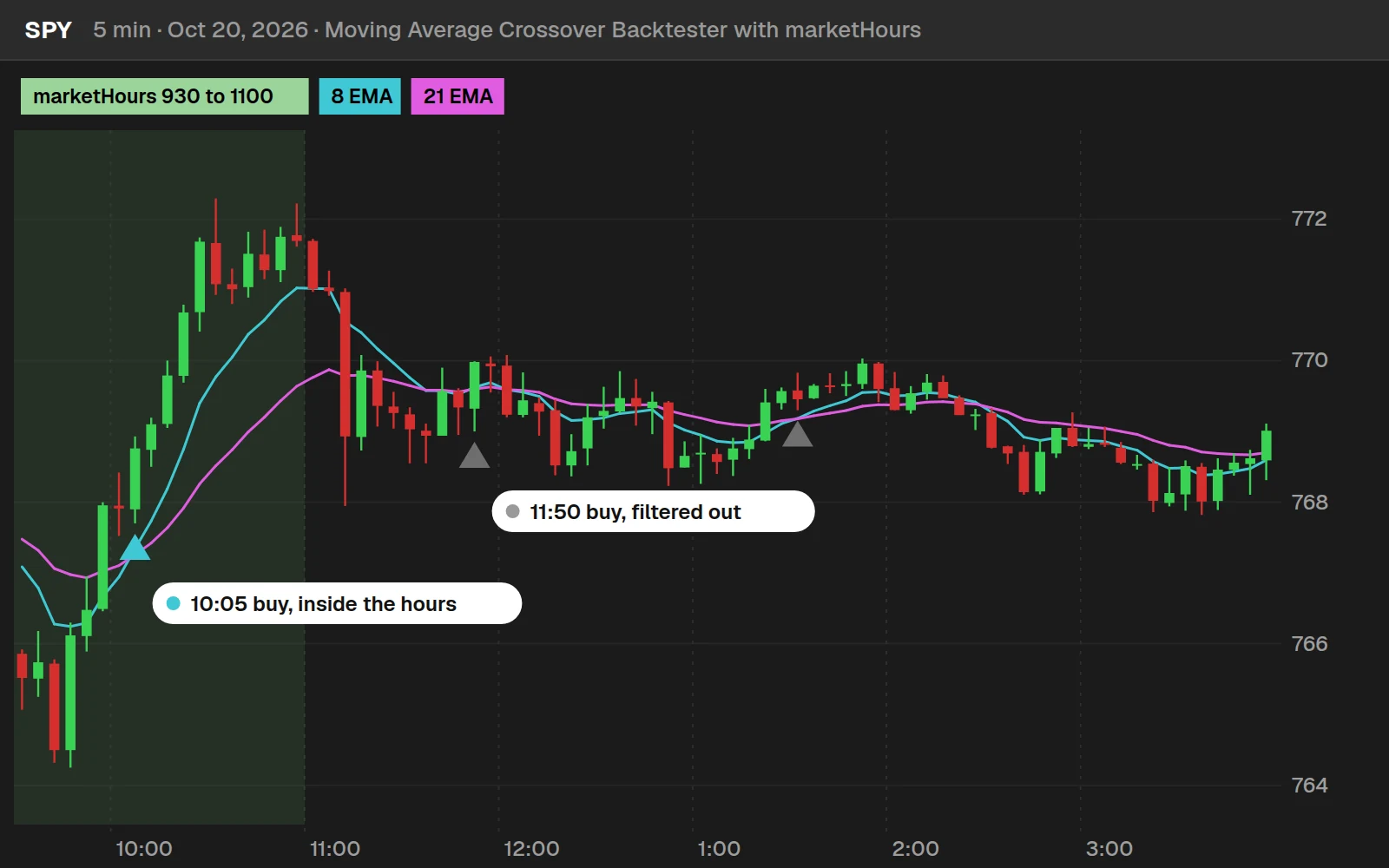
With the whole session allowed, the backtester bought SPY 3 times that day. With startTime 930 and endTime 1100, it kept the 1 buy before 11:00 and dropped the 2 after.
Three windows, Apr 1 to Oct 20, 2026
| Window | Trades | Won | Total, 100 shares |
|---|---|---|---|
| Whole session (930 to 1600) | 235 | 33% | $4,966 |
| First 90 minutes (930 to 1100) | 62 | 48% | -$1,154 |
| Midday on (1100 to 1600) | 173 | 28% | $6,120 |
SPY 5-minute bars, regular hours. Commissions and slippage left out. A position opened inside a window can close after it, or the next morning, because only the opening order checks marketHours, as in the post. The point is the filter, not the strategy: change two inputs and you test a different part of the day.
Full thinkScript code
Create a free account or sign in to copy all 20 lines and download the file.
Download
Download How to Set Custom Hours in thinkScript for ThinkOrSwim.
Video: How to Set Custom Hours in thinkScript, built line by line
6 minutes on YouTube.
 Watch on YouTube
Questions
How do I set custom hours in thinkScript?
Add one line below your inputs: def marketHours = if SecondsTillTime(930) is less than or equal to 0 and SecondsTillTime(1600) is greater than 0, then 1, else 0. Then add marketHours to the conditions that plot signals or open orders. Signals and trades then appear only between 9:30 AM and 4:00 PM Eastern.
What does SecondsTillTime do in thinkScript?
SecondsTillTime returns the number of seconds from a bar's time until the time you give it, written in 24-hour form such as 930 or 1600, Eastern time. It is positive before that time, 0 at it and negative after it. The thinkScript reference notes that it always returns 0 on charts of 1 day or longer.
How do I filter out after-hours signals in ThinkOrSwim?
Define marketHours with SecondsTillTime for 930 and 1600, then add "marketHours and" right after "if" in each signal plot. In the video, adding it to the bullish and bearish plots of the Simple Breakout Tool removed every arrow outside the regular cash session.
How do I add a time filter to a ThinkOrSwim backtester?
Paste the marketHours line below the strategy's inputs and add marketHours as one more condition in each opening AddOrder line, long and short. In the video, this removed the extended-hours trades from the Moving Average Crossover Backtester, so only cash-session trades counted in the P&L.
How do I change the custom hours from the studies menu?
Add two inputs, input startTime = 930 and input endTime = 1600, and use startTime and endTime inside the SecondsTillTime checks instead of fixed numbers. After you click Apply, both times appear in the study's settings, and you can change them there without opening the code.
What time zone does SecondsTillTime use?
SecondsTillTime uses Eastern time. That is why the video uses 930 for the 9:30 AM open and 1600 for the 4:00 PM close. If you live in another time zone, still enter the Eastern times for the hours you want to keep.
Why does my time filter remove every signal on a daily chart?
The thinkScript reference notes that SecondsTillTime always returns 0 on charts of 1 day or longer, so the end-time check, which needs a number greater than 0, is never true and marketHours stays at 0. The filter is meant for intraday charts. Leave it out of studies you run on daily and weekly charts.
What is the difference between SecondsTillTime and SecondsFromTime?
SecondsTillTime counts the seconds until a time, and SecondsFromTime counts the seconds since it. Our Supply Demand Edge indicator checks the session with secondsFromTime(0930) greater than 0 and secondsTillTime(1600) greater than 0. That version leaves out the 9:30 bar, while the version in this video keeps it.
Related tools
 Aggregation Periods - How to Plot Larger Time Frame Indicators on Smaller Time FramesthinkScript tutorial · Free
 Maximize Your Chart Space With This Simple TrickthinkScript tutorial · Free
 Custom Toolbars - Instantly 10x Your ProductivitythinkScript tutorial · Free
 How to Track Percent Change From OpenthinkScript tutorial · Free
 Add Label FunctionthinkScript tutorial · Free
 How to Import a thinkScript Study into ThinkOrSwimthinkScript tutorial · Free
Get each new indicator by email
One email on Sundays with the week's new tool and its code. A free account also unlocks every .txt download.
No credit card. Unsubscribe anytime.