
 Fair Value Gap
 False Breakout Scanner
 Heiken Ashi Trend
 Stock Volatility Box
 Futures Volatility Box
 ORB Setups
 Squeeze Setups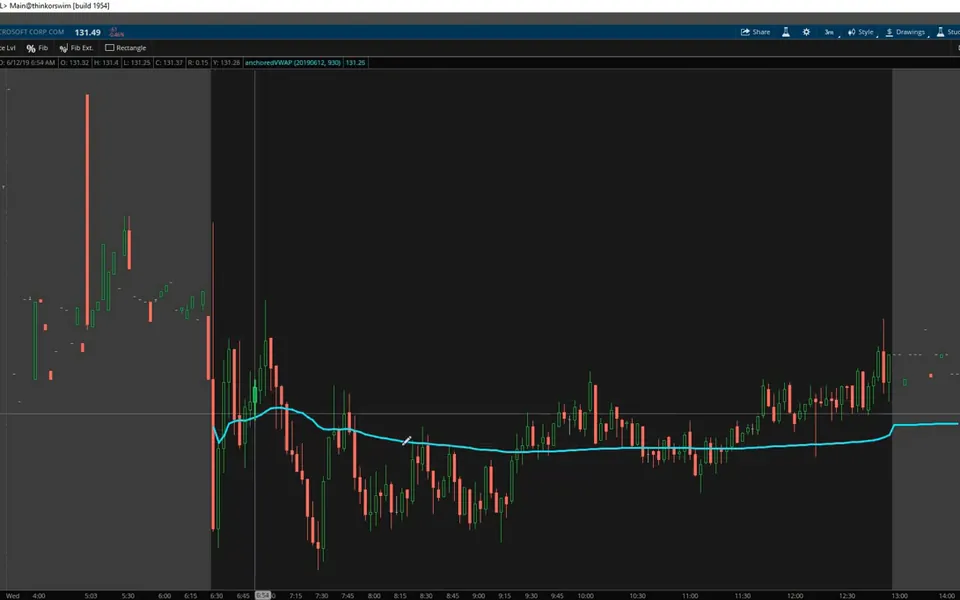
On this page
What you'll build
- Anchored VWAP
- Type
- Indicator
- Runs as
- Chart study
- Inputs
- 2
- Code
- 17 lines
- Video
- 8 minutes
- Level
- Beginner
In this tutorial I build an anchored VWAP indicator for ThinkOrSwim in about 8 minutes of thinkScript. Regular VWAP starts over at every session open. This version starts from a date and time you choose and keeps running across as many days as your chart shows.
This was the first episode of our How to thinkScript series. The indicator is 2 inputs, 2 true/false tests and 1 plot, so it's a good first study to build if you're new to thinkScript.
Key takeaways
- The anchored VWAP indicator for ThinkOrSwim plots one solid cyan line that starts at a date and time you choose, instead of starting over at every session open.
- VWAP weights each bar's typical price, (high + low + close) / 3, by that bar's volume. The study divides
TotalSumof price times volume byTotalSumof volume, counting only bars after the anchor. - The study has 2 inputs:
anchorDatein YYYYMMDD format andanchorTimein 24-hour Eastern time with no colon, so 930 is 9:30 a.m. - In the video, the line anchored to Microsoft's April 25, 2019 earnings date acted as resistance for weeks until price made a decisive move across it.
- I anchor to an intraday reversal for day trades, and to an earnings date or a major low like December 2018 for swing trades.
What it shows
What Is Anchored VWAP?
Anchored VWAP is a volume weighted average price that starts from a bar you pick. VWAP stands for volume weighted average price. It takes the typical price of each bar, (high + low + close) / 3, weights it by that bar's volume, and divides the running total by the running total of volume. Bars with more volume pull the average harder.
The VWAP built into ThinkOrSwim starts over every session. An anchored VWAP adds one more layer: you pick the starting point. I use 3 kinds of anchors:
- An intraday time. If you day trade, anchor to the bar where price reversed and track the average from there.
- An earnings date. If you swing trade, anchor to the company's last earnings date to see the average price since the report.
- A major low or high. Something like the December 2018 lows gives you a broader view of where price has bounced from.
For how VWAP compares with relative volume and OBV, see our guide to the best volume indicators for ThinkOrSwim. For a longer-range case study, our research on anchored VWAP from the March 2020 and June 2022 lows anchors the line to two major lows in SPY.
What the Indicator Does
The anchored VWAP indicator plots one solid cyan line, line weight 3, starting at your anchor bar. Before the anchor, nothing plots. After it, each new bar adds its price and volume to the average. The anchor date and time are inputs, so you change them in the study settings without touching the code.
Anchored VWAP on real charts
Drawn from real daily bars with the code on this page, through Oct 20, 2026. The study weights each bar's typical price, (high + low + close) / 3, by its volume, starting from the anchor. On a daily chart the anchor is a date; I anchored by rule to two closes in 2026: SPY's lowest close of the year, and its highest close before that low.
SPY: one VWAP from the top, one from the bottom
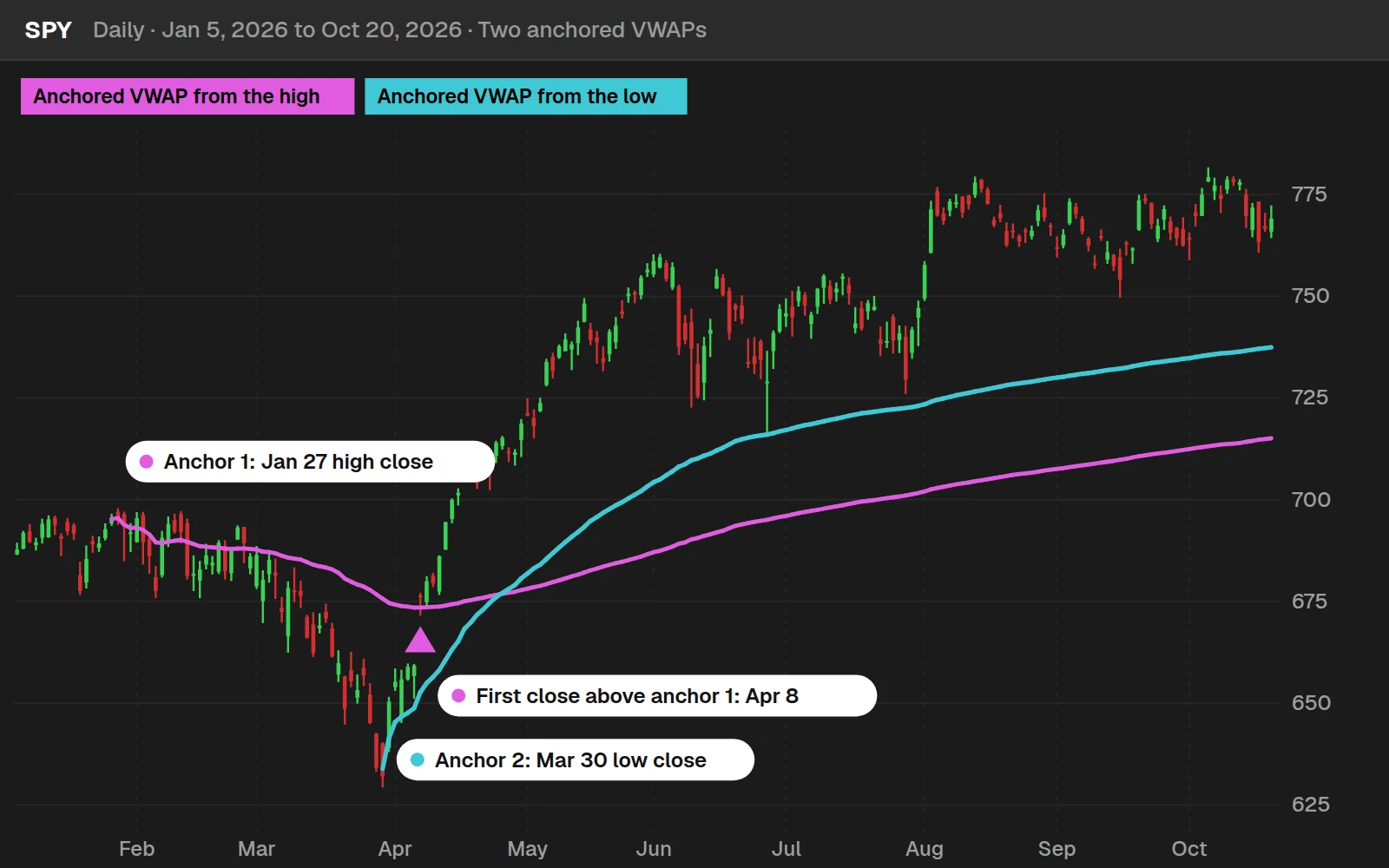
SPY's highest close before the low was $695.49 on Jan 27, 2026. Its lowest close of 2026 was $631.97 on Mar 30, 2026. The first close back above the VWAP anchored at the high came on Apr 8, 2026, at $676.01. Since the low, SPY closed below the VWAP anchored there on 0 of 141 days. On Oct 20, 2026 the two lines sat at $715.03 and $737.38.
14 ETFs against a VWAP anchored at their own 2026 low
| 2026 low close | Oct 20 close vs that VWAP | Days closed below it since | |
|---|---|---|---|
| SPY | Mar 30 | +4.3% | 0 |
| QQQ | Mar 30 | +2.9% | 5 |
| IWM | Mar 30 | -2.7% | 22 |
| DIA | Mar 27 | +3.0% | 2 |
| XLK | Mar 30 | +4.7% | 2 |
| XLF | Mar 27 | +3.2% | 6 |
| XLE | Jan 7 | +18.6% | 17 |
| XLV | Apr 29 | +12.2% | 4 |
| XLI | Mar 30 | -4.2% | 38 |
| XLY | Mar 30 | +0.3% | 60 |
| XLP | Jan 7 | +4.0% | 92 |
| XLU | Sep 28 | +3.2% | 1 |
| XLB | Jan 2 | +0.9% | 62 |
| XLRE | Mar 27 | -2.6% | 35 |
11 of the 14 closed above the VWAP anchored at their own 2026 low on Oct 20, 2026. An anchor at a low marks the average price paid since the turn; staying above it means the buyers since then are, on average, ahead.
Install it in ThinkOrSwim
Download the Anchored VWAP indicator for ThinkOrSwim. The download is a .zip with a STUDY.ts file you can import into ThinkOrSwim. It has the updated time check described in Step 3, with the anchor date and time as inputs. If you haven't added a custom study before, here's how to import an indicator into your ThinkOrSwim platform.
How to Install the Indicator in ThinkOrSwim
The anchored VWAP indicator is a custom study, so you add it through the Studies menu in ThinkOrSwim.
- Download the indicator, or copy the code from the Code tab on this page.
- In ThinkOrSwim, click the Studies icon, then click Create.
- Delete the placeholder code and paste in the anchored VWAP code.
- Give the study a name. I called mine
AnchoredVWAP. - Click OK, then Apply, and open the study settings to set your anchor date and time.
Load it on an intraday chart. In the video, the line didn't show on a daily chart anchored to the same day, because the anchor time needs intraday bars to land on. If you've never added a custom study, our walkthrough on how to import a thinkScript study into ThinkOrSwim covers the steps.
How the code works
The Inputs
The anchored VWAP study has 2 inputs, and you set both in the study settings window.
| Input | Default in the download | What it controls |
|---|---|---|
anchorDate | 20210122 | The date the line starts, written as YYYYMMDD. April 25, 2019 is 20190425. |
anchorTime | 730 | The time the line starts on that date, in 24-hour Eastern time with no colon. 930 is 9:30 a.m. and 1430 is 2:30 p.m. |
The defaults are placeholders. Change both to the event you want to measure from.
How the Code Works
The anchored VWAP code is the raw VWAP formula, 2 inputs, 2 true/false tests, an if/else inside each sum, and 3 style lines. I built it in that order in the video. It was the first episode of our How to thinkScript series, and you'll find the rest of our thinkScript tutorials on one page.
Step 1: Write VWAP in Its Raw Form
I start with the plain VWAP formula, the way ThinkOrSwim wants it. TotalSum adds a value up across every bar on the chart. I use plot instead of def so the value draws on the chart.
This step’s code is free with an account. Create one or sign in.
On its own, this line gives you VWAP from the first bar on your chart. The next steps tell it where to start.
Step 2: Add the Anchor Inputs
This step’s code is free with an account. Create one or sign in.
Making these inputs means you can re-anchor from the settings window. You don't have to edit the code each time the date or time changes.
Step 3: Test Whether Each Bar Is After the Anchor
Two true/false variables check each bar against the anchor. The date test is one comparison: is this bar's date on or after the anchor date?
This step’s code is free with an account. Create one or sign in.
In the video I wrote the time test as SecondsFromTime(anchorTime) >= 0, which checks the clock on every bar. The download uses an updated version that switches on once and stays on:
This step’s code is free with an account. Create one or sign in.
On the bar that starts at your anchor time, SecondsTillTime returns 0 and the test turns on. Before the anchor date it resets to 0.
After that, each bar copies the previous bar's value. The line keeps counting every bar after the anchor, on the anchor date and on every day that follows, including extended-hours bars if your chart shows them.
Step 4: Only Count Bars After the Anchor
Now both sums get an if/else. When both tests are true, the bar adds its price times volume to the top and its volume to the bottom. When either test is false, it adds 0, so bars before the anchor have no effect on the average.
This step’s code is free with an account. Create one or sign in.
Before the anchor, the bottom of the fraction is 0. ThinkOrSwim can't divide by 0, so it plots nothing there, which is why the line starts right at your anchor bar.
Step 5: Style the Line
This step’s code is free with an account. Create one or sign in.
A solid line, 3 times the default weight, in cyan so it stands apart from the candles.
Full thinkScript code
Create a free account or sign in to copy all 17 lines and download the file.
Examples
Example: Microsoft After Its April 2019 Earnings
The Microsoft example in the video shows anchored VWAP acting as resistance after an earnings report. I recorded the video on June 12, 2019. With the line anchored to 9:30 a.m. that day, it ran through the middle of a choppy session. Price crossed above and below it all day, and the line showed there was no clear direction.
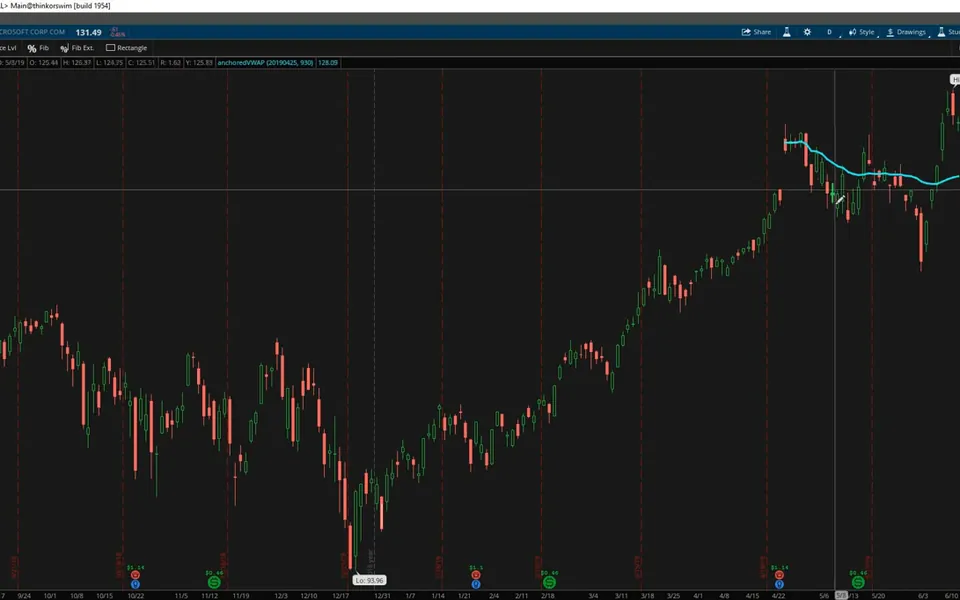
Then I changed the anchor date to 20190425, Microsoft's earnings date. For weeks after the report, the anchored VWAP acted as resistance: price pushed up against it, fell back, and pushed up again, until it finally made a decisive move across.
Once price broke through, I re-anchored to June 3 to use as the new reference while looking for longs. That line came in at about $127.44 on Microsoft.
Tips for Choosing an Anchor
The anchor point decides what the anchored VWAP line measures, so match it to the trade you are planning.
- Match the anchor to your timeframe. Anchor to an intraday reversal for day trades, and to an earnings date or a major low for swing trades.
- Re-anchor when the story changes. In the Microsoft example, the earnings anchor told the story until price broke through it. After that, the June 3 anchor was more useful.
- Pick a time your chart has a bar for. The time test looks for a bar that starts at exactly
anchorTime. On a 5-minute chart, 935 works and 932 doesn't.
Anchored VWAP gives you a level to read price against, and it doesn't tell you when to enter. Before you trade off the line, decide where your stop goes and size the position so a stop-out costs a small, fixed share of your account. To find stocks pulling back to the line, use our free anchored VWAP scans.
Customize and troubleshoot
Common Problems
Most anchored VWAP problems come from the anchor date, the anchor time or the chart timeframe.
- No line on the chart. Make sure you're on an intraday chart, the anchor date is inside the chart's date range, and a bar starts at your anchor time.
- Wrong date. The date has to be YYYYMMDD with no slashes. June 3, 2019 is 20190603.
- Wrong time. The time is Eastern, on a 24-hour clock, with no colon. If you're on Pacific time and want 7:30 a.m. your time, enter 1030.
If you edited the code and ThinkOrSwim shows an error, our tutorial on how to debug thinkScript code covers how to track it down. You can find more free studies on our indicators page.
Questions
What is an anchored VWAP?
Anchored VWAP is a volume weighted average price that starts from a date and time you choose, instead of starting over at every session open. It weights each bar's typical price, (high + low + close) / 3, by its volume and keeps a running average from your anchor bar forward.
How do I add an anchored VWAP to ThinkOrSwim?
Copy the code from the Code tab or the download. In ThinkOrSwim, click the Studies icon, then Create, paste in the code, name the study, and click OK, then Apply. Open the study settings to set your anchor date and time, and use an intraday chart.
What format do the anchor date and time use?
The date is YYYYMMDD, so April 25, 2019 is 20190425. The time is 24-hour Eastern time with no colon, so 930 is 9:30 a.m. and 1430 is 2:30 p.m. Both are inputs, so you change them in the study settings window without editing the code.
Why isn't my anchored VWAP line showing up?
Check 3 things: you are on an intraday chart, the anchor date falls inside the chart's date range, and a bar on your chart starts at exactly the anchor time. On a 5-minute chart, 935 works and 932 does not.
How is anchored VWAP different from regular VWAP?
Regular VWAP in ThinkOrSwim starts over every session. Anchored VWAP starts at the bar you pick and keeps averaging across every day after it, so you can measure the average price since an earnings report or a major low. In the video, I anchored it to Microsoft's April 25, 2019 earnings date.
Where should I anchor VWAP?
For day trading, anchor to the time of an intraday reversal. For swing trading, anchor to an earnings date or a major low, like the December 2018 lows. Re-anchor when price breaks through the line and a newer swing becomes the better reference.
Can I put more than one anchored VWAP on a chart?
Yes. Add the study again and give each copy its own anchor date and time, for example one at the last earnings date and one at today's open. Change the plot color in the settings of one copy so you can tell them apart.
Does the anchored VWAP count pre-market and after-hours bars?
In the download version, once the anchor bar prints, every later bar on your chart counts toward the average. If your chart shows extended hours, those bars are included. Turn extended hours off in the chart settings if you only want regular-session bars.
Related tools
 Anchored VWAP Scans
 Cumulative Advance Decline Trading System
 Supply Demand Edge
 VScore
 Market Pulse
 Simple Breakout Tool
Get each new indicator by email
One email on Sundays with the week's new tool and its code. A free account also unlocks every .txt download.
No credit card. Unsubscribe anytime.