
 Fair Value Gap
 False Breakout Scanner
 Heiken Ashi Trend
 Stock Volatility Box
 Futures Volatility Box
 ORB Setups
 Squeeze Setups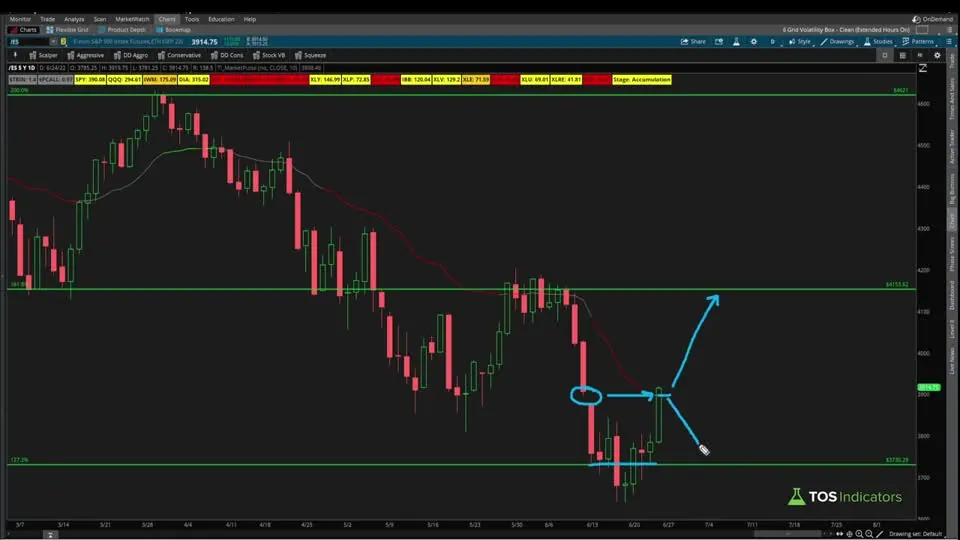
On this page
Overview
In this video I walk through an update to our free Utility Labels indicator for ThinkOrSwim, a row of colored labels that shows the market stage of the major indices and sectors on any chart. Two things changed: the length dropped from 21 to 10, and the labels now show all 4 Market Pulse stages instead of grouping them into 3.
Then I read the labels the way I use them: which sectors carry the most weight in the S&P 500, what color each one was, and what that told me about the rally at the time. It's for anyone who uses the Market Pulse and wants the same read on the whole market from one chart.
Key Takeaways
- The Utility Labels update changed the length from 21 to 10, the default length in the Market Pulse, to account for short-term volatility.
- After the update, the Utility Labels show all 4 Market Pulse stages: green for acceleration, red for deceleration, yellow for accumulation and orange for distribution.
- Before the update, accumulation and distribution shared one yellow label.
- The Utility Labels are free and come in the same download as the Market Pulse indicator, on the Market Pulse page.
- In the video, none of the 4 largest S&P 500 sectors had a green label: technology, health care and consumer discretionary were yellow, and financials (XLF) were red.
What Is the Utility Labels Indicator?
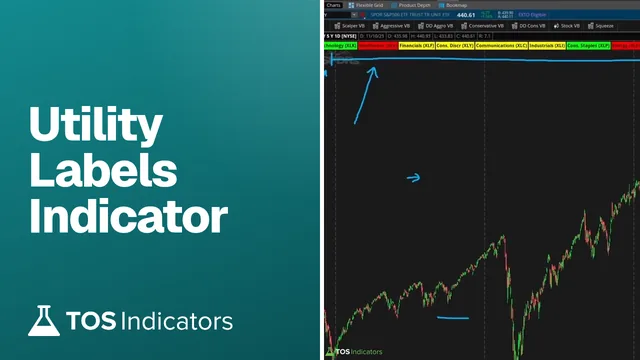
The Utility Labels indicator is a free ThinkOrSwim study that prints a row of colored labels, one per symbol, each showing that symbol's market stage. It gives a quick overview of the major markets, from the broad indices down to the sector level, on whatever chart you have open.
Each label runs its own copy of the Market Pulse logic on that symbol's close and volume: the 8, 21 and 34-bar volume-weighted moving averages and a variable moving average (VMA). Our Market Pulse indicator tutorial explains that logic in full, and its download holds both studies.
The current download groups the labels like this. Each group has its own on/off input, a feature added after this video.
| Group | Labels | On by default |
|---|---|---|
| Index | SPY, QQQ, DIA, IWM | No |
| Sectors | XLK, XLV, XLF, XLY, XLC, XLI, XLP, XLE, XLU, XLB, XLRE | Yes |
| Transport | $DJT | No |
| Semiconductor | SOXX | No |
| TRIN | NYSE TRIN | No |
| Put/call | 10-period average of $PCALL | No |
What Changed in the Utility Labels Update
The Utility Labels update made 2 changes: a shorter length and a fourth label color.
The Length: 21 to 10
The length changed from 21 to 10 to account for the short-term volatility the market was showing. 10 is also the default length in the Market Pulse, so the two tools now line up, with a slightly shorter-term bias. The length sets each symbol's VMA. The VWMA lengths of 8, 21 and 34 are fixed in the code.
Four Stages Instead of Three
The bigger change is that the labels now show all 4 market stages. The old version had a green label when the market was going up (acceleration) and a red label when it was going down (deceleration). Any time the market was in chop, accumulation or distribution, it lumped both into one yellow label.
The new version splits the chop. Accumulation stays yellow and has a little more bullish bias. Distribution turns orange and has more bearish bias. The red and green labels stay the same.
| Setting | Before the update | After the update |
|---|---|---|
| Length | 21 | 10 |
| Acceleration | Green | Green |
| Deceleration | Red | Red |
| Accumulation | Yellow | Yellow |
| Distribution | Yellow | Orange |
How Each Label Picks Its Color
Each Utility Labels label picks its color with one AddLabel line. This is the Technology (XLK) label from the current download:
This step’s code is free with an account. Create one or sign in.
The label runs 4 tests in order. Green: the VWMAs are stacked bullishly and price is at or above the VMA. Light red: they're stacked bearishly and price is at or below the VMA. Yellow: price is at or above the VMA without a bullish stack. Orange: anything left, which means price is below the VMA.
The yellow and orange split depends on how price is reacting to the VMA line. The tests read variables from the symbol's own block of code. These lines come from XLK's block in the download, with the VMA calculation between them left out:
This step’s code is free with an account. Create one or sign in.
The price and volume come from XLK itself, so the stage is XLK's even when the chart shows another symbol. Every symbol has a block like this with its own name in front of each variable. Our AddLabel tutorial covers the label function itself.
How to Download the Utility Labels and Change the Length
The Utility Labels download sits on the Market Pulse page, because we built the labels as part of the Market Pulse tutorial. The download there is one zip with both the Market Pulse and the Utility Labels indicators.
- Open the Market Pulse page and click the download button.
- Import TI_UtilityLabelsSTUDY.ts with our guide on how to import a study into ThinkOrSwim.
- Add the study to any chart. The labels print in a row on that chart.
In the video, the length sat on line 20 of the code, set to 10. I showed that you can set it back to 21, or turn the line into an input so the length shows in the studies menu. In the current download it's already an input, on line 21:
This step’s code is free with an account. Create one or sign in.
Change it in the study's settings and every label uses the new length. The current download also has 3 smaller files with only the index, sector or internals labels, if the full study feels slow on your machine.
Changes Since This Video
The Utility Labels download has changed again since this update. The later version is covered in our Utility Labels tutorial on sector performance and internals: it added an on/off input for each group of labels and the 3 split files.
This step’s code is free with an account. Create one or sign in.
Only the sectors are on by default. The TRIN and put/call labels changed too: TRIN now checks the bar's high and low, and the put/call red level moved from 0.85 to 0.75 in November 2023. The Market Pulse page has the full before-and-after table, and the Code tab on this page has the current file.
Reading the Labels: Start With the Biggest Sectors
The S&P 500 is weighted by sector, so the largest sectors carry the most weight in a move in SPY. In the video I pulled up two resources on the sector weights. The 4 largest, in order, were information technology, health care, consumer discretionary and financials.
For the SPY label to go from yellow to green, I'd want participation from those 4 sectors first. This is what the labels showed in the video:
| Label | Color in the video | Stage |
|---|---|---|
| S&P 500 (SPY) | Yellow | Accumulation |
| Information technology | Yellow | Accumulation |
| Health care (XLV) | Yellow | Accumulation |
| Consumer discretionary (XLY) | Yellow | Accumulation |
| Financials (XLF) | Red | Deceleration |
| Energy (XLE) | Dipping into orange | Distribution |
None of the 4 was green, and none looked close to turning green. The one clear bias was XLF, red and to the downside. Health care being yellow rather than orange was a good sign, but it was still chop.
What the Labels Told Me in the Video
The S&P 500 had rallied, hit its target and then fallen into the 1.272 Fibonacci extension. Friday's move had filled the gap near 390 on SPY that I'd been watching. The question was what came next: a run up to the S&P 500's 1.618 extension near 4153, or a move back down to the 1.272 near 3730.
With the big sectors yellow, XLF red and energy dipping into orange, my bias leaned toward a retest of the 1.272 extension before any continuation. Friday's candle looked more like an exhaustive move to me than a continuation move, though it was a strong candle and price action would decide. A break above that candle would put the upside target in play.
The labels also showed what would change my read. If the rally were to continue, the labels would need to turn green, starting with the top 4 sectors, and XLF would need to move from red to at least yellow. For more on trading Fibonacci levels, see our Fibonacci trading course.
How I Use the Utility Labels
The Utility Labels are my compass for the broad market. I check the largest sectors first, then the rest, and watch for color changes that would confirm or deny a move in the index. In the video, that's what I was watching for: sectors rolling over to green would have pointed to a longer relief rally, maybe one lasting several weeks.
The labels are a read on market stage and a filter, not an entry signal by themselves. Decide where your stop goes before you trade the index, and size the position so a stop-out costs a small, fixed share of your account.
For the same stages across a whole watchlist, use our free Market Pulse Dashboard. Our research on how to spot sector rotations and how to track sector performance and market internals covers more ways to read the sectors.
Common Problems and Fixes
Most Utility Labels problems come from an old copy of the study or from the group inputs.
- Chop always shows yellow, never orange. You have the version from before this update. Download the current file from the Market Pulse page.
- Only the sector labels show. The other groups are off by default in the current download. Turn on showIndex, showTrin and the rest in the study's settings.
- A label disagrees with the Market Pulse on the same symbol. Check the lengths. Both use 10 now, and older copies of the labels used 21.
- The labels change when you switch charts. The labels use the timeframe of the chart they're on, so a 5-minute chart shows 5-minute stages.
- The chart feels slow. Load one of the 3 smaller files instead of the full study.
The labels on real data
Drawn from real daily bars with the code on this page, through Oct 20, 2026. Each label is the Market Pulse stage of one fund: green for Acceleration, light red for Deceleration, yellow for Accumulation and orange for Distribution. I ran the code's 16 index, sector and semiconductor labels; the TRIN, put/call and transport labels need data we do not have.
The labels on Oct 20, 2026, and what the length change does
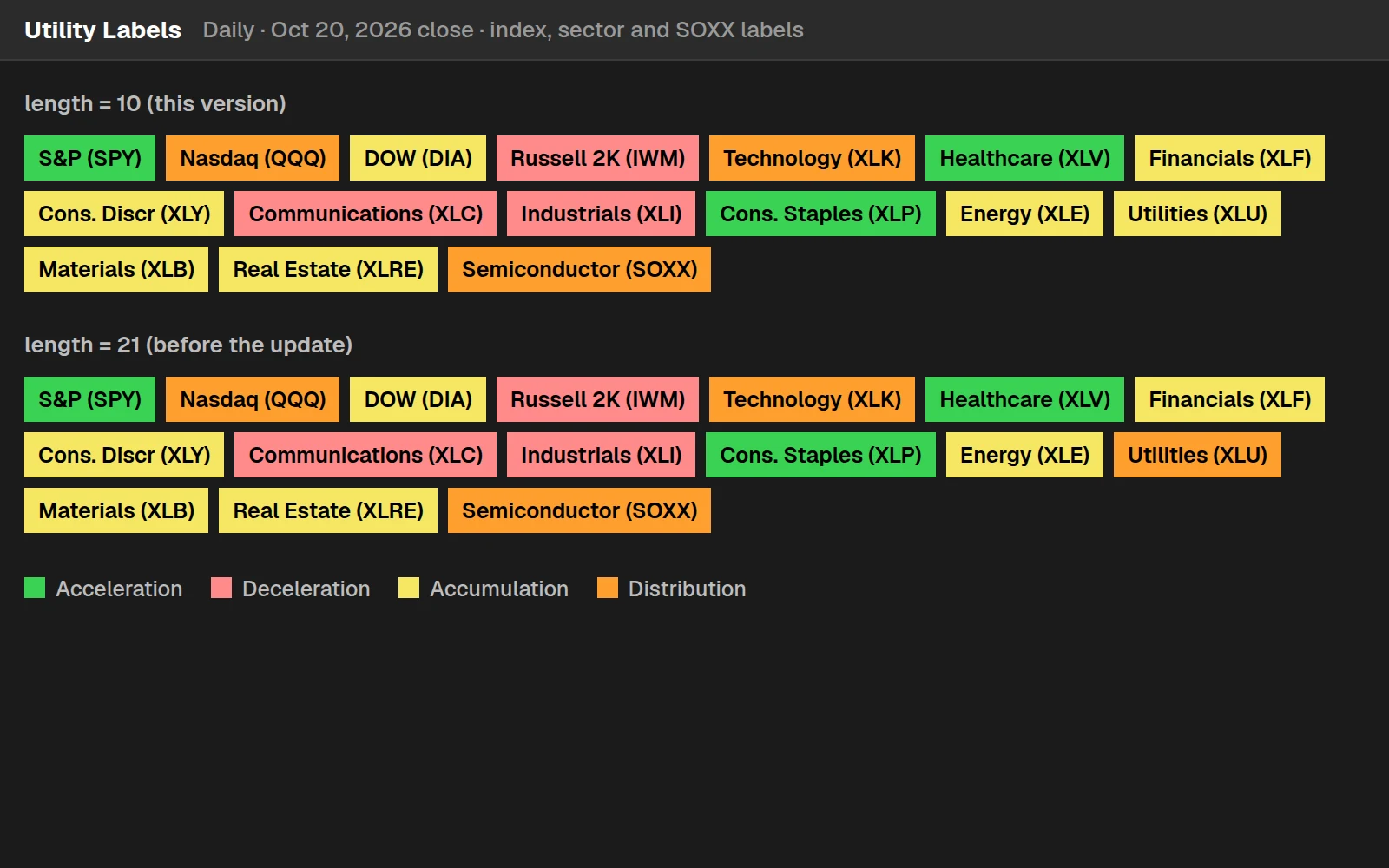
With length 10, 3 labels were green, 7 yellow, 3 orange and 3 light red. With the old length of 21, 1 of the 16 read differently: Utilities (XLU). The length sets the VMA line only; the three volume-weighted averages behind the trend stay at 8, 21 and 34.
By the numbers
The 16 labels over the last 250 sessions to Oct 20, 2026, compared day by day with length 10 and length 21.
Full thinkScript code
Create a free account or sign in to copy all 499 lines and download the file.
Download
Download Utility Labels Indicator Updated for ThinkOrSwim.
Questions
What is the Utility Labels indicator for ThinkOrSwim?
The Utility Labels indicator is a free ThinkOrSwim study that prints a row of colored labels showing the Market Pulse stage of the major indices and sectors, plus optional TRIN, put/call, transport and semiconductor labels. It gives a quick overview of the broad market on any chart.
What changed in the Utility Labels update?
Two things changed. The length dropped from 21 to 10, the Market Pulse default, to account for short-term volatility. And the labels now show all 4 market stages: accumulation stays yellow, distribution turns orange, and acceleration and deceleration stay green and red. Before, both choppy stages shared one yellow label.
What do the Utility Labels colors mean?
Green is acceleration: the 8, 21 and 34-bar VWMAs are stacked bullishly and price is at or above the VMA. Red is deceleration, the bearish mirror. Yellow is accumulation, price at or above the VMA without a bullish stack. Orange is distribution, price below the VMA.
Why did the Utility Labels length change from 21 to 10?
The length went to 10 to account for the short-term volatility the market was showing, giving the labels a slightly shorter-term bias. 10 is also the default length in the Market Pulse indicator, so the labels and the Market Pulse now line up on the same symbol.
Where do I download the Utility Labels indicator?
The Utility Labels come in the Market Pulse download, because we built them as part of the Market Pulse tutorial. Open the Market Pulse page on our site and click the download button. You get both the Market Pulse and the Utility Labels indicators, and both are free.
How do I change the length in the Utility Labels?
In the current download, length is an input set to 10 on line 21 of the code, so you can change it in the study's settings. In the video it sat on line 20, and I showed how to turn it into an input. Set it to 21 if you want the old behavior back.
How do I read the sector labels for the S&P 500?
Start with the largest sectors by weight: in the video, information technology, health care, consumer discretionary and financials. For the SPY label to go from yellow to green, I want those sectors turning green first. In the video none were green and XLF was red.
What is the difference between the Utility Labels and the Market Pulse?
The Market Pulse plots the stage of the symbol on your chart, with a VMA line, a label and optional bubbles. The Utility Labels run the same logic on other symbols, such as SPY and the sector ETFs, and show each one as a colored label on whatever chart you have open.
Related tools
 Relative PerformanceIndicator · Free
 Relative Performance DashboardDashboard · Free
 Utility Labels Indicator - Quickly Track Sector Performance and InternalsthinkScript tutorial · Free
 Add Label FunctionthinkScript tutorial · Free
 How to Set Custom Hours in thinkScriptthinkScript tutorial · Free
 Aggregation Periods - How to Plot Larger Time Frame Indicators on Smaller Time FramesthinkScript tutorial · Free
Get each new indicator by email
One email on Sundays with the week's new tool and its code. A free account also unlocks every .txt download.
No credit card. Unsubscribe anytime.